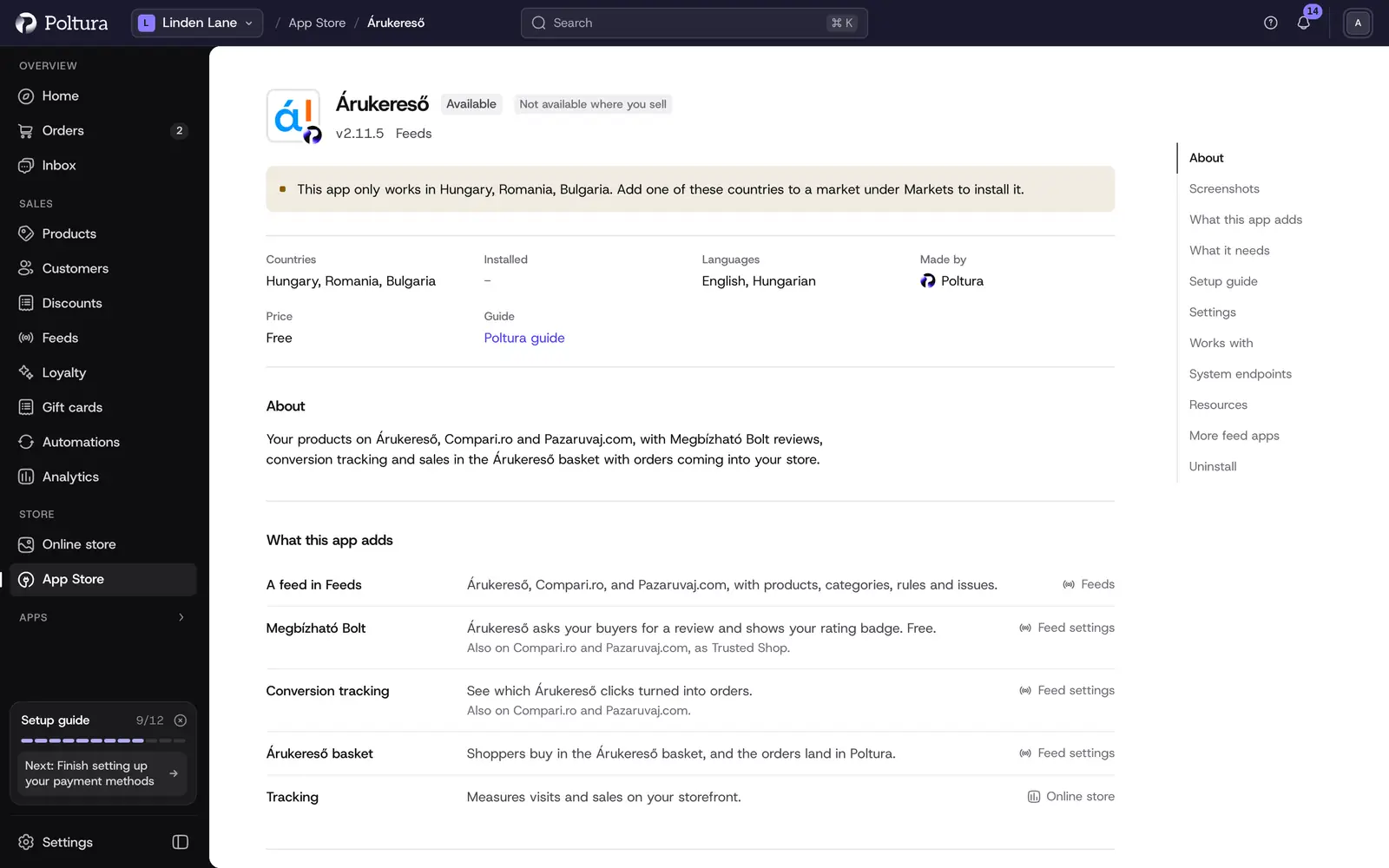
The Árukereső app sends your products to three price comparison sites run by the same group: Árukereső in Hungary, Compari.ro in Romania and Pazaruvaj.com in Bulgaria. Each country is a feed of its own, with the prices, language and shipping of that market. The app also brings the Megbízható Bolt review program, conversion tracking and, in Hungary, the Árukereső basket.
The app installs on every plan and has no page of its own. You set it up and manage it in Feeds. Selling in the Árukereső basket needs "Marketplaces with orders" on your plan. See Plan and billing.
Before you start
- The country of the site in one of your markets: Hungary for Árukereső, Romania for Compari.ro, Bulgaria for Pazaruvaj.com.
- You need a shop account on the site. The site calls it Partner Portal. Opening one is free, you pay only for clicks.
- For Megbízható Bolt (called Trusted Shop on the other two sites) you need the WebAPI key, 32 letters and digits. In the Partner Portal it is under Megbízható Bolt Program (Compari.ro: Magazin de încredere, Pazaruvaj.com: Коректен магазин).
- For conversion tracking you need the key under Konverziómérés (Compari.ro: Măsurarea conversiilor, Pazaruvaj.com: Измерване на конверсии).
- For the Árukereső basket, Árukereső has to approve your shop for its Marketplace first.
Set up Árukereső
Open the App Store, find Árukereső and select Install. See App Store.
Open Feeds and select Add feed. Under Ready to set up, choose Árukereső, Compari.ro or Pazaruvaj.com.
On Market, choose the market the feed is for.
On What we send, go through the checklist: delivery cost, delivery time, barcodes (EAN) and, for Hungary, matched categories. Fix what is marked as to do, then select Create the feed.
On Feed address, copy the address. Sign in to the Partner Portal, open Megjelenítési beállítások, find Terméklista forrása, paste the address and save. Compari.ro uses the same Partner Portal. On Pazaruvaj.com the page is called Настройки на показване.
Back in Poltura, select I have pasted it.
On Done, turn on Megbízható Bolt and conversion tracking if you want them. You can also do this later on the feed's Settings tab.
Árukereső downloads the feed every day at 16:00. Compari.ro downloads it once a day and Pazaruvaj.com every day after 17:00 Sofia time. New products show up on the site within 5 to 8 working days. The general steps of a feed are in Add and set up a feed.
Settings
You find these on the feed's Settings tab. Each feed has its own.
Megbízható Bolt
After each order the site emails your buyer a short survey and shows your rating as a badge. It is free. Poltura passes each order on from its server, with the buyer's email and the products bought, so the invitation needs no cookie and no code on the buyer's page.
- Megbízható Bolt: switches the program on for this feed.
- Megbízható Bolt key: the WebAPI key from the Partner Portal.
- Show the rating badge: turn it on only after your first review. Until then the site's code answers with an error.
- Rating badge position: Bottom right, Bottom left, Right edge or Left edge.
Conversion tracking
- Conversion tracking: tells the site which clicks became orders.
- Conversion tracking key: the key from the conversion measurement page of the Partner Portal.
The site's measurement code runs on product pages, where it keeps the click that brought the shopper, and after each order, where it reports the order number, the products by the ids your feed sends, their prices and the products' total without delivery. It runs only for shoppers who accept marketing cookies, and never on the checkout steps. Each site counts orders in its own currency: Árukereső in forints, Compari.ro in lei, Pazaruvaj.com in euros.
Logo and Árukereső Shopping
- Backlink code: paste one of the site's backlink codes as it is. Poltura shows it unchanged in the footer. Árukereső adds 5% to each top-up while one sits unmodified on your home page.
- Show my products in Árukereső Shopping (Hungary only, on by default): Árukereső advertises your products in Google Shopping from the same feed and charges 10% on that ad spend. Products need a barcode.
Árukereső basket
Hungary only. Shoppers buy in Árukereső's own basket and the orders arrive in your Orders. See Marketplace orders.
- Sell in the Árukereső basket: turn it on once Árukereső has approved your shop.
- Árukereső API key: in the Partner Portal open Marketplace API beállítások, then API kulcs beállítások, and copy the key under API kulcs a befelé jövő hívásokhoz.
- Key for Árukereső’s calls: copy it from Poltura into API kulcs a kifelé menő hívásokhoz and select Mentés.
- Products Availability API URL, Payment Delivery API URL and Order Send API URL: copy each into the tab of the same name in the Partner Portal. On the first two choose Éles, then select Mentés.
- Shipping methods at Árukereső checkout: pair your shipping methods with Home delivery, Pickup point or parcel locker and Personal pickup at your shop. The Árukereső checkout offers home delivery only for now.
- Payment methods at Árukereső checkout: pair your payment methods with Pay on delivery, Card payment online and Bank transfer in advance.
- Warranty in months: shown with every product in the basket. Enter 0 for no warranty.
What shoppers see on your storefront
A live feed adds these by itself, on the storefront of the feed's own market. You see and switch them under On your storefront on the Settings tab.
- The rating badge on every page and the backlink in the footer, in the Partner badges section you can arrange in the Customizer.
- Conversion tracking on product pages and after an order. It runs only for shoppers who accept marketing cookies, see Cookie consent.
- Nothing on the order page for the review request: Poltura passes the order on from its server.
- A paragraph in your privacy notice for Megbízható Bolt and one for conversion tracking, and a box at checkout where the buyer can refuse the review request.
If something goes wrong
- The rating badge shows nothing. The site shows the badge only after your first review. Keep Show the rating badge off until then.
- No review requests go out. Your shop has no published privacy notice, or the Megbízható Bolt paragraph is switched off. The checklist shows Privacy notice until this is fixed. Orders in another currency than the site's are not sent either. The Status row under Megbízható Bolt shows when the last order was passed on, and whether the site refused it.
- The Partner Portal counts no conversions. Conversions count only for shoppers who accepted marketing cookies, in the site's currency, on your own domain. Check that the key matches the one under Konverziómérés.
- A product disappeared from the site for days. Changing the name, brand, part number, barcode or category of a listed product, even by one character, makes the site process it again as a new product. This takes 5 to 8 working days.
- Used or refurbished. These sites list only new products, so such products stay out of the feed.
- No manufacturer part number in an electronics category. Árukereső matches electronics, computers and household appliances by the manufacturer's part number. Add the one on the packaging, not your own item number.
- Árukereső Shopping shows 4 990 Ft delivery. The market has no delivery cost. Add a home delivery option under Delivery.
- Árukereső refused the API key. Copy the key again from Marketplace API beállítások.
- A product is on Árukereső but not in its basket. The basket takes only products in stock that leave within 1 working day.
- Basket orders do not arrive. The checklist shows Order Send address until Árukereső first calls your shop. Check the Order Send tab in the Partner Portal.
Other problems, such as a site that does not download the feed, are covered in Feed issues.