The Stripe app sends shoppers to Stripe's hosted payment page, where they pay by card, Apple Pay, Google Pay or Link. Stripe handles 3D Secure on that page. It is the usual choice for stores that sell internationally, and it works on every plan and in every country Stripe supports.
Before you start
- You need a Stripe account.
- You need the secret key from the Stripe Dashboard. A key starting with
sk_test_works in test mode, one starting withsk_live_takes real payments. There is no separate sandbox setting. - You need to add a webhook endpoint in the Stripe Dashboard, as described below. It gives you a signing secret starting with
whsec_. - If you want Stripe to calculate tax, Stripe Tax has to be activated in your Stripe account with a registration for every country or state you sell into. See
https://docs.stripe.com/tax/set-up.
Set up Stripe
Open Apps → App Store and open Stripe. New stores have it installed already. If yours does not, select Install. Installing works the same for every app, see App Store.
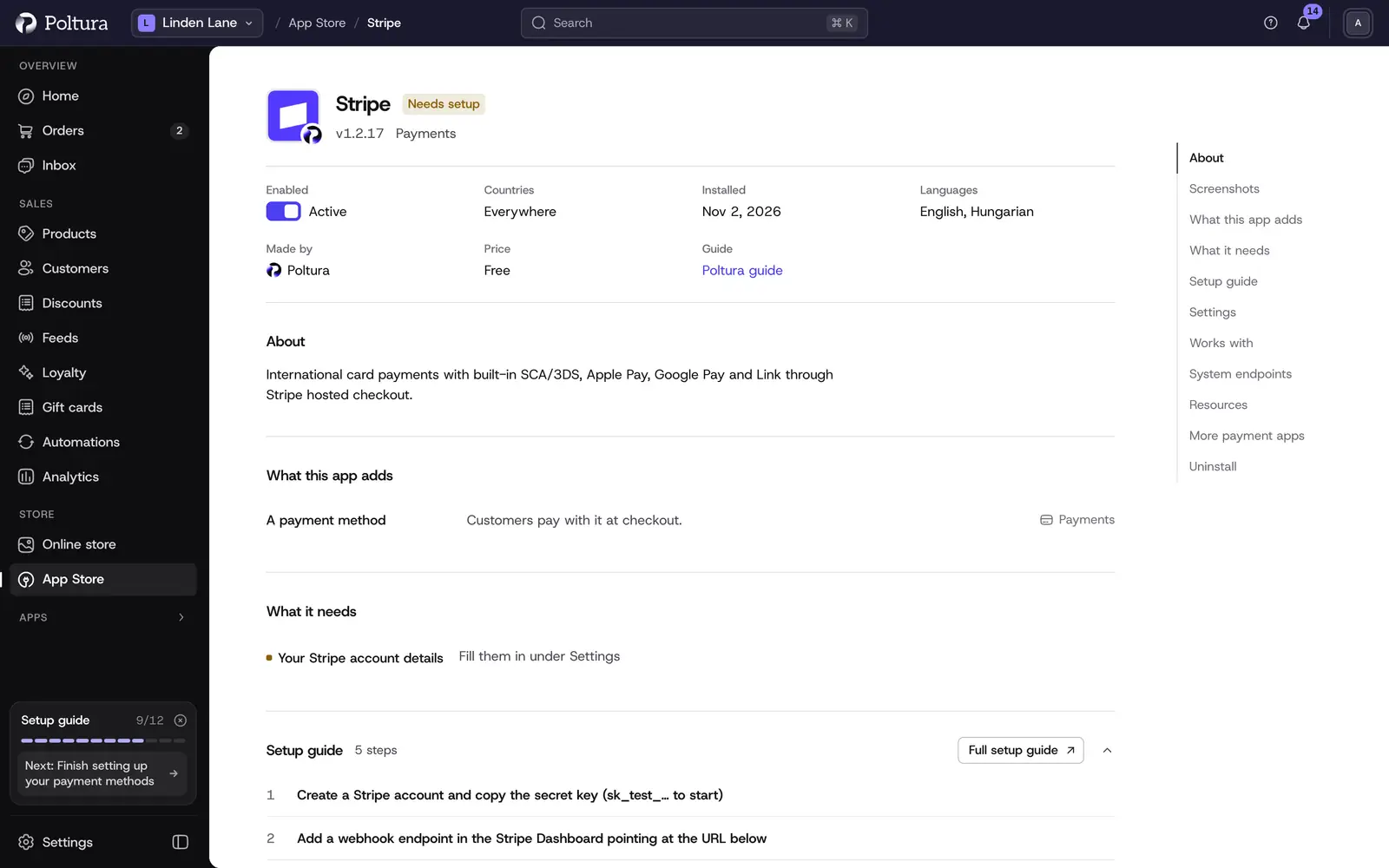
Stripe shows Needs setup until you fill in its settings. On the app page, open System endpoints and copy the Webhook URL.
In the Stripe Dashboard, add a webhook endpoint with this address and subscribe it to the
checkout.session.*andpayment_intent.*events. Copy the signing secret of the endpoint.Back in Poltura, in the Settings section, enter the Secret key (the test key to begin with) and the Webhook signing secret.
Select Save in the save bar.
Select Check the credentials. The message The credentials work. confirms that Stripe accepted the key.
Select Turn on. The status of the app changes to Active.
Open Settings → Payments. Stripe is listed under Payment methods with the status Ready.
Shoppers now see Stripe at checkout in every currency it can charge, on every domain. See Payments.
Place a test order and pay with the test card
4242 4242 4242 4242.To go live, add the webhook endpoint in live mode too, then replace the secret key and the signing secret with the live values and save.
Settings
- Secret key (required): your Stripe secret API key. The prefix decides between test and live mode. It is stored encrypted and is never shown again after you save it.
- Webhook signing secret (required): the signing secret of the webhook endpoint you added in the Stripe Dashboard. Your store uses it to check that payment events really come from Stripe.
- Publishable key: your Stripe publishable key. The hosted checkout does not need it, so you can leave it empty.
- Capture method:
manualholds the amount at checkout and charges it when you capture the payment.automaticcharges at once, which most payment methods other than cards require. New installs usemanual. - Collect tax automatically (Stripe Tax): lets Stripe Tax calculate tax from the shopper's address on the hosted page. It needs Stripe Tax activated with your registrations.
- Tax behavior: only used when automatic tax is on.
inclusivekeeps your prices as the final amount and carves the tax out of them.exclusiveadds tax on top of your prices. - Create a Stripe invoice for each payment: Stripe creates an invoice with a hosted page and a PDF after each completed payment. With manual capture the invoice appears after the capture.
What shoppers see at checkout
The payment step lists Card payment (Stripe). After placing the order the shopper is taken to Stripe's secure page and pays there by card, Apple Pay, Google Pay or Link. Which card and wallet methods are offered is controlled in your Stripe Dashboard.
Day to day
- The order page has a Stripe payment panel with the payment intent and an Open in Stripe link. A Test badge marks payments made in test mode.
- With the
manualcapture method, open the order and select Capture payment when you ship. The admin captures the full amount. See Payments and refunds. - You can refund a payment in full or in part with Create Refund. See Refund an order.
- Canceling an order that was not captured releases the held amount.
If something goes wrong
- The shopper paid at Stripe, but the order does not complete. Stripe's events do not reach your store or fail the signature check. In the Stripe Dashboard, check that the endpoint uses the Webhook URL from the app page and listens to the
checkout.session.*andpayment_intent.*events, and that the Webhook signing secret belongs to that endpoint and that mode. - Real cards are refused. The Secret key is still a test key.
- Apple Pay, Google Pay or another method is missing on Stripe's page. Switch the method on in your Stripe Dashboard. Methods other than cards usually need the Capture method
automatic. - Tax is not calculated on Stripe's page. Stripe Tax is not activated, or you have no registration for the shopper's country or state.
- Stripe does not appear at checkout. Open Settings → Payments and check the status. Setup incomplete means a required field is missing, Off means the app is switched off.