The SimplePay app takes bank card payments through OTP SimplePay, the largest Hungarian payment provider. Shoppers pay on SimplePay's secure page, with 3D Secure handled there. The app works on every plan, but only for stores that sell in Hungary. You can install it when Hungary is in one of your markets. Otherwise the App Store marks it as not available.
Only card payments are available. SimplePay's other methods (bank transfer, Qvik and SZÉP card) are not supported.
Before you start
- You need a SimplePay merchant contract. SimplePay then gives you a merchant account for each currency you sell in: HUF, EUR or USD.
- For each of those accounts you need the
MERCHANTid and theSECRET_KEY. You find them in the SimplePay admin on the Technical data tab. - SimplePay lets you go live only after you have run its mandatory test cases in the sandbox and its staff has checked your store.
Set up SimplePay
Open Apps → App Store and open SimplePay. New Hungarian stores have it installed already. If yours does not, select Install. Installing works the same for every app, see App Store.
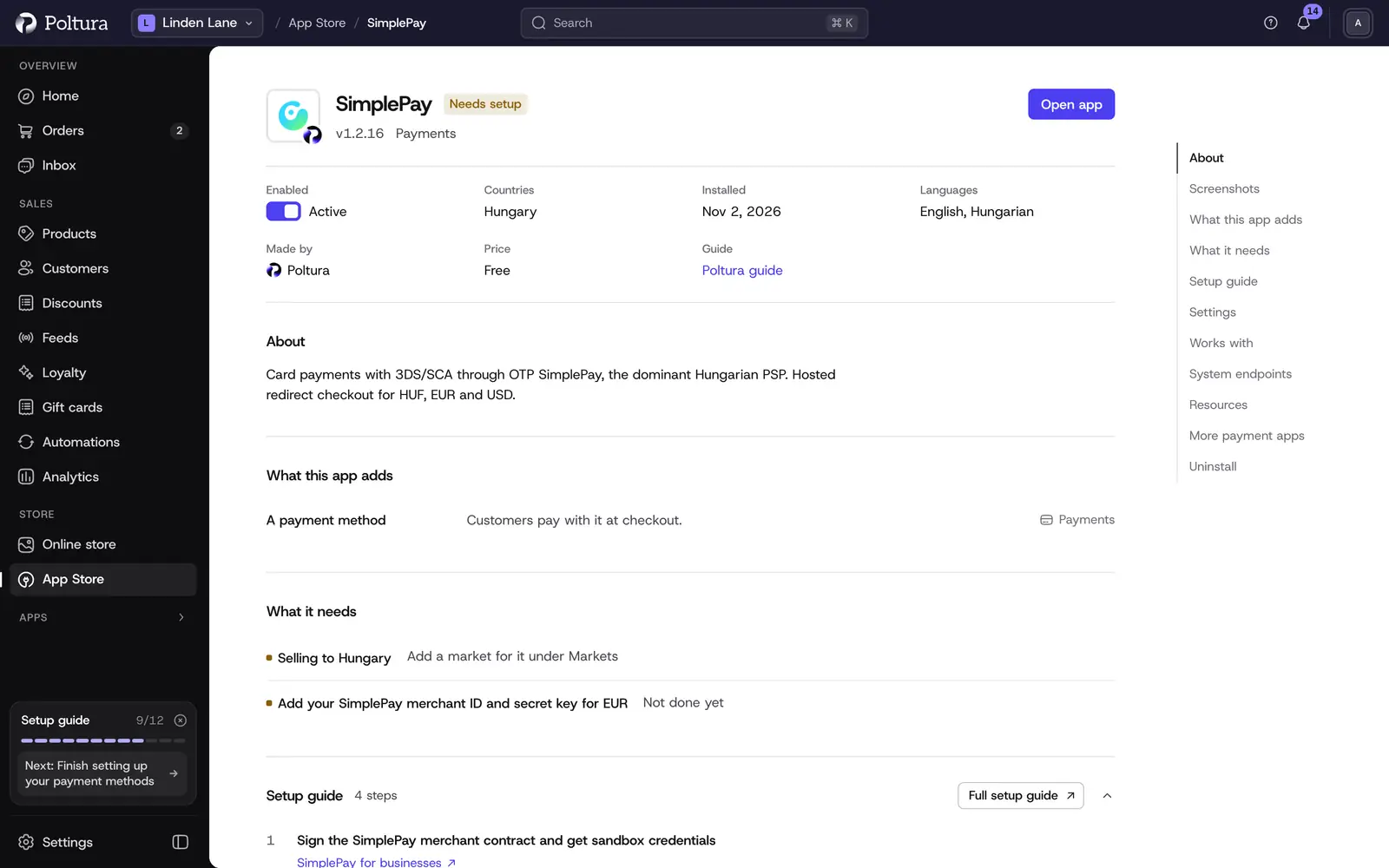
In a new Hungarian store, SimplePay is already installed. In the Settings section, leave Environment on
sandboxand enter the merchant ID and the secret key for each currency you sell in.Select Save in the save bar.
Select Check the credentials. The message The credentials work. confirms that SimplePay accepted every account you entered.
On the app page, open System endpoints and copy the IPN URL.
In the SimplePay admin, paste this address into Technical data. Do it for the sandbox account and for the live account as well: the two are fully separate.
Back in Poltura, select Turn on. The status of the app changes to Active.
Shoppers now see SimplePay at checkout when they pay in HUF, EUR or USD, on every domain. Ask SimplePay for an account in every one of these currencies your store sells in.
Run SimplePay's mandatory test cases in the sandbox, then ask for go-live at
itsupport@simplepay.com.When SimplePay has activated your live account, change Environment to
productionand save.
In the sandbox the payment page offers a list of test cards that simulate a successful or a failed payment. The 3D Secure test code 1234 succeeds and 1111 fails.
Settings
- Environment:
sandboxorproduction. The same credentials work in both systems. New installs start onsandbox. - HUF merchant ID: the
MERCHANTid of your HUF account. Only needed if you sell in HUF. - HUF secret key: the
SECRET_KEYof your HUF account. It is stored encrypted and is never shown again after you save it. - EUR merchant ID and EUR secret key: the same two values of your EUR account. Only needed if you sell in EUR.
- USD merchant ID and USD secret key: the same two values of your USD account. Only needed if you sell in USD.
- Two-step (authorise then capture): when ticked, the amount is only blocked at checkout and charged when you capture it. Tick it only if SimplePay's IT support has activated two-step payment on your account. When it is not ticked, the card is charged at once.
What shoppers see at checkout
The payment step lists Bank card payment (SimplePay) with the SimplePay logo. Before paying, the shopper has to accept SimplePay's data transfer declaration, which names your company and the data passed to OTP Mobil. They then pay on SimplePay's page and return to your store, where the result is shown together with the SimplePay transaction ID.
Day to day
- Without two-step payment there is nothing to capture: the order is paid as soon as SimplePay confirms it.
- With two-step payment, open the order and select Capture payment when you ship. The admin captures the full amount. See Payments and refunds.
- You can refund a payment in full or in part with Create Refund. See Refund an order.
- Canceling an order with a blocked amount releases it.
If something goes wrong
- The credential check asks for a MERCHANT id and SECRET_KEY. Enter both values for at least one currency.
- The check says the merchant id or secret key of a currency is not accepted. Compare the two values with the Technical data tab in the SimplePay admin.
- The shopper paid, but the order stays unpaid. SimplePay could not notify your store. Check that the IPN URL is saved under Technical data for the account in use, sandbox or live.
- SimplePay does not appear at checkout. The shopper pays in a currency SimplePay does not charge, or one you have no SimplePay account for. Check the status under Settings → Payments.
- Two-step payments do not work. Two-step payment has to be activated on your SimplePay account by SimplePay's IT support before you tick the setting.
- The app cannot be installed. Hungary is in none of your markets. Add it to one first, see Markets.