The Számlázz.hu app issues invoices and e-invoices for your orders through the Számlázz.hu Számla Agent. Számlázz.hu reports them to NAV Online Számla. Bank transfer orders get three documents: a pro-forma invoice first, an advance invoice when the money arrives and a final invoice when the order ships. The app is available to stores that sell in Hungary.
Számlázz.hu issues Hungarian documents, so it invoices orders only while your business is registered in Hungary. See Invoicing rules.
Before you start
- Hungary is in one of your markets. See Markets.
- You have a Számlázz.hu account that is connected to NAV Online Számla (in Számlázz.hu: Beállítások → Fiók beállításai → NAV online adatkapcsolat). Without that connection live invoices cannot be issued.
- In Számlázz.hu the option "Rendelésszám ismétlődés tiltása" is on (Beállítások → Fiók beállításai → Számlázás beállítások → Számlaszerkesztő beállítások). It is the only protection against a duplicate invoice after a network timeout, and the app can neither read nor set it.
- You have a Számla Agent key. Create it at the bottom of the Számlázz.hu dashboard under "Számla Agent kulcsok". The key is lowercase and valid for the whole account, so treat it like a password.
- If you use an invoice number prefix, it already exists in Számlázz.hu under Beállítások → Előtagok.
- To issue pro-forma invoices, your Számlázz.hu account has to be on a plan that allows them through the Számla Agent. Check this with Számlázz.hu.
- In Számlázz.hu the automatic invoicing of pro-forma invoices ("Díjbekérő automatikus számlázása") is off. If it is on, the account invoices the pro-forma itself and every bank transfer order gets two invoices.
Set up Számlázz.hu
Open App Store in the sidebar and choose Számlázz.hu.
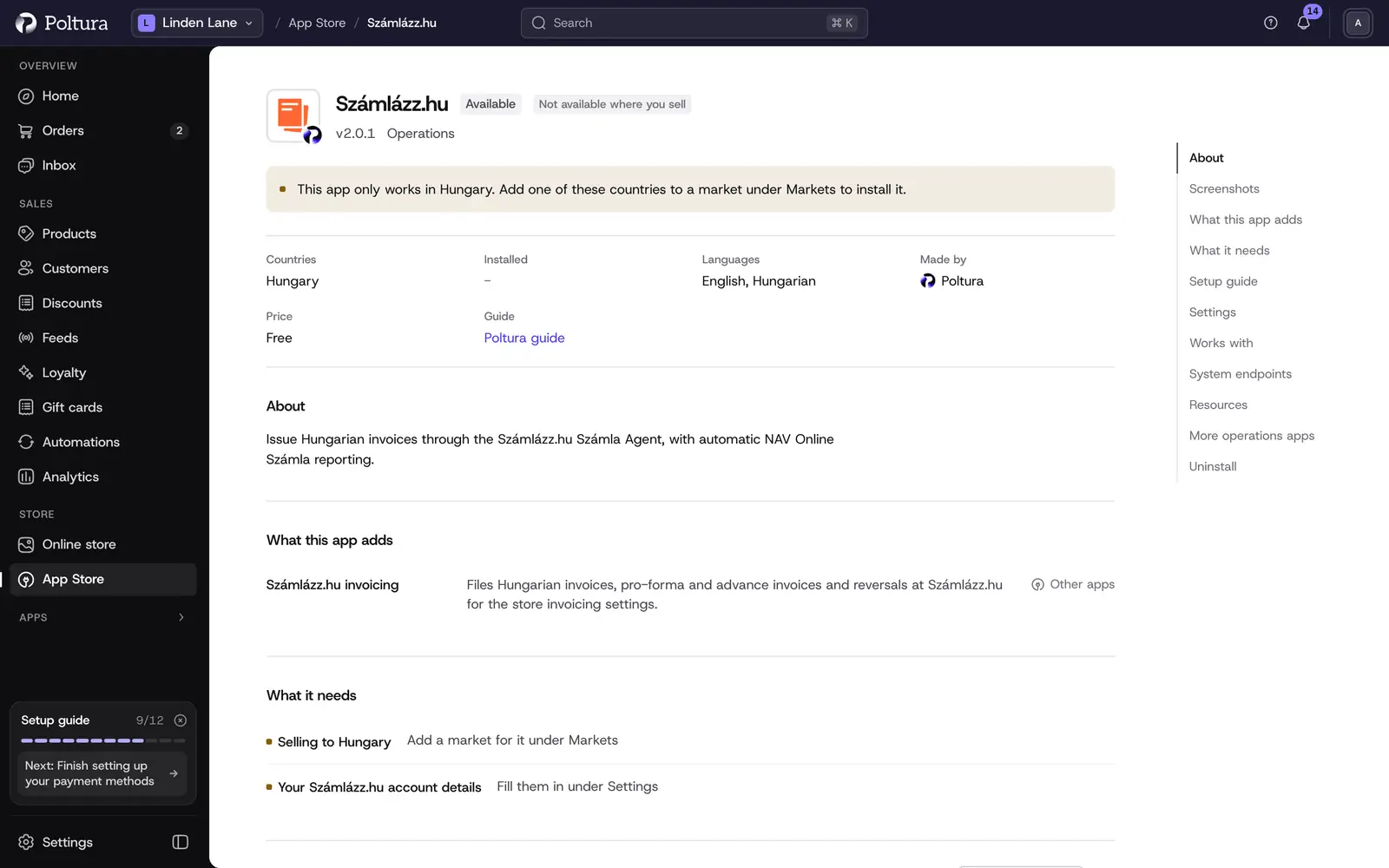
The app page shows what Számlázz.hu needs, such as selling to Hungary and your account details. Select Install. See App Store for how installing works.
Under Settings, paste the key into Számla Agent key and leave Account mode on
test.Select Save, then Check the credentials. The message The credentials work. confirms the key.
Select Turn on.
Open Invoicing in Settings and fill in the invoice settings, see Choose how invoices are issued.
Place a test order and check its invoice. When everything is right, set Account mode to
liveand save.
Settings
These fields are in the app's Settings in the App Store:
- Számla Agent key: the key from "Számla Agent kulcsok". Lowercase only: an uppercase key fails authentication. Stored encrypted and never shown again after saving. It can be replaced here in the app's settings at any time.
- Invoice number prefix: the prefix for invoice numbers. It must already exist in Számlázz.hu, otherwise every invoice fails with error 202. Leave it empty to use the account's default.
- Account mode:
testissues sample documents that are never reported to NAV and cost nothing;liveissues real, NAV-reported invoices. - Issue e-invoices: issues electronic invoices. It needs a paid Számlázz.hu plan and a signing certificate on the account; on the free plan invoices fail with error 54.
Choose how invoices are issued
Open Invoicing in Settings.
Under Invoice settings, choose the Auto-invoicing trigger: On order placed or On payment captured.
Choose the Invoice layout, the Számlázz.hu template used for the PDF.
Enter Payment due (days), a whole number from 0 to 365, counted from the issue date. It also sets the pay-by date of a pro-forma invoice.
Decide on Mark the invoice as paid when the payment is captured. Turn it off if your accountant records payments separately at Számlázz.hu.
Under Payment methods, tick Auto-invoice for every payment method that should get an invoice automatically. The Pro-forma switch next to it decides whether orders paid with that method first get a pro-forma invoice. It is on by default for bank transfer, can be turned on for other methods too, and is unavailable while Auto-invoice is off. Pay on account never gets a pro-forma invoice. Orders that get a pro-forma follow their own flow instead of the trigger above.
Select Save. The message Invoicing settings saved appears.
Further options on the same page:
- OSS (One Stop Shop) VAT reporting: turn it on only if the company is registered for OSS or has a non-Hungarian tax number. Invoices to EU consumers are then permanently left out of NAV Online Számla reporting.
- Reverse-charge VAT key (EU business buyers):
EUTis right for a shop that sells physical goods. ChooseEUFAD37orEUFADEonly if your accountant asks for it. - Non-EU VAT key:
EAMis the VAT-exempt export of goods.HOandEUKToverlap with it, so ask your accountant before the first non-EU order. - Order number prefix: only needed when two shops share one Számlázz.hu account.
- Let Számlázz.hu email the invoice to the customer: off by default, because the store sends its own invoice email with the PDF attached. Turning it on suppresses the store's email.
The Before you go live block lists the three Számlázz.hu settings the app cannot check for you, with the link Open Számlázz.hu settings.
Pro-forma, advance and final invoices
When someone pays by bank transfer, the money arrives after the order. With Pro-forma switched on for the method, Számlázz.hu documents each step:
The order is placed. The store issues a pro-forma invoice, in Hungary a díjbekérő, in your Számlázz.hu account. The store emails it to the buyer with the PDF attached, the amount, the pay-by date, the payment reference and the bank details, taken from Bank Transfer. The document states that it is not an invoice.
The money arrives and you capture the payment. The pro-forma is marked as paid, and the store issues the document that proves the payment. In Hungary a business buyer always gets an advance invoice (előlegszámla). A private buyer gets one from 900 000 HUF, and an order in another currency counts as above that amount. Below it, the buyer gets the normal invoice, already marked as paid, and nothing more follows.
The order ships. After an advance invoice, the store issues the final invoice (végszámla) with the advance deducted. If the order has several shipments, it is issued when all items have shipped.
A buyer counts as a business when the order has a tax number or a company name in the billing address.
A few other cases are handled for you:
- If the order ships before it is paid, the invoice is issued when it ships and the payment is recorded on it when the money arrives.
- If the order is canceled or edited before the payment, the pro-forma is deleted in Számlázz.hu. After an edit, a new one is issued with the new amounts.
- If only part of the amount arrives, nothing is issued by itself. The order panel tells you to issue the advance invoice for the amount received in Számlázz.hu.
Orders with other payment methods keep the trigger you chose under Invoice settings.
The pro-forma email is one of your store emails, in the language of the buyer. With Let Számlázz.hu email the invoice to the customer turned on, Számlázz.hu sends the email and the store sends none. The buyer also finds every document of the order on the order page of their account, or on the order page they open as a guest: a Documents list with the pro-forma, the advance invoice, the final invoice and the invoice, each with a download button. An unpaid pro-forma shows its pay-by date and payment reference, a paid one shows Paid.
Invoicing rules
An order follows the invoicing rules of the country your business is registered in: the address in your business details under Store details. The currency the shopper pays in and the country the order ships to do not change this. Számlázz.hu covers Hungarian rules only. While your business is registered in another country, or its address is still missing, Számlázz.hu does not invoice the order, and the order panel says so.
Documents
The Documents page lists every invoice and pro-forma that Számlázz.hu issued for your store, newest first. You reach it from the Invoice not created and Pro-forma awaiting payment to-dos on Home, or at /invoicing/documents.
- The tabs at the top are All, Not issued and Awaiting payment, each with the number of documents in it. Select a tab to narrow the list; Clear filter brings every document back.
- Each row shows the Order, the Document (its type and number), the Buyer, the Amount, the Status, the Details and when it was Created.
- The Status is Not issued, Awaiting payment, Paid, Issued, In progress, Cancelled or Modified. A document that was not issued shows the reason in Details, for example that the API key was rejected or the buyer's address is missing. An unpaid pro-forma shows its pay-by date after Due.
- Select a row to open its order. Fix the cause there, then use Try again on the order's invoices panel.
When Számlázz.hu has issued nothing yet, the page says No documents yet. A tab with nothing in it says Nothing here.
Issue, download or reverse an invoice on an order
Every order page has an Invoices panel with every document of the order.
- Create issues an invoice by hand.
- Issue pro-forma issues a pro-forma invoice for an unpaid order that has none yet.
- Download saves the PDF. Open at Számlázz.hu opens the document in your Számlázz.hu account.
- Void on an unpaid pro-forma deletes it in Számlázz.hu, after you confirm. It can no longer be paid, and the buyer is not notified.
- Full reversal cancels an invoice with a reversal invoice. This cannot be undone, and partial corrections cannot be issued from the order page.
- When a document was not issued, the panel shows Invoice not issued or Invoice not finished with the attempt count (up to 5) and a Retry button. This covers pro-forma, advance and final invoices too. A retry checks Számlázz.hu first, so the document is never issued twice.
Each row shows the document number, its type (Invoice, Pro-forma invoice, Advance invoice, Final invoice, Reversal) and date. A pro-forma also shows its state (Awaiting payment, Paid or Voided), the pay-by date and the payment reference.
Good to know
- Orders that need zero VAT (reverse charge or non-EU) need a matching tax setup at checkout. Today that setup comes from the Billingo app.
If something goes wrong
- The credentials check fails. The key must be lowercase and copied in full from "Számla Agent kulcsok".
- Every invoice fails with error 202. The invoice number prefix does not exist in Számlázz.hu, or NAV has already seen its next number (typical after moving from another invoicing program). Create a new prefix and enter it in Invoice number prefix.
- Invoices fail with error 54. Issue e-invoices is on, but the account has no paid plan or signing certificate. Turn the option off or upgrade the account.
- The page shows "Invoicing is switched off". The message gives the reason. Fix it, tick Re-enable invoicing and select Save.
- "The payment due days must be a whole number between 0 and 365." Correct the Payment due (days) field.
- An order got no invoice. Check that Auto-invoice is ticked for its payment method and that the trigger fits. Also check the note on the order panel: an order that follows another country's invoicing rules is not invoiced.
- A bank transfer order got no pro-forma invoice. Auto-invoice and Pro-forma must both be on for Bank Transfer, and your business must be registered in Hungary, see Invoicing rules.
- A bank transfer order was invoiced twice. The automatic invoicing of pro-forma invoices is on in Számlázz.hu. Turn it off there.
- The buyer paid but only a normal invoice came. Below 900 000 HUF a private buyer gets the normal invoice. A business buyer always gets an advance invoice.