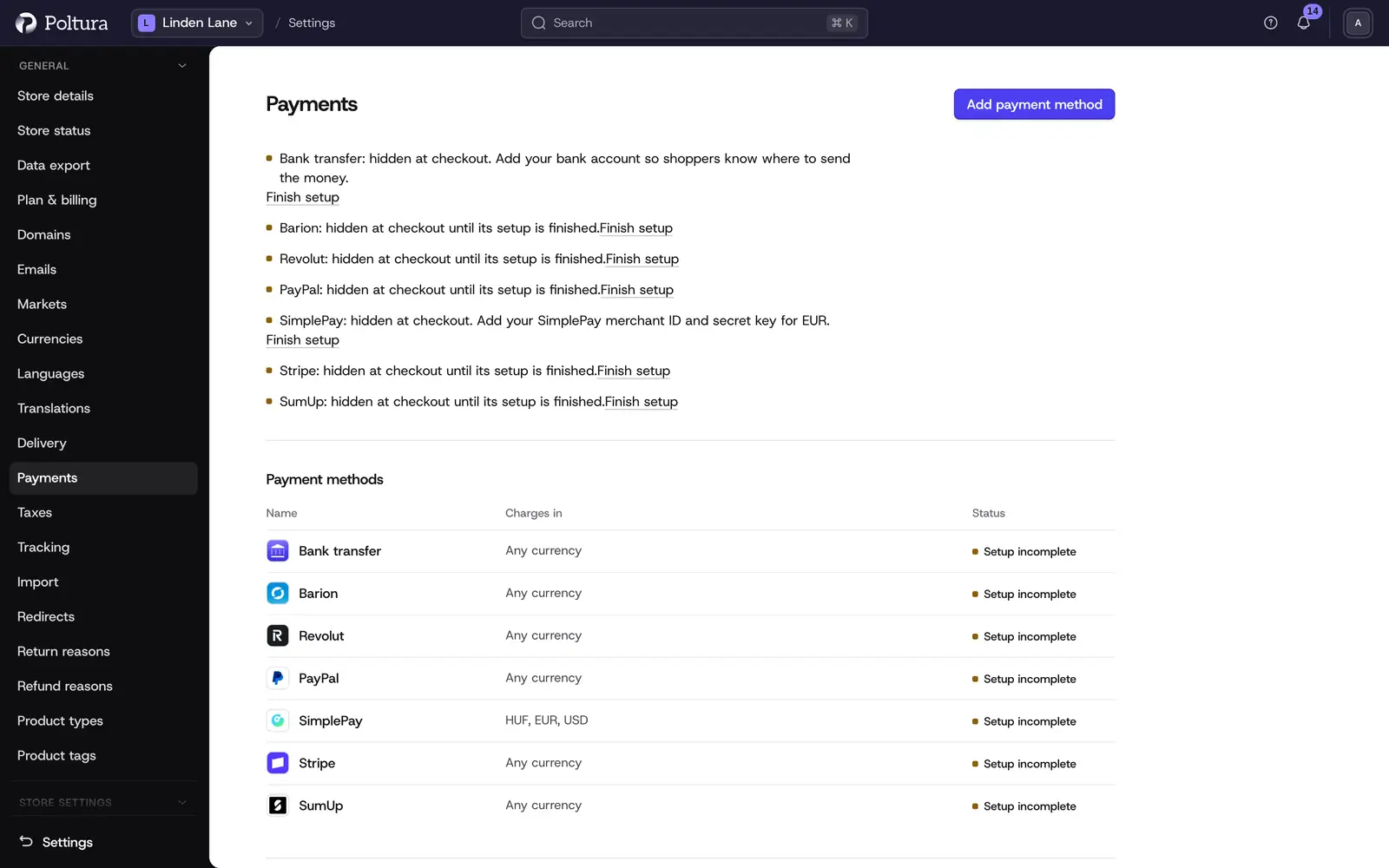
The Payments page lists the ways customers can pay in your store. A payment method works for the whole store. Customers see it at checkout on every domain, in every currency it can charge, when they ship to a country where you offer it.
Card payments, bank transfer and other payment providers come as apps. You install and set up each app on its own page. This page shows what each one can charge.
Before you start
- You need the Owner, Administrator or Store manager role.
- To offer online payment, install a payment app and finish its setup. Each app has its own guide: Stripe, Barion, SimplePay, PayPal, Klarna, PayU, Revolut, Teya and Bank transfer.
What the page shows
- Payment methods: every installed payment app with its name (a link to the app's page), Charges in (the currencies it can charge, or Any currency) and a status. Ready means customers can use it; Setup incomplete means the app still needs its settings; Off means the app is switched off.
- Manual payment methods: Offline payment (pay on delivery or later), offered in any currency.
Add a payment method
Open Settings and choose Payments.
Click Add payment method. The App Store opens on the payment apps.
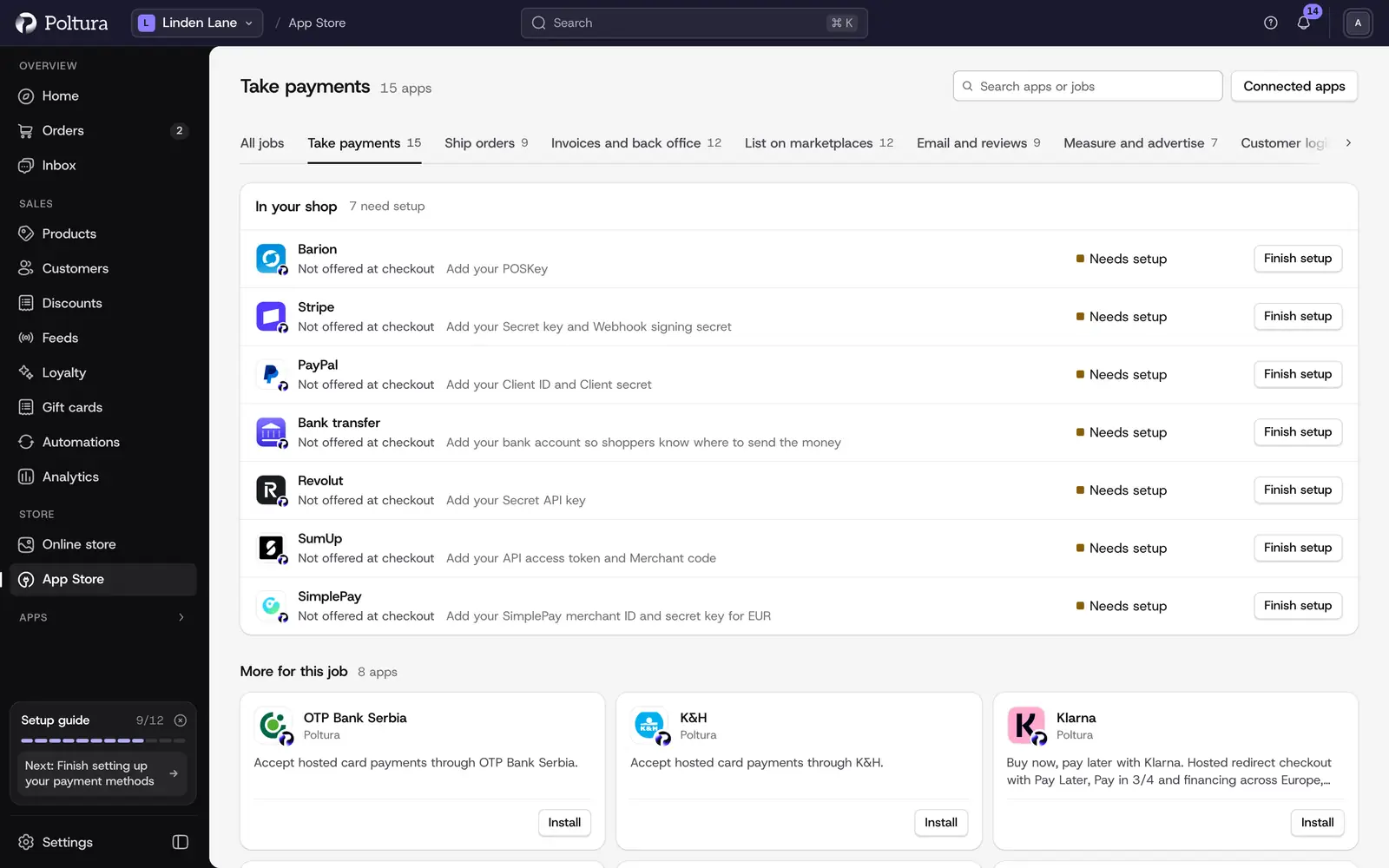
Apps you have not installed yet show an Install button. Install the app you want and complete its setup as its guide describes. See App Store.
Return to Settings → Payments. The app is listed under Payment methods.
Customers do not see a method at checkout if it cannot charge their currency. For example, SimplePay charges HUF, EUR and USD. A customer paying in PLN sees your other methods instead.
Choose where a method is offered
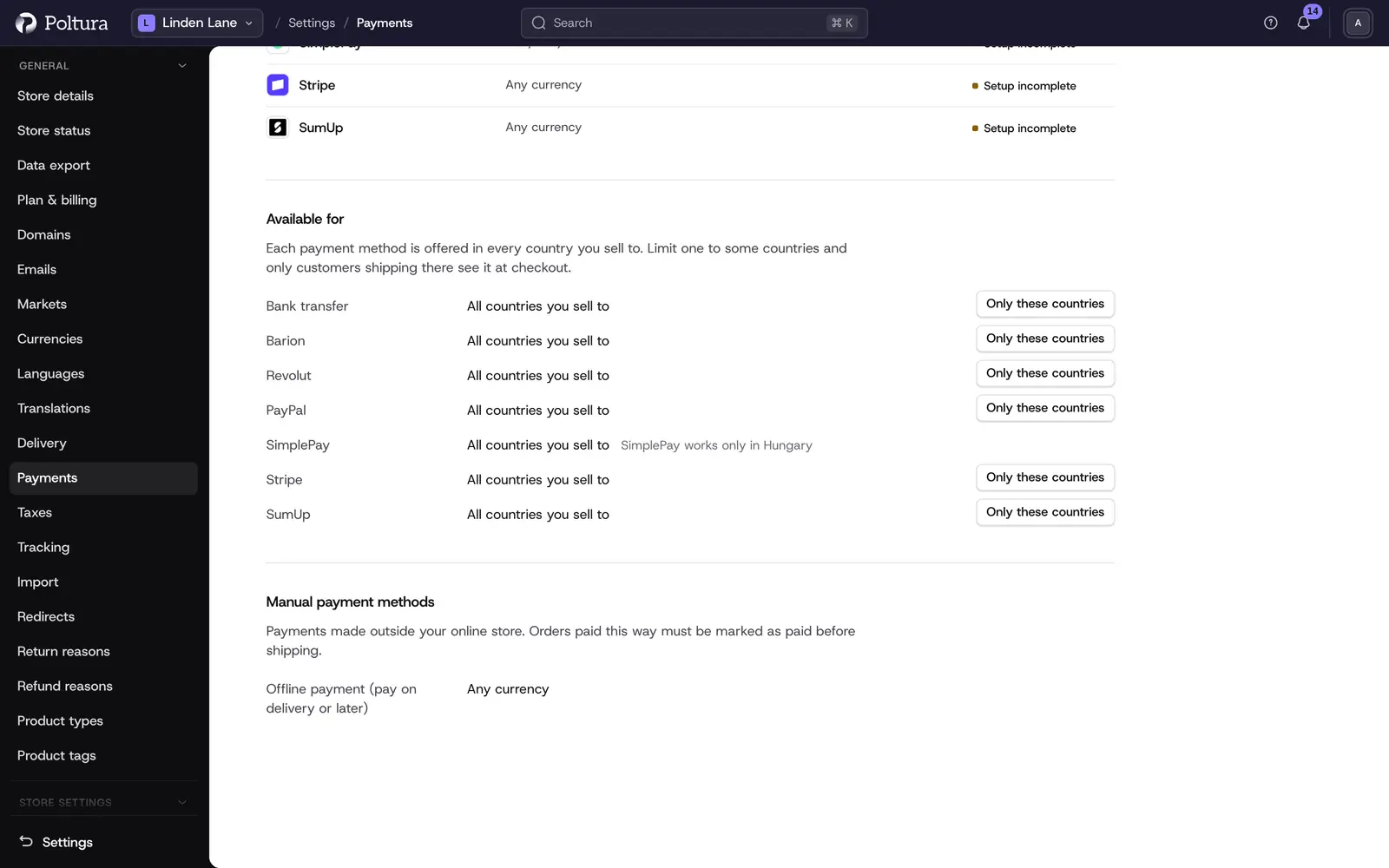
Every payment method is offered in all the countries you sell to. Under Available for you can limit a method to some of them. Customers then see it at checkout only when they ship to one of those countries.
Open Settings and choose Payments.
Under Available for, find the method and click Only these countries.
Tick the countries and click Save countries. The method shows them as chips.
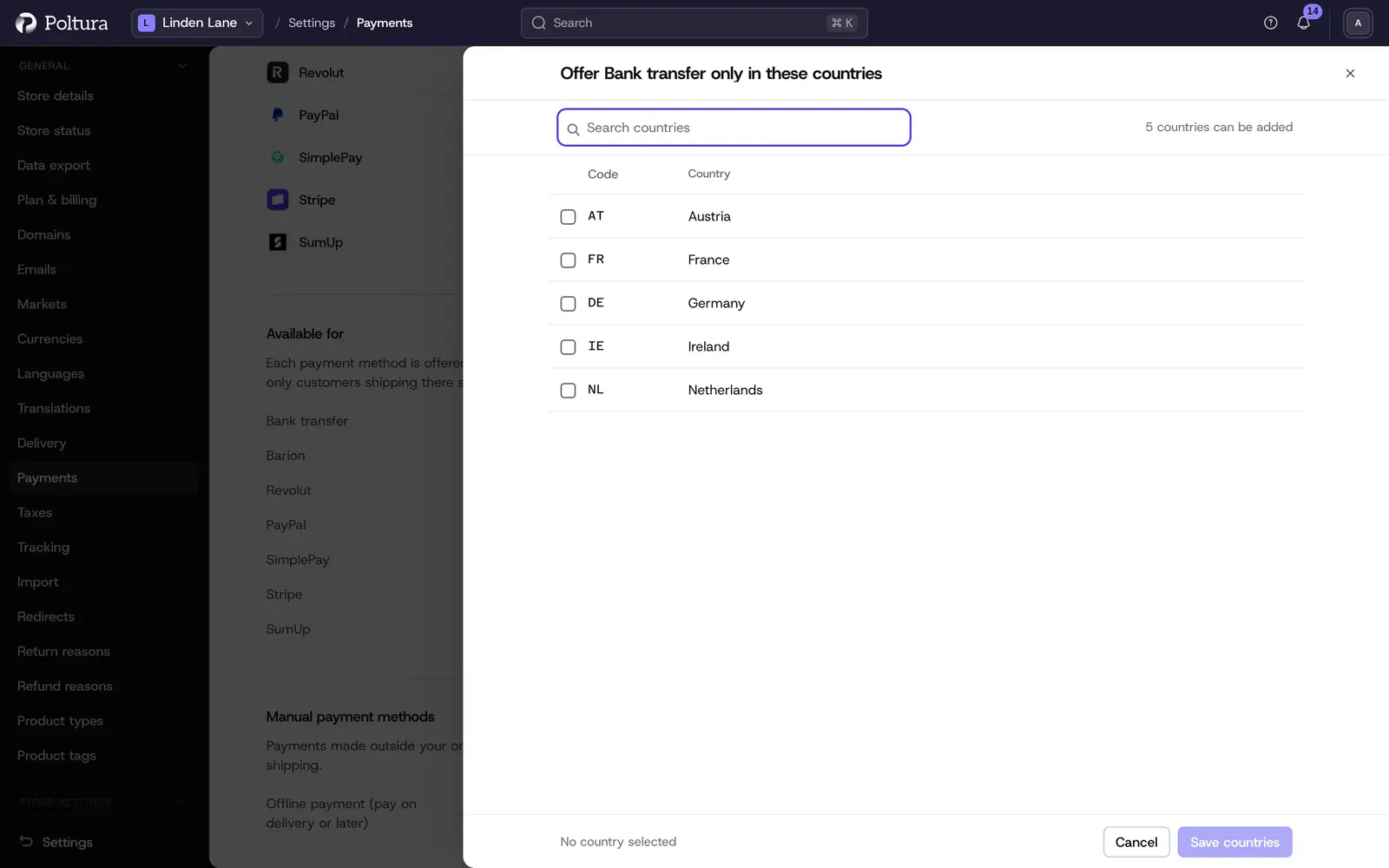
Only the countries you sell to are listed. To add more, click Add countries. To drop one, remove its chip. To offer the method everywhere again, click All countries you sell to.
Some apps work only in certain countries, and you can only choose those. For example, SimplePay works only in Hungary. Its row says SimplePay works only in Hungary and offers no other country. When you stop selling to a country, it is removed from every method's list.
Offer payment on delivery or later
Offline payment is listed under Manual payment methods. Orders paid this way are not paid yet when they arrive. Their payment shows Authorized. When the money reaches you, record it with Capture payment on the order. See Payments and refunds. Mark as paid is not available on these orders.
Good to know
- To stop offering a method, switch its app off or uninstall it in the App Store.
- Each currency of your store needs at least one method that can charge it. The Currencies page and a market's checks on Markets flag a currency that has none.
- The order in which payment methods appear at checkout cannot be changed here.
If something goes wrong
- A message at the top says the store cannot take payment. No method is ready yet. Finish the setup of a payment app or switch one on.
- "No payment method charges in …". None of your methods can charge that currency. Add an app that does, or stop offering the currency on your domains.
- "No payment app serves some of the countries you sell to". In those countries checkout offers only manual payment. Offer a method there under Available for, or add an app that works in them.
- A method stays "Setup incomplete". Open the app from its name and finish its settings.