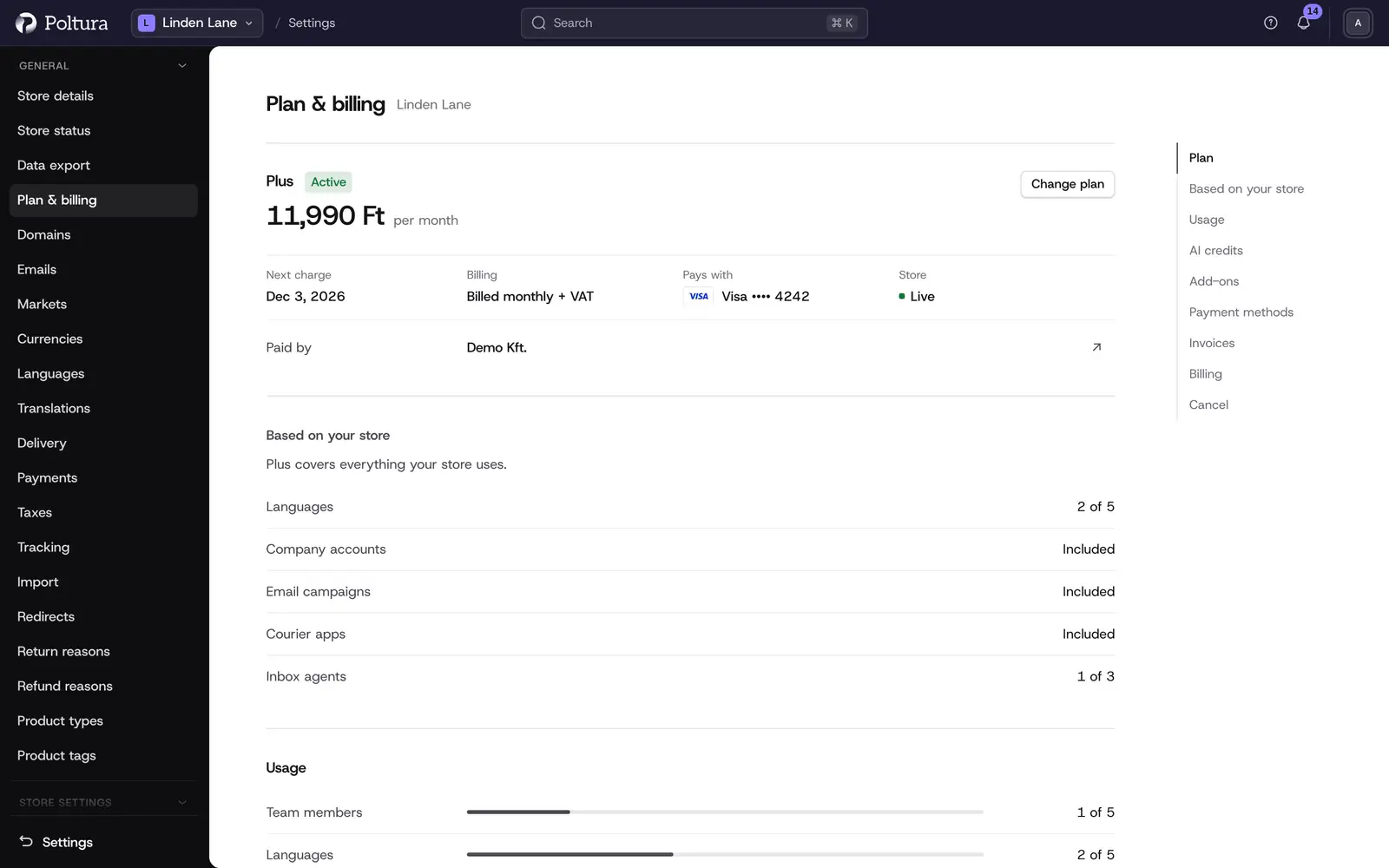
Plan & billing shows the plan of the store you are working in. You see what it costs, how much of each limit you use, your add-ons and AI credits, how you pay and every invoice. The organization also keeps its billing accounts here: the companies that pay. Billing is in Beta. The pages work as described here, and prices are shown on the page itself.
Every store has its own plan. A new store starts free and private. You pick a paid plan when you go live.
Before you start
- Owners and Administrators can do everything on this page.
- A Finance member can buy, change and cancel the plan at the end of the period, add a payment method and pay invoices, but cannot edit company details or remove a payment method.
- A Read-only member can look. Other roles do not see Plan & billing in Settings.
- Poltura bills businesses only: a company or a sole proprietor with a tax number. Billing currencies are HUF and EUR.
Change your plan
Open Settings and choose Plan & billing.
Click Change plan (or Choose a plan on a store without one). The Compare plans page opens with a card per plan. Each card shows the price and what the plan adds over the one before it. Under the cards, the Side by side table lists every limit and feature for each plan, grouped by topic. It also notes how much more each plan gives than the cheapest one.
Use Billing period to switch the prices between Monthly and Yearly.
Click Upgrade to or Switch to on the plan you want. A review shows the plan now and the new plan side by side, what changes, what happens to your add-ons and whether anything would be locked.
Confirm. For an upgrade the button names the amount you pay today. For a cheaper plan it reads Schedule the switch.
When a change starts:
- Upgrade: now. Today you pay the difference for the rest of the billing period.
- Cheaper plan: at the end of the billing period. Nothing is charged now.
- Monthly to yearly: at the end of the billing period. The yearly period starts that day.
- Yearly to monthly: at the end of the billing period.
Plan & billing also shows the plan we recommend for your store in its own card, with the limits it raises most and the features it adds. Upgrade to on that card opens the same review.
A booked change is shown on the plan statement with its date. Undo this change clears it before it happens.
If the new plan allows less than the store holds, the review lists what gets locked. The newest items are locked first. Nothing is deleted, and upgrading again unlocks them.
Add-ons and AI credits
Add-ons raise one limit or add one feature without changing plans. They are billed monthly, also on a yearly plan.
Scroll to Add-ons. Features lists extras your plan does not include. More capacity lists extra room for a limit.
For capacity, choose how many units you want.
Click Buy and confirm in the checkout. The add-on works right away and the invoice arrives by email.
To stop an add-on, click Cancel renewal on its row under Your add-ons and confirm with Remove at the period end. It keeps working until that date.
AI credits pay for the assistant, translation and other AI features. When the included credits run out, Buy extra AI credits sells one-off packs that can be used until the end of the billing period. See AI credits.
Monthly allowances, such as Inbox conversations and automation runs, start again on your billing day every month. An add-on for them raises the allowance of every month while it runs.
Payment methods
In the Payment methods section click Add payment method.
Enter the card in the secure form (Apple Pay and Google Pay are offered there too). An account billed in euro can choose SEPA direct debit instead.
Leave Pay my future bills with this card ticked if this card should pay from now on.
Click Save card. The method appears in the list, marked Default when it is.
- Make default chooses which method pays renewals. If an earlier payment failed, the new default is charged for it at once.
- Remove is available to Owners and Administrators. While a plan is running you cannot remove the only payment method. Add another first.
- Your bank may ask you to confirm a payment. The checkout then shows Confirm with my bank.
Invoices and paying a bill
The Invoices section lists every invoice of this store with its date, description (Plan, Plan change, AI credits or Domain), invoice number, status and total.
- Click the download icon on a row to save the invoice as a PDF. An invoice document exists once the invoice is paid; until it is ready the row reads Being issued.
- Click an invoice's date to open it and see its lines, VAT and documents.
- Prices on the page exclude VAT. The invoice shows the VAT that applies to your company.
When a payment fails, a panel appears at the top of the page with the amount due and a Pay now button. Poltura retries automatically, and paying yourself settles it at once. If the store was locked for non-payment, the button reads Pay now and unlock. Nothing is deleted, and paying unlocks everything right away.
Billing accounts
A billing account is a company that pays. Most organizations have one. Add another when a different company pays for another store.
In the Billing section click Add billing details (or Add another billing account).
Under Business choose Company or Sole proprietor and fill in the company name, country, tax number and registration number.
Under Address fill in the registered address.
Under Invoices give the Billing email and check the Currency.
Save. You land on the new account's page.
On an account's page you find its invoices, payment methods, account credit, the stores it pays for and its details.
- Edit payer details opens the form again. Save new version applies the change to future invoices. Issued invoices stay as they are.
- With several accounts, the pencil beside Paid by on the plan page (Change payer) chooses which account pays for this store.
- Close billing account asks you to type the account's legal name. Move its stores to another account and settle open invoices first, or the page lists what is in the way.
Cancel or keep your plan
Scroll to the last section and click Cancel plan.
Read What cancelling does. The store stays open until the last day you paid for. Then it goes back to private with the Coming soon page. Nothing is deleted and your domains stay with the organization.
Owners and Administrators type the store's name and choose When to cancel. Keep At the end of the current period selected.
Confirm. The plan statement now shows the date the plan ends.
Changed your mind? Until the plan ends, Keep my plan (or Undo cancellation) keeps everything as it was, and nothing is charged for undoing.
What happens to the time you paid for, and when money comes back, is in Billing, cancellation and refunds.
Starting another store
Building a store is free, and you can build one free store at a time. To start another, put the store you are building on a paid plan first. Stores on a paid plan never count, so you can always start a new free store once every store you have is paid for.
If you try to create a store before then, a window names the free store you are building and offers Choose a plan for that store. Not now closes it. Your organization may have a different allowance. Contact support if you need more free stores at once.
Good to know
- Usage shows each limit with what you use. There are no automatic charges for going over. At a limit, new items wait or are refused until you upgrade or buy an add-on.
- All dates on these pages are in Budapest time, whatever the store's time zone is.
- Account credit, for example an overpayment, is taken off your next invoices automatically.
- When a plan moves to new terms, a Plan update notice appears here. If it asks for it, click Accept the new terms.
- When the highlighted terms of the Terms of service change, a notice links here and the same box appears with one checkbox. Until you tick it and select Accept, you can't buy anything new, such as a plan change, add-ons, AI credits or domains. Your current plan keeps running and renews as before. Other changes to the legal documents only show a notice.
- A campaign offer for your store appears as a band at the top of the page. There is no coupon field.
If something goes wrong
- "Your access does not include this billing action." Your role cannot do this. Ask an Owner or Administrator.
- "Add another payment method before removing this one: your plan needs one to renew." Add a second method, make it the default, then remove the first.
- "The bank confirmation was not completed, so nothing was charged." Click Try the confirmation again when you are ready.
- "The billing account cannot be closed". The lists under the message show the stores to move and the invoices to pay first.
- "Plan & billing is temporarily unavailable. Try again later." Nothing was changed. Try again in a few minutes.