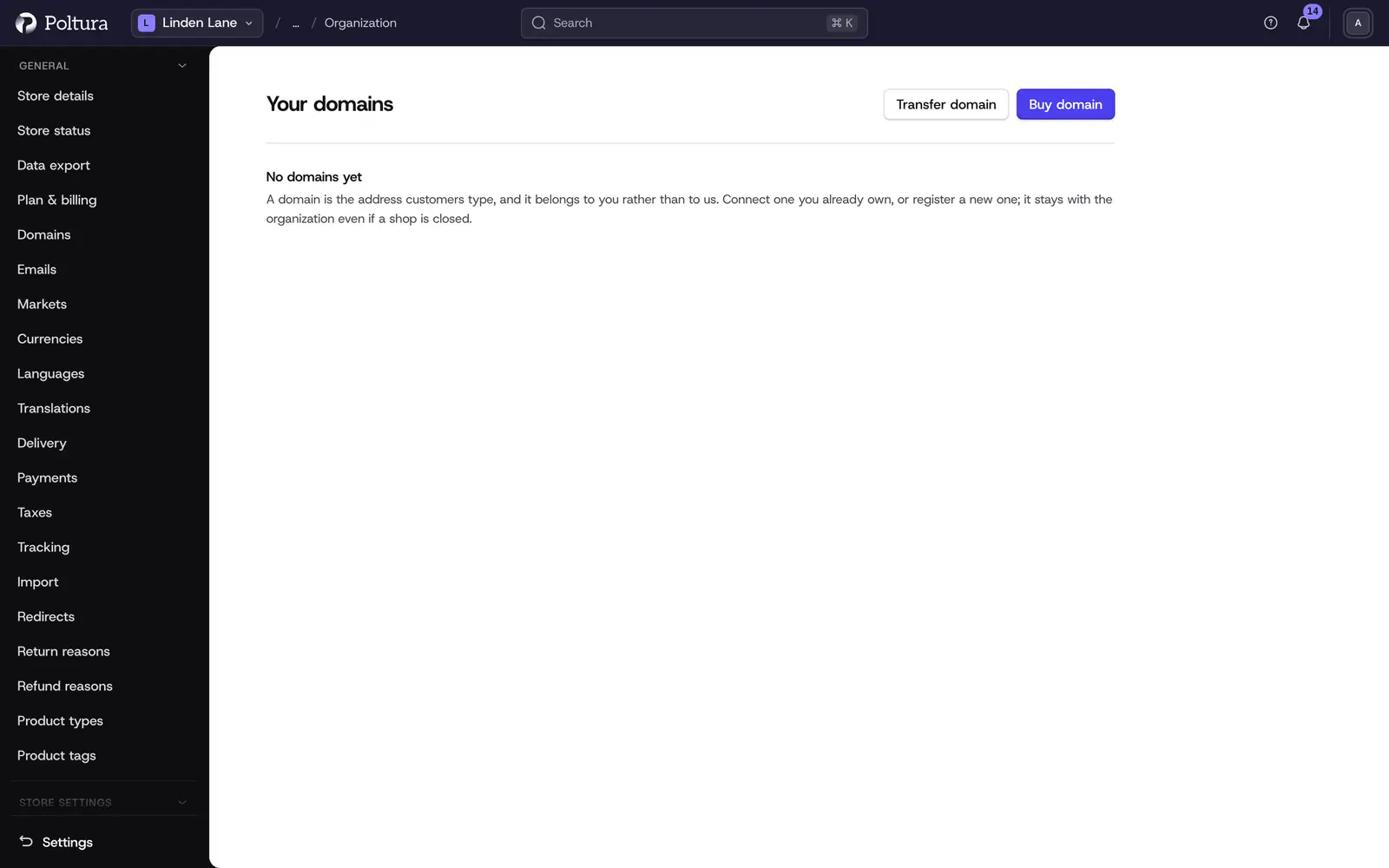
Organization domains is the one list of every domain your organization has. A domain belongs to the organization. It stays with you even when a store is closed, and you can move it between your stores at any time. You add domains here. Each domain's own page holds its DNS, the stores it serves and its registration. Domains are in Beta.
The page shows three totals (Active, Waiting for DNS and Parked) and one row per domain with its status, DNS mode, store and expiry.
Before you start
- Owners and Administrators can manage domains. Buying, transferring and renewing also need a role that may purchase on a billing account. Both roles have it.
- Paid actions are charged to a billing account. Add one first under Plan and billing.
- A Read-only member can open the list and the domain pages but cannot change anything.
Connect a domain you already own
Open Settings and choose Organization domains.
Click Connect domain. A drawer of the same name opens.
Type the Domain without
wwwor any other subdomain, for exampleexample.hu.Choose the DNS mode. Own DNS provider keeps your records where they are. Poltura DNS lets Poltura host the zone.
Click Connect domain. The domain is created as Parked and its page opens. With your own provider it opens on the Shops tab. With Poltura DNS it opens on the DNS tab, with the nameservers to set.
Use Assign a shop to point it at a store.
Buy or transfer a domain
Buy a new domain
On the list click Buy domain. The Buy a domain page opens.
Type a word or a full name in the search box and search. The results show the name on several endings as Available, Taken, Premium name, Already yours or Not offered, with the first-year price and the yearly renewal price for available names.
Add the names you want to the Cart with the plus icon. A cart holds up to 10 names.
Click Continue to checkout.
Under Who pays choose the Billing account. Prices, VAT and the default registrant follow it. A Promotion code can be applied with Update prices.
For each name choose the Registration term, check the registrant details (they are filled in from the billing account's payer) and tick the two boxes: that the registration starts immediately and you waive your right of withdrawal, and that you accept the registrant terms.
Click Register the domain. Each name is registered and charged on its own. The domain appears in the list as Parked while the registration is in progress.
Search prices are without VAT. The amount charged includes VAT. After the first term the domain renews automatically at the price valid then, and you can turn that off later.
Transfer a domain in
On the list click Transfer domain.
Type the Domain without
www, choose Who pays and click Check the transfer. The drawer tells you whether the name can be transferred and what it costs.Enter the Transfer code (the auth or EPP code from your current registrar), check the registrant details and tick the two boxes.
Click Transfer the domain.
Approve the transfer in the email your current registrar sends. The domain keeps working while it moves.
Manage a domain
Click a domain in the list to open its page. It has three tabs.
DNS
- Own DNS provider: Required records lists the exact records to add at your provider, each with a copy button and a status (Found or Not found yet). They are checked every few minutes. Switch to Poltura DNS moves the zone to Poltura.
- Poltura DNS: the page lists the nameservers to set where you bought the domain. Check now re-checks the delegation. The change can take up to 24 hours to spread. Once it reads Delegated to us, records go live within minutes.
- DNS records: Add record creates an A, AAAA, CNAME, TXT, MX, SRV, CAA or NS record. Click a row to edit it. Records with a lock icon are managed by Poltura.
- DNSSEC: Turn DNSSEC on signs the zone. If the name is registered elsewhere, hand the DS record shown to that provider.
- Use my own provider switches back from Poltura DNS. Disconnect the hostnames served from the zone first.
Shops
- Assign a shop points the domain at a store, or moves it to another store. Moving between stores of the organization is instant and free.
- Each hostname shows its role (primary address or redirect) and status: Waiting for DNS, Checking, Certificate issued, Active, Error or Disconnected.
- Verify now in a hostname's menu runs the checks again after you fixed your DNS.
- Disconnect removes one hostname from its store. Park takes the domain off every store but keeps it with the organization.
Registration
For domains registered or transferred through Poltura:
- Automatic renewal is a switch. When it is off, the page shows the date the domain expires.
- Renew now adds extra years, charged to the domain's billing account.
- Change the registrant edits who holds the name. If the email address changes, the registrar asks the new address to confirm it.
- Who pays moves future renewals to another billing account.
- Waiting for the registrant lists anything the registry needs from you, such as confirming an email address, with its deadline. Send the email again resends it.
- Get a transfer code reveals the code that lets another provider take over the domain. Only the organization owner can request it, and it is shown once.
Delete a domain
Delete domain asks you to type the domain's name. The domain and every hostname pointing at a store are removed from the organization. The registration itself is not canceled, and the deletion cannot be undone.
Good to know
- Registrations, transfers and renewals produce invoices that you find under Plan and billing.
- A plan can include the first year of a domain. The checkout then says "Included with your plan".
- With an own DNS provider that cannot point the bare domain by name, the store lives at
wwwand the bare domain redirects there. - A domain used for sending email keeps its sending records in the same zone as locked records. See Emails.
If something goes wrong
- "Not delegated to us yet". The nameservers at your registrar are not the ones listed. Replace them and press Check now later.
- "Disconnect the hostnames served from this zone first." Remove the hostnames on the Shops tab with Disconnect, then switch the DNS back.
- "This organization already has this domain." The name is already in the list. Open it there.
- "Add a billing account first: a registration has to be charged to one." Create one under Plan and billing.
- "That did not go through. Nothing changed, so try again." The request was refused or timed out. Check the domain's page before you repeat a paid action, so you do not order twice.