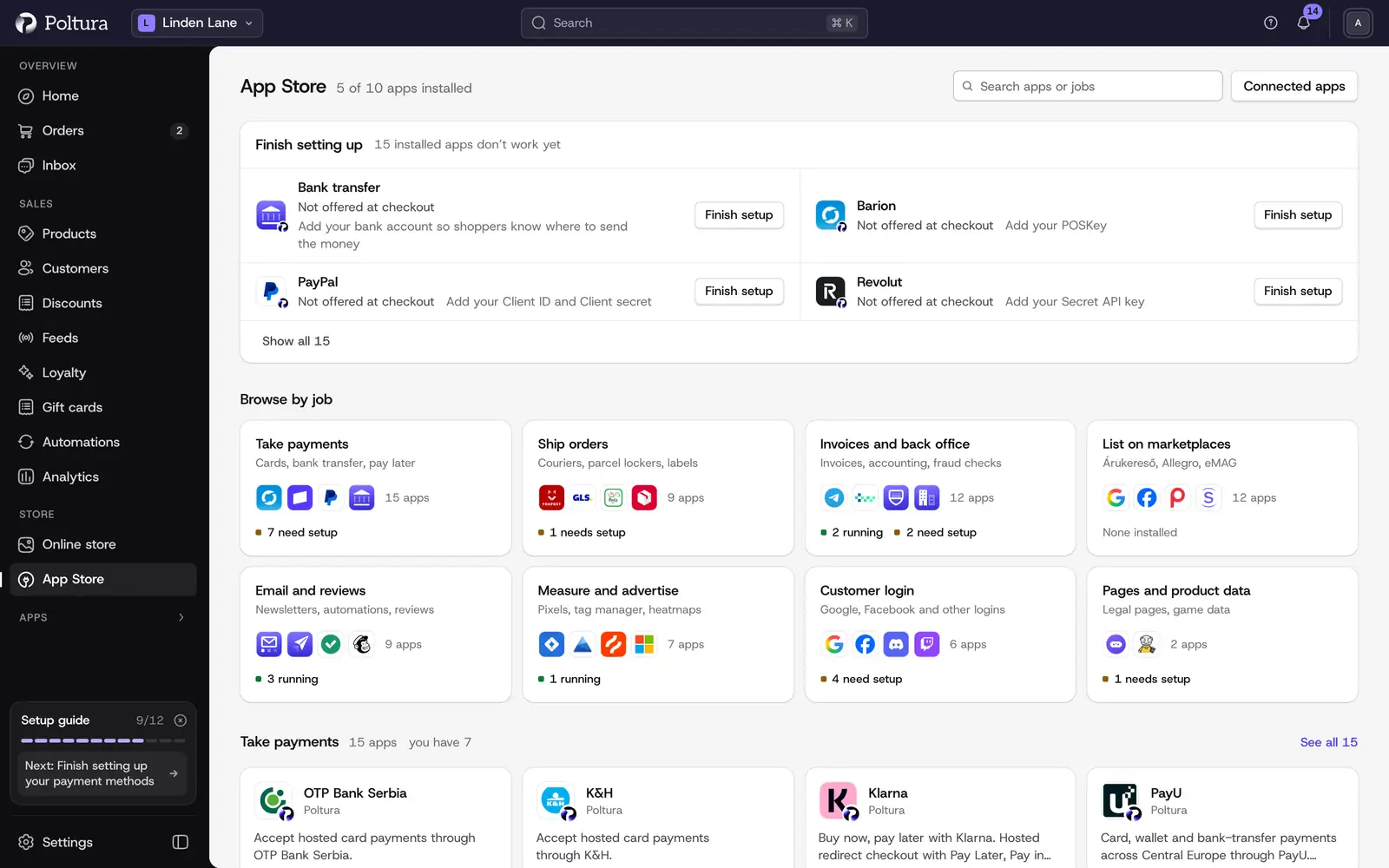
The App Store lists the apps you can add to your store: payment methods, carriers, product feeds, invoicing, marketing and sign-in options. Every app here is made by Poltura and none has its own price. You install an app, fill in its settings, and it starts working.
Before you start
- Most apps work on every plan, Start included. Card payments and invoicing are among them. Your plan sets how much your store holds (products, team seats, AI credits) and how many apps you can install. Plus and Pro also add courier apps, email campaigns and marketplaces that take orders. A few other apps need a specific plan feature, such as company accounts for the B2B app. Their page says so.
- Your store can have 5 installed apps on Start, 10 on Plus and 20 on Pro. The payment and sign-in apps your store comes with do not count. On Pro you can buy 10 more for 9,990 Ft a month.
- If your limit drops below what you have installed, you get 30 days to remove apps or change your plan. The deadline shows on Home, on this page and in Plan and billing. After it we remove the most recently installed apps until your store fits. Their settings are kept, so you can install them again later.
- Some apps are offered only in certain countries. They are marked as not available until one of those countries is in one of your markets.
Browse the App Store
Open App Store in the Store group of the sidebar. The page is titled Apps.
- Type in Search apps to search by name, description, category and tags.
- Use the category menu next to the search to narrow the list. Each category shows how many apps it holds, and All shows everything again.
- Each row shows the app, when it was last updated, one line about it and its status.
- Select the name of an app to open its page.
| Status | Meaning |
|---|---|
| Available | Not installed yet |
| Installing… | On its way to your store |
| Needs setup | Installed, but a required setting or step is missing |
| Active | Installed and running |
| Off | Installed and switched off |
| Paused | Your plan does not include what the app needs |
An app may also carry a New, Beta or Featured mark.
Install an app
Open App Store and find the app.
Select Install on its row, or open the app and select Install there.
Wait while the status reads Installing…. This usually takes under a minute.
Open the app. Follow the Setup guide and fill in the fields under Settings. Required fields are grouped under Required.
Save the settings with the save bar that appears.
If the app offers it, select Check the credentials to test what you typed.
The status changes from Needs setup to Active once nothing required is missing.
Installs run one at a time. While one app is on its way, the Install button of the others reads Waiting….
Secret values such as API keys are write-only: after saving, the field shows Saved and not the value. Select Replace to type a new one.
The app page also tells you what you get and what you need: What this app adds, What it needs, Works with, and links such as Where to find your keys. When the app is active, Open app takes you to its pages. For a feed app the button reads Open in Feeds.
Turn an app on
An app you switched off stays installed with its settings.
Open App Store.
Turn on the switch on the row of the app, or open the app and select Turn on.
The status changes to Active, or to Needs setup if something is still missing.
Switch an app off
Switching off stops the app without removing anything. Its settings and saved credentials are kept.
Open App Store and turn off the switch on the row of the app. A confirmation page opens.
Read what will happen.
Tick I understand this app stops running until I turn it on again.
Select Turn off.
For a feed app, its feeds are paused first and Poltura takes your products off the site. The app turns off once the site has read that the products are gone, which can take until its next download. The status reads Switching off… meanwhile. When you turn the app on again, its feeds stay paused until you resume them in Feeds.
Uninstall an app
Open the app and scroll to the Uninstall section at the end of its page.
Select Uninstall.
Tick I understand this app will stop running and its saved credentials will be cleared.
Select Uninstall.
What happens to your data:
- What the app added to the storefront is removed: its payment method, shipping option, script or section.
- Its settings are kept and come back when you reinstall the app.
- Its saved credentials do not come back. They are cleared, and you type them again after a reinstall. A reinstalled app goes through its setup steps again and stays off until you turn it on.
- The app's own records, for example the invoices or parcels it created, stay in your store. Uninstalling does not delete them.
- Orders, payments, shipments and other records of your store stay. Uninstalling never deletes order or shipment history.
A shipping app cannot be removed while shipments are open. The app page then reads New shipments are paused. Finish or cancel the open shipments and uninstall again, or select Resume shipping to keep using the app. A feed app is removed only after your products are off the site and the orders from its feeds have their answers.
When an app is paused
If your plan no longer includes what an app needs, the app is paused, not removed. Its page reads This app is paused. Its settings and data are kept, and it runs again as soon as your plan includes it. Select See your options to see the plans.
The apps by category
Payments
Bank transfer, Barion, Klarna, PayPal, PayU, Revolut, SimplePay (Hungary), Stripe and Teya. Once installed and turned on, a method is offered in every currency it charges; see Payments.
Shipping
DPD (Beta), Express One (Beta), Foxpost, GLS, MPL, Packeta (Beta) and UPS (Beta). Rates are set under Delivery.
Feeds
Every site is its own app. Install one and it shows up in Feeds, ready to set up: Allegro, Árgép (Hungary), Árukereső, eMAG, Google, Heureka, Facebook & Instagram, Olcsóbbat (Hungary) and Pepita.
Operations
Billingo, Számlázz.hu (Hungary), Fraud detection, Utánvét Ellenőr (Hungary), Telegram and CodesWholesale.
Marketing
Broadcasts, Email automations and Trustindex.
Tracking
Google Tag Manager, TikTok, Microsoft Advertising, Pinterest and Microsoft Clarity.
Content
IGDB.
Login
Discord login, Facebook login, Google login and Twitch login. See also Customer accounts and sign-in.
Good to know
- Loyalty, gift cards, reviews, bundles, forms, analytics and similar features are part of Poltura, not apps. They cannot be uninstalled. You can hide them in the Sidebar settings.
- There is no update button. Apps are updated by Poltura.
- Connected apps at the top of the page lists apps from outside developers. See Connected apps.
If something goes wrong
- "Temporarily unavailable". Poltura switched the app off for now. It cannot be installed or turned on. Your settings are kept.
- An app is marked as not available. Add one of the app's countries to one of your markets.
- A mark saying platform keys are missing. Something on Poltura's side is not configured for this app yet. You cannot fix it in the store, and the app may not work fully until Poltura does.
- "The platform refused to deliver this app, so nothing was changed." Try again in a few minutes.
- "This app is still finishing some work and stays installed." Uninstall again once that work is done.
- "Poltura could not take some products off" a site. Remove them on the site yourself, then confirm it on the feed's page in Feeds.