Orders is where every purchase in your store ends up. The list shows what came in, what is paid and what still has to be shipped. From an order you take the payment, ship the items, refund, and handle returns.
New orders appear without reloading the page. A New order message offers View order so you can open it straight away.
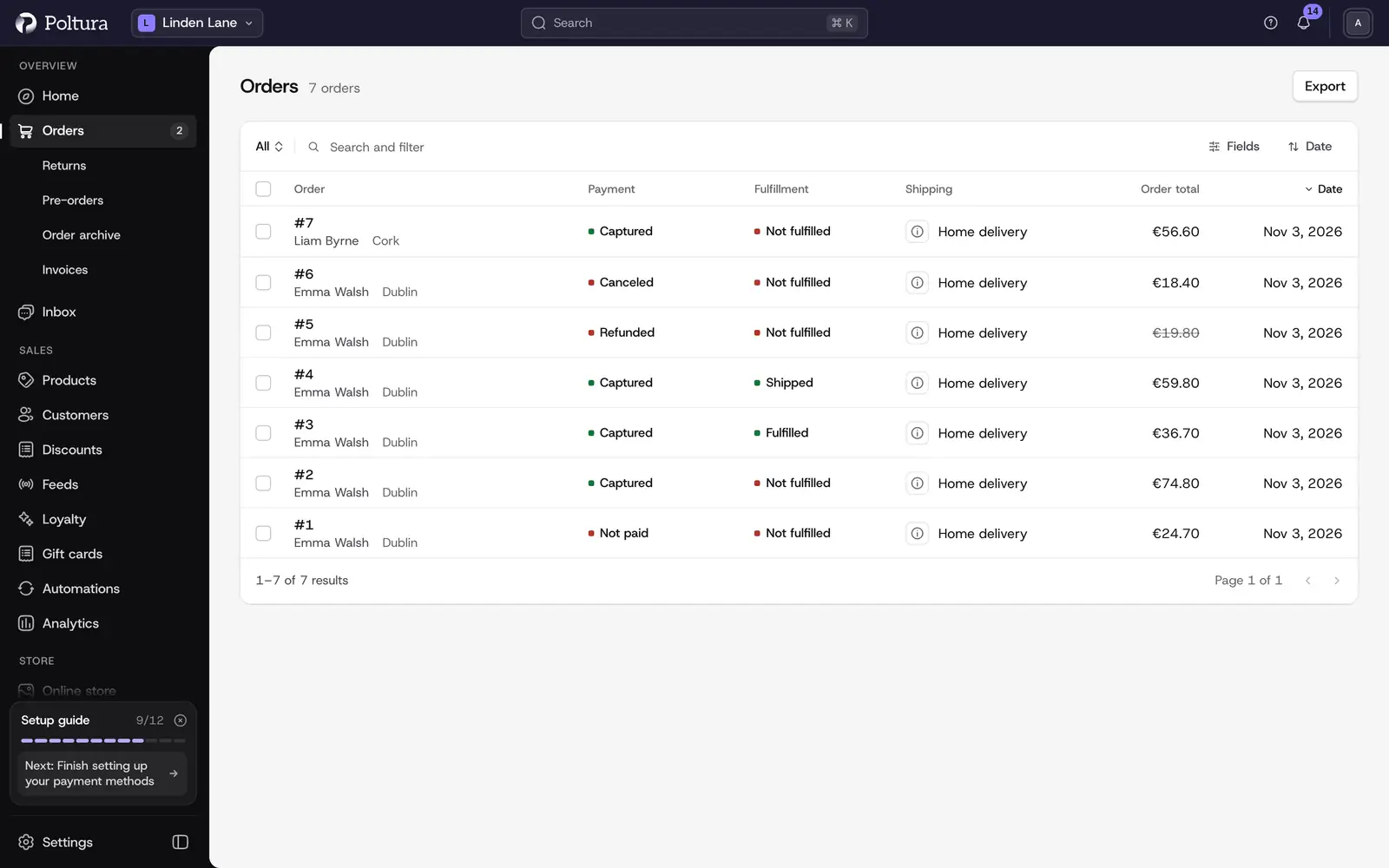
What the list shows
Each row is one order. The columns are Order (the order number), Customer, Sales Channel, Order Total, Payment, Fulfillment and Date. You can hide every column except Order.
- A total with a line through it means the order was refunded in full.
- Click a row once to see a preview of the order beside the list: its items, the customer, the address and the totals. On a narrow screen a click opens the order instead. You can turn the preview off under Settings → Profile.
- Press
Enteron the selected row to open the order. Use the up and down arrow keys to move between rows.
Find and filter orders
The tabs above the list narrow it to one status: All, Pending, Completed, Draft and Canceled. Each tab shows how many orders it holds.
Open Orders.
Type in the search box to look for an order.
Open the filter menu and choose a filter: Status, Currency, Sales Channel, Created or Updated. The statuses Archived and Requires action are only in this menu, not in the tabs.
Open the sort menu to order the list by Order, Date or Updated. New orders are on top by default.
The list now shows only the matching orders, and the count beside the title follows it.
You can keep a filter, a sort order and a set of columns as a saved view. See saved views.
Export orders
The export writes the order list to a CSV file.
Open Orders and select Export.
Check the Filters part of the panel. It lists the filters the export will use. If it lists none, the whole order list is exported.
Select Export.
The panel says Export started. You get a notification when the file is ready.
Good to know
- A store on the Building plan has no orders yet. Orders arrive once the store is live.
- The payment and fulfillment status are columns only. You cannot filter by them.
- Orders cannot be created by hand in the admin. Every order comes from your storefront or from a connected marketplace.
- The number on the Orders entry in the sidebar is the total number of orders, not the open ones.