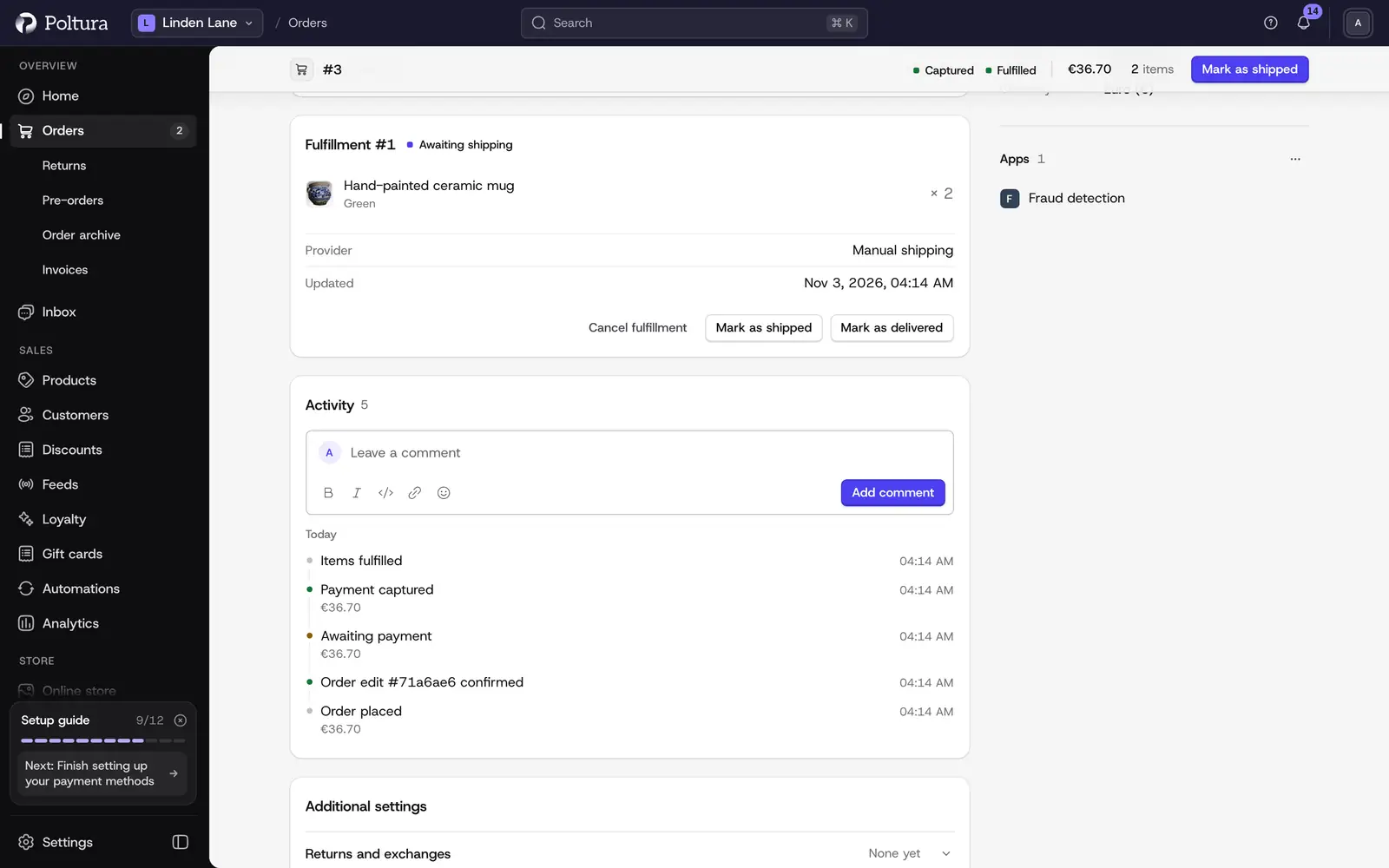
Fulfilling an order means recording which items leave which location. A fulfillment is one shipment. You can send an order in one go or in several parts.
Items that still wait to be sent are listed under Unfulfilled Items with the Awaiting fulfillment mark. Items that need shipping and items that do not, such as digital products, are listed in separate groups.
Before you start
- You need at least one location with stock. See Stock per location.
- To book parcels and print labels from the order, install a courier app. See courier parcels below.
Create a fulfillment
Open the order and go to Unfulfilled Items.
Select Fulfill items.
Choose the Location the items ship from.
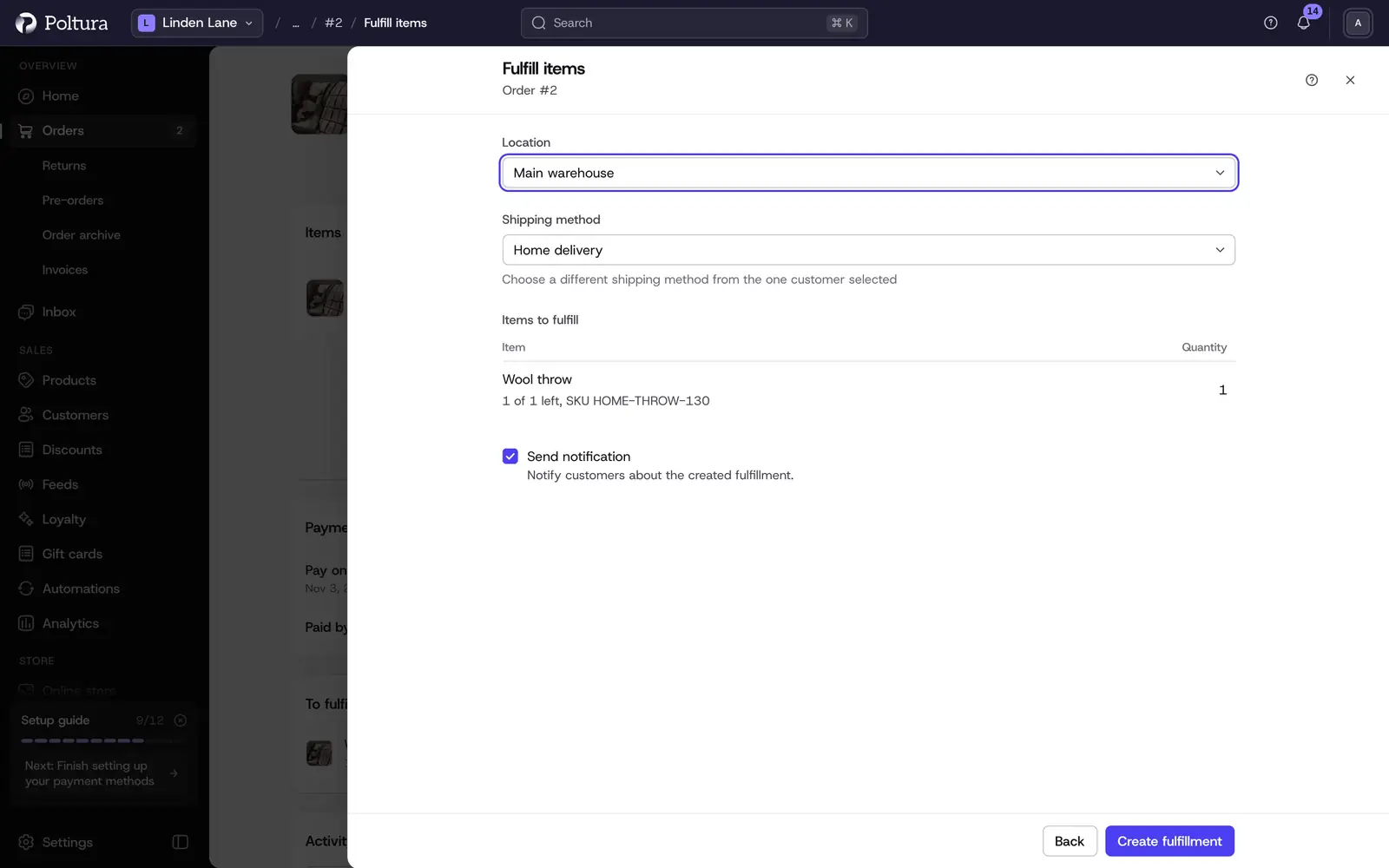
Leave the Shipping method as the customer chose it, or pick another one.
Under Items to fulfill, set how many of each item go out now. Every row starts with all that is left. Lower a quantity to send the rest later.
Leave Send notification ticked to tell the customer.
Select Create fulfillment.
The order now has a Fulfillment #1 block with the items, the provider and the tracking. The fulfillment status changes to Fulfilled or Partially fulfilled.
Mark a fulfillment as shipped
Use this when you hand the parcel to a courier yourself and want to record the tracking number.
Open the order and find the fulfillment block.
Select Mark as shipped.
Enter the Tracking number and, if you have it, the Tracking URL. Select Add tracking number for a parcel with more than one number.
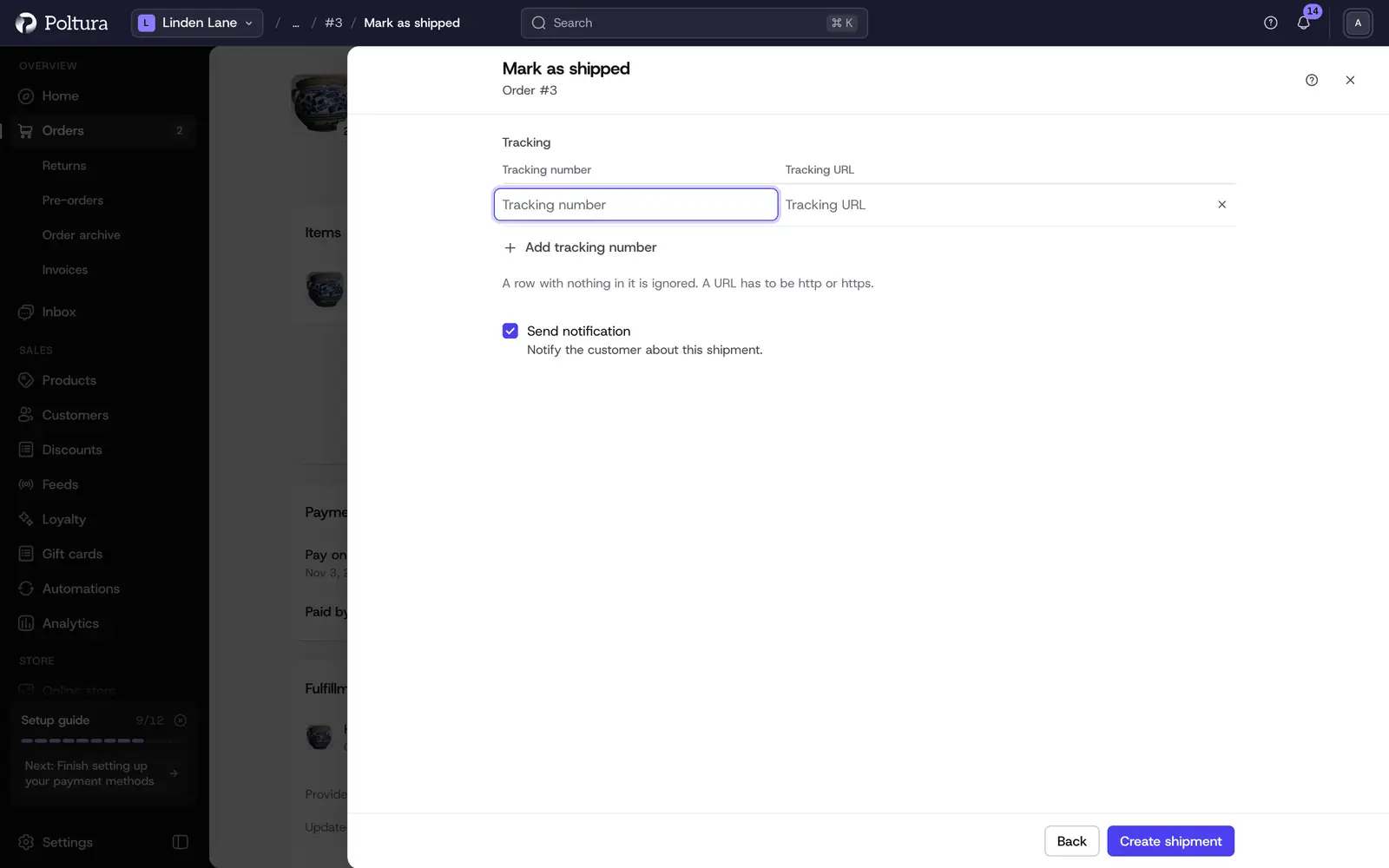
Leave Send notification ticked to tell the customer about the shipment.
Select Create shipment.
The fulfillment shows the tracking number as a link and the status changes to Shipped.
A tracking URL has to start with http or https. An empty row is ignored.
Mark a fulfillment as delivered
Open the order and find the fulfillment block.
Select Mark as delivered. For local pickup the button reads Mark as picked up.
Leave Send notification ticked if the customer should hear about it.
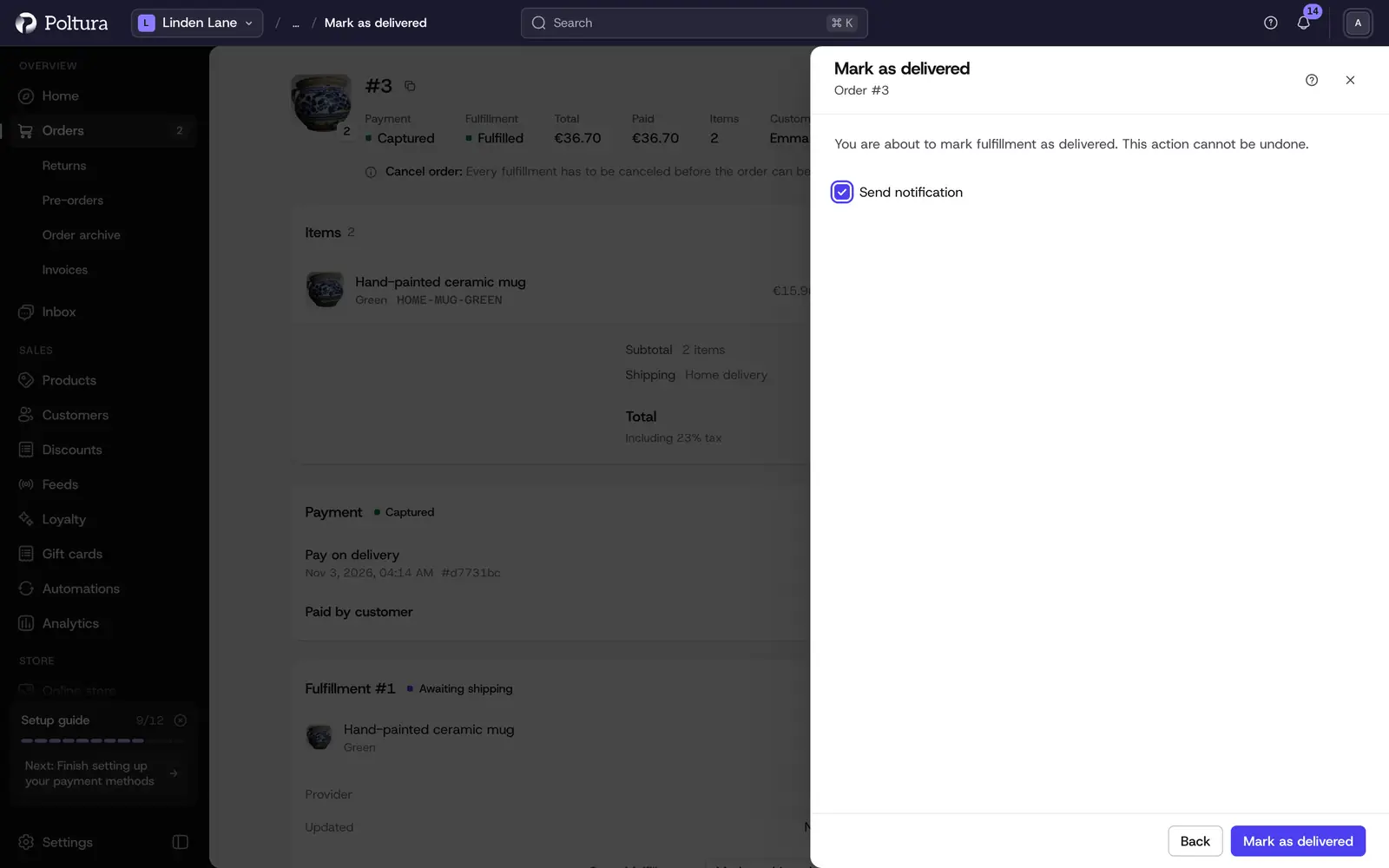
Confirm with Mark as delivered.
The fulfillment status changes to Delivered.
Cancel a fulfillment
Cancel a fulfillment when it was created by mistake or the parcel will not go out. The items return to Unfulfilled Items.
Open the order and find the fulfillment block.
Select Cancel fulfillment.
Confirm with Cancel fulfillment.
The fulfillment shows Canceled and its items are waiting to be fulfilled again.
Print labels for many orders
- Open Orders and the To ship view, or any list of orders.
- Tick the orders, or the header box for the page.
- Select Print labels in the bar at the bottom, or press P.
- Check what gets printed: each courier with its new parcels and the labels that are printed again. Choose a label printer (10×15 cm) or A4 sheets with four labels, and on a half-used sheet click its first free place. Packing slips and the pick list are options. Press Enter to print.
Poltura books the missing parcels with each order's courier and reuses the labels that already exist, so printing again never books a second parcel. One PDF opens in a new tab, sorted by courier and then by order number. You can close the dialog for a big print: it keeps going, and the bell says when it is done. The PDFs stay available for seven days.
When an order cannot be printed, the result says why in one sentence and offers one fix, such as Fix address. Fix it, select the order again, and only that order is printed.
After printing, the order reads Label ready. It turns Shipped, and the customer gets the tracking email, when the courier scans the parcel. A courier that does not report scans marks its parcels shipped at its daily close.
Pick list in the same bar prints every product still to ship across the selected orders, summed and in shelf order, without booking anything.
Courier parcels
With a courier app installed, creating the fulfillment also books the parcel with the courier and stores the label. The tracking number and a Label link appear on the fulfillment, and the app adds its own panel to the order with the parcel and its status history.
The courier apps check the parcel status on their own and mark the fulfillment delivered when the parcel arrives, so you do not have to. Each app's topic explains its labels, parcel settings and limits:
The GLS, Foxpost, MPL, Packeta, Express One, DPD and UPS apps need "Courier apps" on your plan, which Plus and Pro include. See Plan and billing.
Reserve stock for an order
Allocate items in Summary reserves stock for the order at one of your locations before you ship it. Choose the location and the quantities, then select Allocate. The button is disabled when nothing on the order has stock left to reserve.
Good to know
- You cannot fulfill more of an item than the order has left.
- An order that a marketplace ships from its own warehouse has nothing to fulfill here. It shows Shipped by the marketplace.
- The order cannot be canceled while it has a fulfillment that is not canceled.
- Shipping methods, zones and rates are set under Delivery.
- Return labels are not created in Poltura. Create them in the courier's own portal.
If something goes wrong
- Fulfill items is disabled. Every item in that group is already fulfilled, or the order is canceled.
- "That is more than this order has left." Lower the quantity to what the row shows as left.
- No label appeared. Check the courier app's settings and its troubleshooting section, for example GLS.