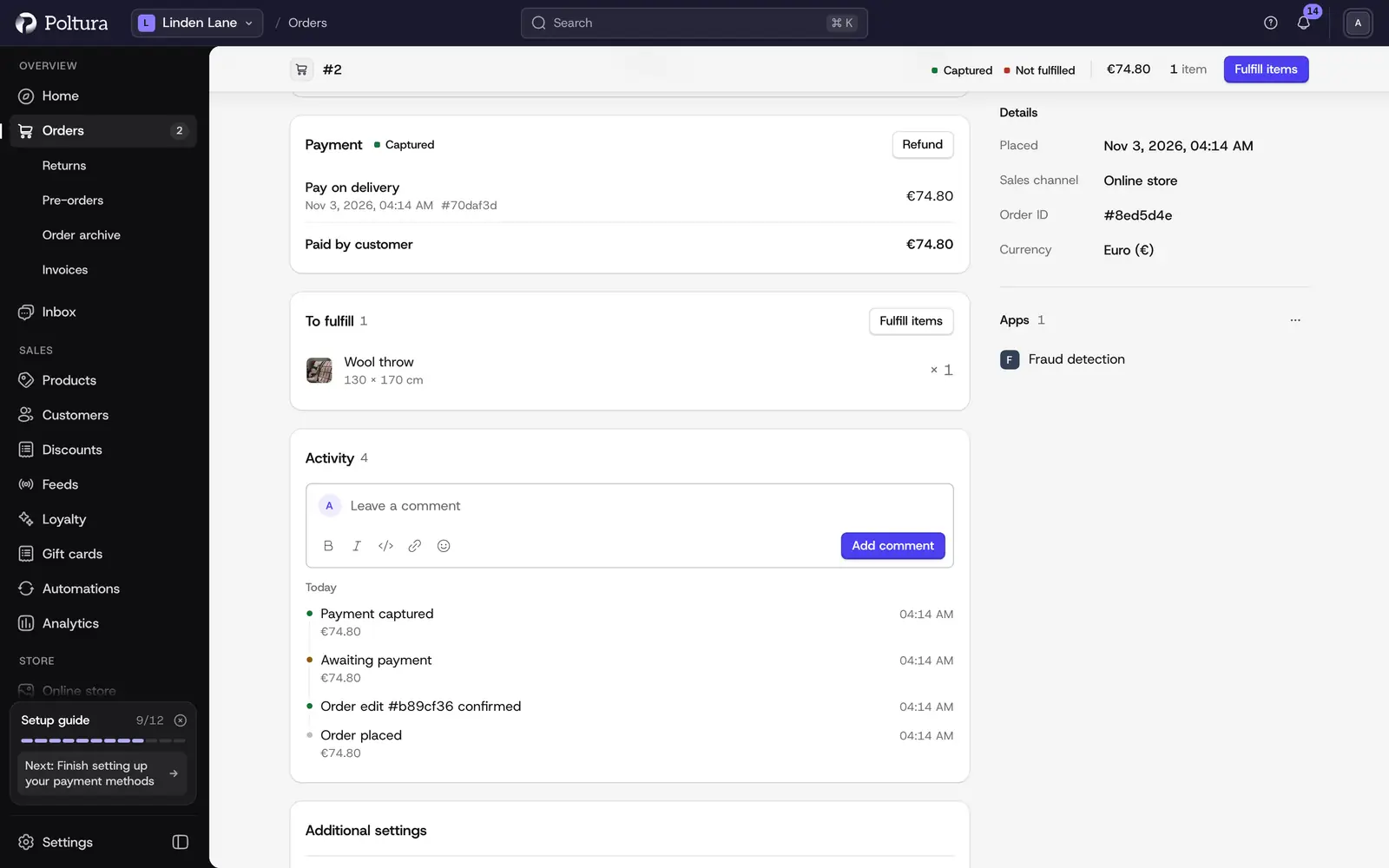
The Payments section of an order lists every payment with its provider, status and amount. From here you take the money, record that a pay-on-delivery or bank transfer payment has arrived, and send money back.
Before you start
- Refunding needs its own permission. The Owner, Administrator and Store manager roles have it. See People and roles.
- Which payment methods your customers can use is set under Payments.
Capture a payment
An order can arrive with a payment that shows Authorized. This happens in two cases:
- A card payment method only reserved the amount on the customer's card. The money is yours only after you capture it.
- The customer chose pay on delivery or bank transfer. No money has moved yet. Capture the payment once the courier has settled the amount or the transfer has arrived. This is how you record that such an order is paid.
Open the order and go to Payments.
Select Capture payment under the payment.
Check the amount on the confirmation panel and select Capture payment.
The payment status changes to Captured and Total paid by customer grows by the amount.
A capture always takes the full authorized amount. You cannot capture a part of it.
If the section says "Payment is awaiting authorization from the payment provider", the provider has not confirmed the payment yet. There is nothing to capture until it does.
Mark an order as paid
Use this when the order has an amount that no payment covers yet, for example after an order edit raised the total and you collected the difference yourself.
An order placed with pay on delivery or bank transfer does not belong here. It already has an Authorized payment, so Mark as paid is disabled on it. Record its money with Capture payment.
Open the order and go to Summary.
Select Mark as paid.
Check the amount on the confirmation panel and select Mark as paid.
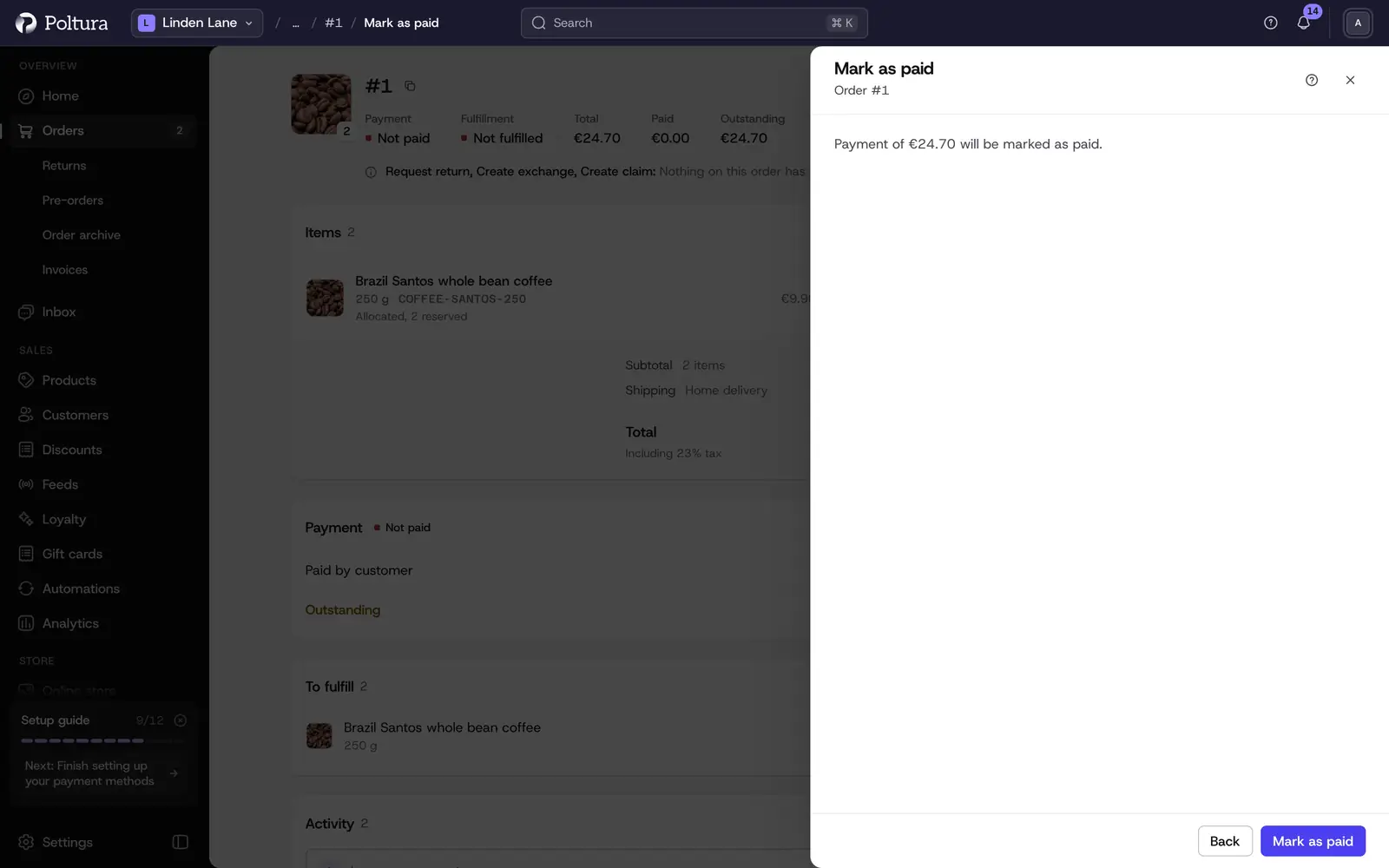
Paid Total now shows the amount and Outstanding amount drops.
Refund a payment
Open the order and go to Payments.
Select Refund under the payment you want to refund.
Enter the Amount. The panel shows how much of the payment is left to refund and starts with that amount.
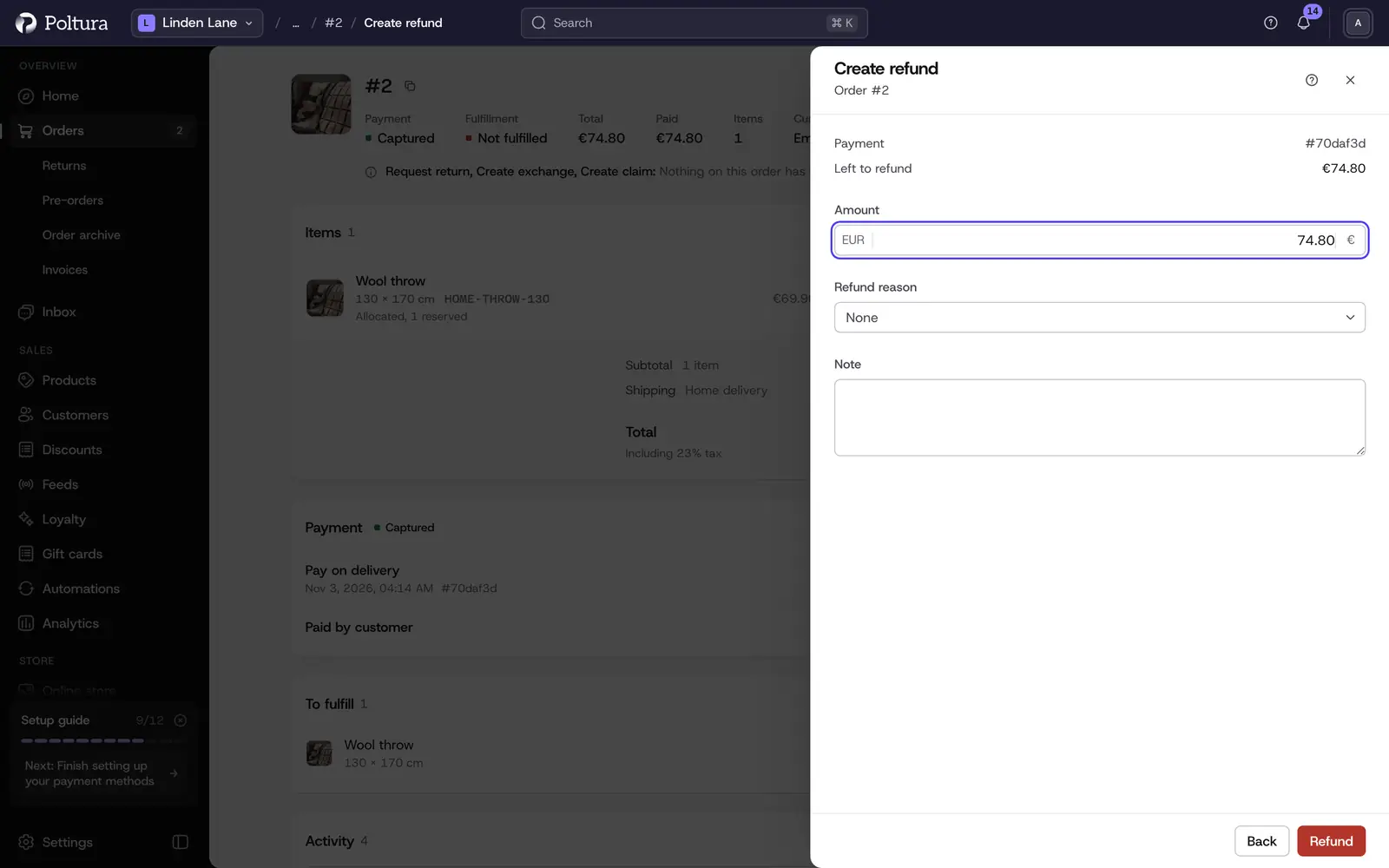
The amount starts at what is left to refund. Choose a Refund reason if you want to record why. It is optional.
Add a Note if you need one.
Select Refund.
The refund appears as a line under the payment with its date, reason and amount. The payment status becomes Partially refunded or Refunded.
When the order shows that the customer is owed money, for example after a return or an order edit, Summary offers a Refund button with the amount. It opens the same panel. If the order has several payments, choose one under Select payment to refund and select Continue first.
Good to know
- You cannot refund more than what is left on a payment. A payment that was canceled, was never captured or is already refunded in full cannot be refunded.
- Refund reasons are your own list. See refund reasons.
- A fully refunded order shows its total with a line through it, in the list and on the order.
- Canceling an order refunds its captured payments on its own. See Order details.
- A return handled under Returns can pay the customer in store credit or a coupon instead of money. See Handle a return.
- Refunds for cash on delivery and bank transfer orders do not go through a payment provider. You send the money yourself.
If something goes wrong
- Capture payment is disabled. The payment is already captured or was canceled. The reason is written next to the button.
- Mark as paid is disabled. The order has nothing left to collect, or a payment already covers the amount. If the order has an Authorized payment, as pay-on-delivery and bank transfer orders do, use Capture payment instead.
- "That is more than this payment has left to refund." Lower the amount to what the panel shows as left.
- The refund is refused by the payment provider. Check the payment in the provider's own dashboard. The topic of your payment app lists common causes, for example Stripe or Barion.