The Barion app lets shoppers pay on Barion's secure page by bank card or from their Barion wallet. Apple Pay and Google Pay work through Barion as well. It also loads the Barion Pixel on your storefront. Barion is a Hungarian payment provider, so the app suits stores that sell to Hungarian shoppers most. It works on every plan.
Before you start
- You need a Barion merchant account with a shop in it. Register at
https://www.barion.com. - You need the POSKey of that shop. You find it in the Barion admin, in the details of your shop. Barion explains where at
https://docs.barion.com/Barion_Shop_Authentication. - If you want Barion Pixel tracking, you also need your Barion Pixel ID. It starts with
BP-. - Before you can take real payments, Barion reviews and approves your shop. Until then you work in the Barion sandbox.
Set up Barion
Open Apps → App Store and open Barion. New stores have it installed already. If yours does not, select Install. Installing works the same for every app, see App Store.
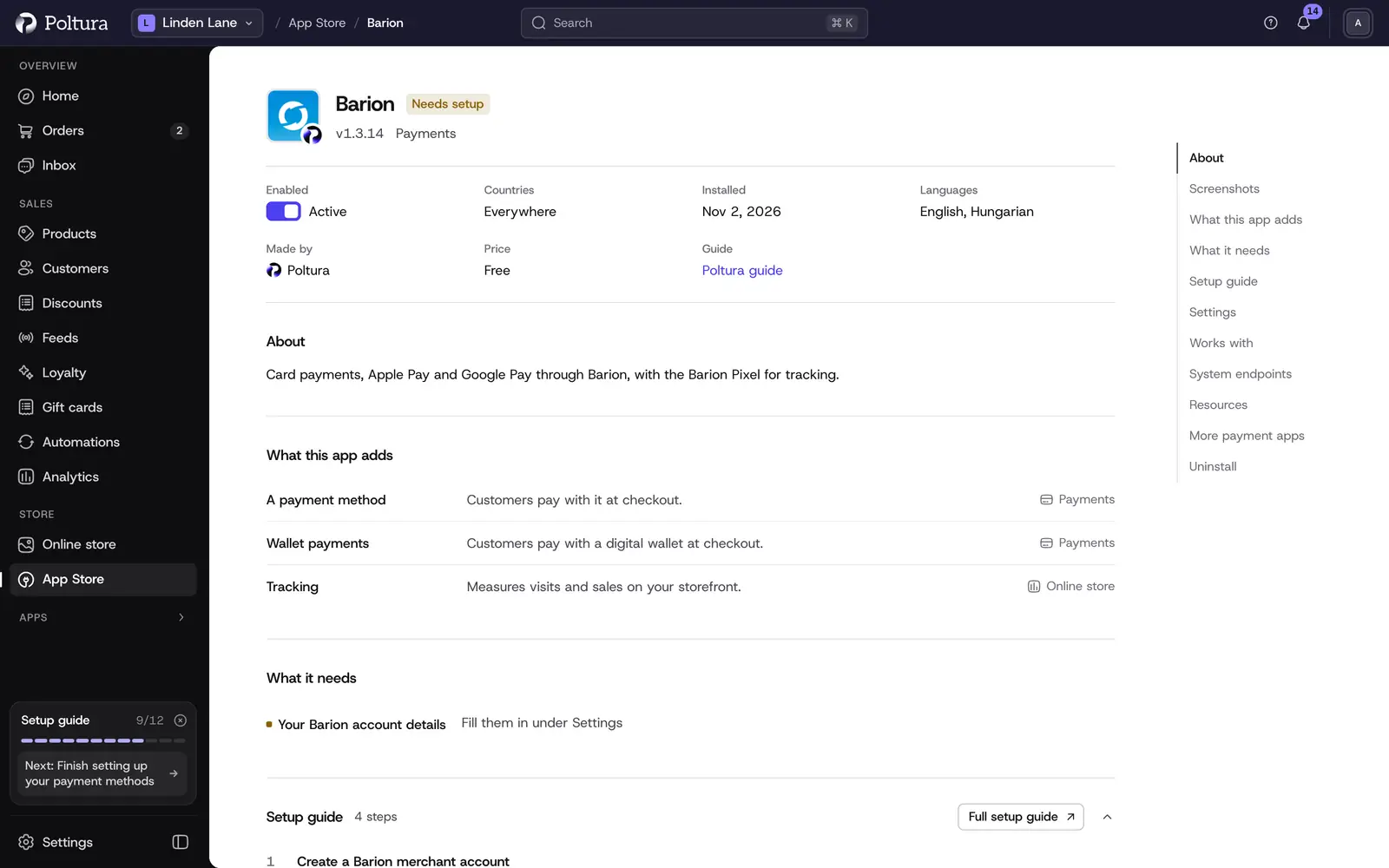
Needs setup means the POSKey is not saved yet. In the Settings section, paste your POSKey and leave Environment on
sandbox.Select Save in the save bar.
Select Turn on. The status of the app changes to Active.
Open Settings → Payments. Barion is listed under Payment methods with the status Ready.
Shoppers now see Barion at checkout in every currency it can charge, on every domain. See Payments.
Place a test order and pay with one of Barion's test cards.
Ask Barion to review your shop for live payments. When it is approved, change Environment to
production, enter the POSKey of your live shop and save.
This app has no Check the credentials button. A test payment is the way to confirm that the POSKey works. You do not have to enter any address at Barion: payment status updates reach your store on their own.
Settings
- POSKey (required): the secret identifier of your shop at Barion. It is stored encrypted and is never shown again after you save it. To change it, enter a new value.
- Barion Pixel ID: optional. When it is filled in, the Barion Pixel runs on your storefront.
- Environment:
sandboxorproduction. Sandbox lets you test with Barion's test cards before Barion approves the live connection. New installs start onsandbox.
What shoppers see at checkout
The payment step lists Card payment or Barion wallet. After the shopper places the order, they are taken to Barion's secure page, pay there by card or from their Barion wallet, and come back to your store. Apple Pay and Google Pay are offered through Barion too.
Day to day
- Barion reserves the amount at checkout. It is charged when you capture the payment. Open the order and select Capture payment, see Payments and refunds.
- A reservation lasts 7 days. Capture within that time, otherwise the reservation is released and the shopper is not charged.
- You can refund a captured payment in full or in part with Create Refund. See Refund an order.
- Canceling an order that was not captured releases the reservation.
If something goes wrong
- Barion does not appear at checkout. Open Settings → Payments and check the status. Setup incomplete means the POSKey is missing, Off means the app is not turned on.
- The shopper sees "Payment system configuration error. Please contact us." Barion did not accept the POSKey. Check that you pasted the whole key and that it belongs to the system selected in Environment.
- The shopper sees that the payment service is currently unavailable. Your shop is closed at Barion. Check the state of the shop in the Barion admin.
- A payment cannot be captured any more. The 7 day reservation has run out. Ask the shopper to pay again.
- Test payments work, real cards do not. Environment is still on
sandbox, or Barion has not approved the shop yet.