Developer mode shows the technical side of your store: API keys, sales channels, regions, raw shipping and tax records, workflow runs and the raw data behind each record. The pages in this section appear only when developer mode is switched on. You need it when you connect your store to another system, build your own storefront, or want a setting that the everyday pages do not offer.
Most merchants never need it. The everyday pages (Markets, Delivery, Taxes, Payments) edit the same data in simpler words.
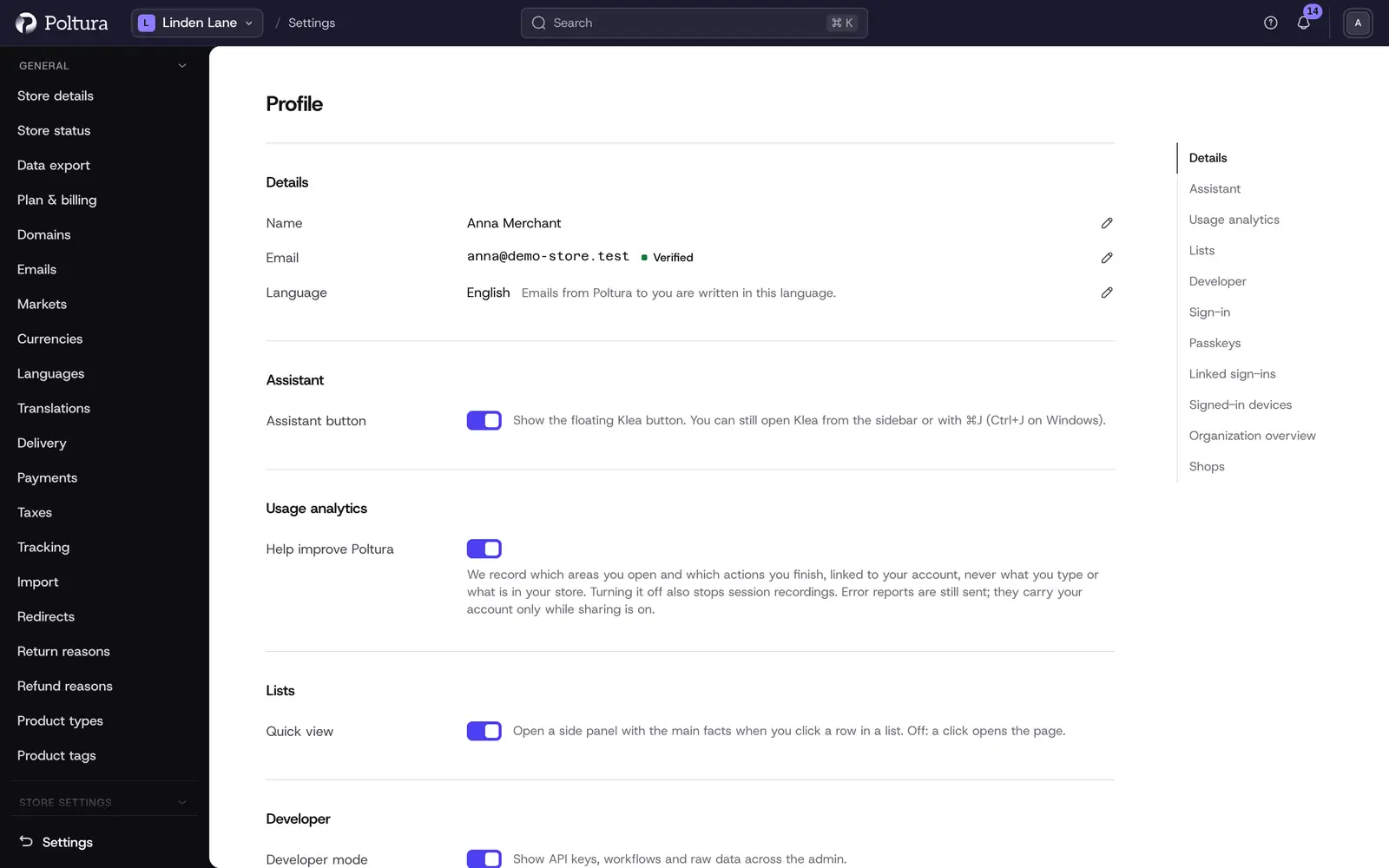
Switch developer mode on or off
Open Settings and choose Profile.
In the Developer section, turn on the Developer mode switch.
The extra pages appear in the sidebar straight away.
Turn the switch off again to go back to the everyday view.
Your browser remembers the choice for a year. It applies only to you and only in that browser. Your colleagues keep their own view.
What developer mode adds
In Settings, a new group called Developer appears between Store settings and Organization:
| Entry | What it is | Page |
|---|---|---|
| Regions | The records behind your store currencies | Regions |
| Locations & Shipping | Locations, fulfillment sets, service zones and shipping options | Locations and shipping |
| Tax Regions | Tax records per country, with overrides and sublevels | Tax regions |
| Inventory items | The stock records behind your variants | Inventory |
| Sales Channels | The places your catalog is sold through | Sales channels |
| Property Labels | Your own names for the properties of a record type | Property labels |
| Publishable API Keys and Secret API Keys | Keys for storefronts and integrations | API keys |
| Workflows | A read-only log of what the store ran | Workflows |
In the sidebar:
- Products gets two more entries: Options (Product options) and Reservations (Reservations).
- Discounts opens the full promotion list and gets the entries Discounts and Campaigns. See Promotions and Campaigns.
- Price Lists appears. See Price lists.
- A Manage group appears with Developer apps. See Your own apps.
On record pages, a Developer section shows the record ID with a copy button and the record as raw JSON. In the everyday view the same place shows only Custom data, your own key and value pairs.
How the developer pages relate to the everyday pages
The developer pages are not a second copy of your settings. They show the same records under their technical names, with every field.
| Everyday page | Developer page | Relation |
|---|---|---|
| Markets | Regions | The store keeps one region per currency for you |
| Delivery | Locations and shipping | Zones and rates are service zones and shipping options |
| Taxes | Tax regions | The standard rate of a country is the default rate of its tax region |
A change on one side shows up on the other at once.
Good to know
- Developer mode is not a permission. It only decides what the menus list. A direct link to a developer page opens in the everyday view too, if your role allows the page.
- What you can open and change still depends on your role. The Settings pages in this section need a role that includes store settings, such as Owner, Administrator or Store manager. See People and roles.
- No plan is needed for developer mode. It is available on every plan.
- Several developer pages still show English labels when the admin language is Hungarian.
If something goes wrong
- The Developer group is missing in Settings. Developer mode is off in this browser, or your role does not include store settings. Switch it on under Settings → Profile, or ask an owner for access.
- A page says "You do not have access to this store". Your role does not include that page. Ask an owner to change your role.
- A colleague cannot see a page you linked. Send the link anyway: it opens without developer mode. If it still refuses, their role is missing the permission.