This page appears only when developer mode is switched on.
A product option is something a shopper chooses on a product, such as size or color. Its values (S, M, L) combine into the variants of the product. Normally you add options while you edit a product. See Variants and options.
The Options list shows every option of the store in one place, whichever product it belongs to. Use it to tidy up options, to see which products use one, and to set colors or images for the values.
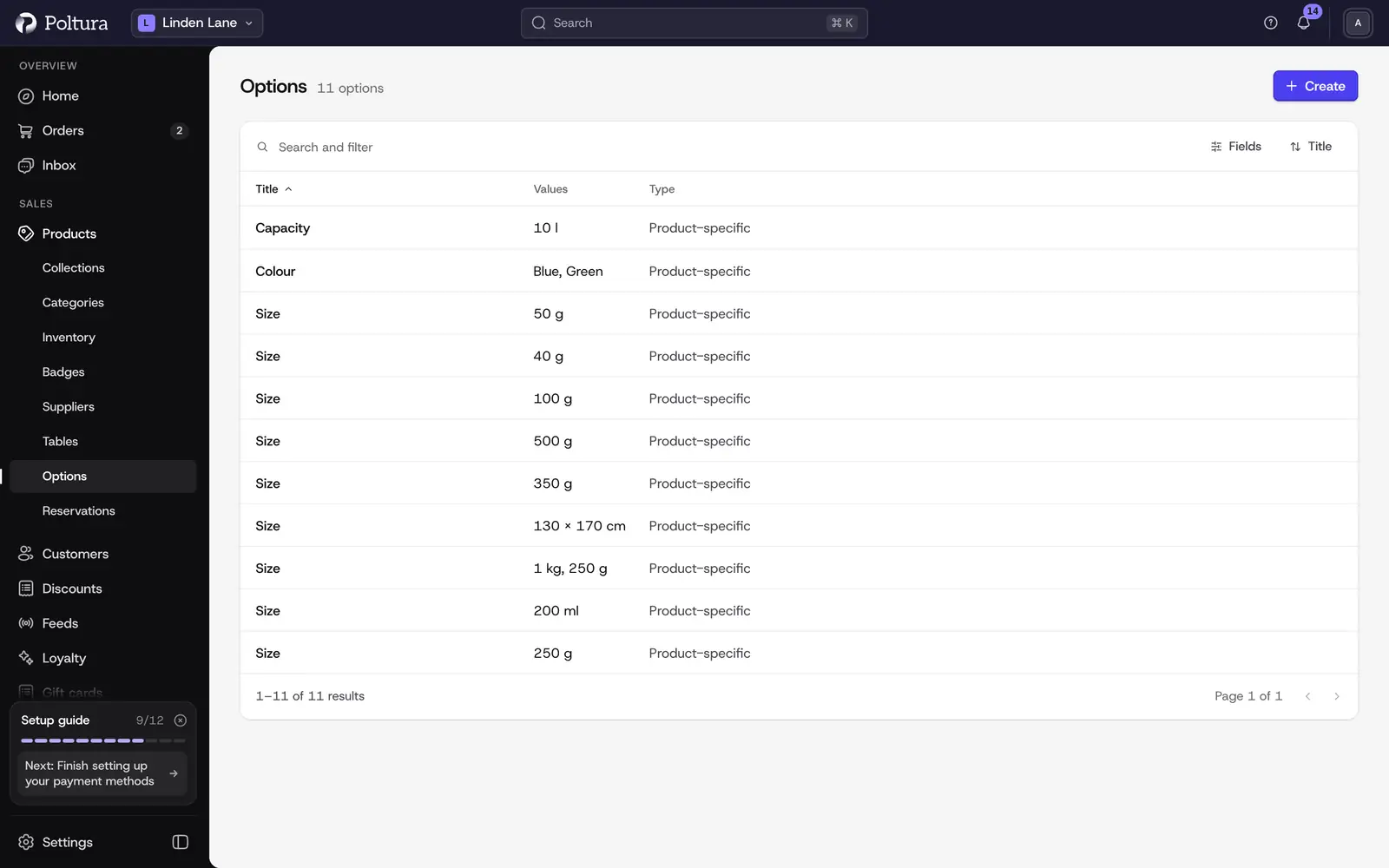
What the list shows
Each row is one option, with these columns:
- Title: the name of the option.
- Values: the values the option has.
- Type: Global or Product-specific. A product-specific option was made for one product.
- Created and Updated.
You can search, filter by Type and by date, and sort by title or date.
Create an option
Open Products and choose Options.
Select Create.
Type a Title, for example Size.
Choose how shoppers pick a value under Display on product page: Buttons, Dropdown, Color swatches or Image tiles.
Type the Values, for example S, M, L.
Save. The page of the new option opens.
Open an option
Select a row to open the option. The page shows:
- Values: every value of the option. Open a value to see its details.
- Products: the products that use this option, with their status.
- Details: the type and the display setting.
- Custom data: your own key and value pairs on the option.
In developer mode the page also shows the option as raw JSON.
Edit an option
Open the option and select Edit.
Change the Title, the display setting or the Values. You can add new values and remove existing ones.
Save.
If your store has more than one language, you can switch the language on the option page and translate the title and each value. The display setting is shared by every language. See Translations.
Set a color or an image for a value
Color swatches and image tiles need a color or an image for each value.
Open the option, then open a value from the Values section.
In the Swatch section set the Color. For a two-tone product, also set the Second color.
For an image tile, paste the address of the image into Image URL.
Select Save.
A value without swatch data is shown as a plain button on the storefront, so nothing breaks while you are still setting things up. Swatch images are given as an address: there is no upload for them yet.
Delete a value or an option
To delete a value, open its menu in the Values section and choose Delete. To delete the whole option, open the option and select Delete.
Read the confirmation and confirm with Delete.
Good to know
- An option title and a value can each be up to 255 characters long. One option holds up to 200 values in this form.
- A product can have up to 5 options with 50 values each, and up to 200 variants.
- The same swatches appear in the category filters of the storefront when an option is shown as swatches or image tiles.
- The display setting can also be changed from the product page, where you edit the option of that product.
If something goes wrong
- A swatch does not show on the storefront. The option is still set to Buttons or Dropdown, or the value has no color or image. Check both.
- An image tile is empty. The address in Image URL does not lead to an image that is publicly reachable.
- "That value is too long." A title or a value is longer than 255 characters.
- The page says the option could not be found. It was deleted or belongs to another store.