This page appears only when developer mode is switched on.
Developer apps is the workspace for people who build apps for Poltura stores. Here you register a developer organization, create an app, submit its releases for review and manage the tokens and keys the app needs. It is a different list from the apps a store has installed. Those are under Connected apps.
This page describes what the admin lets you do. It is not a guide to writing an app.
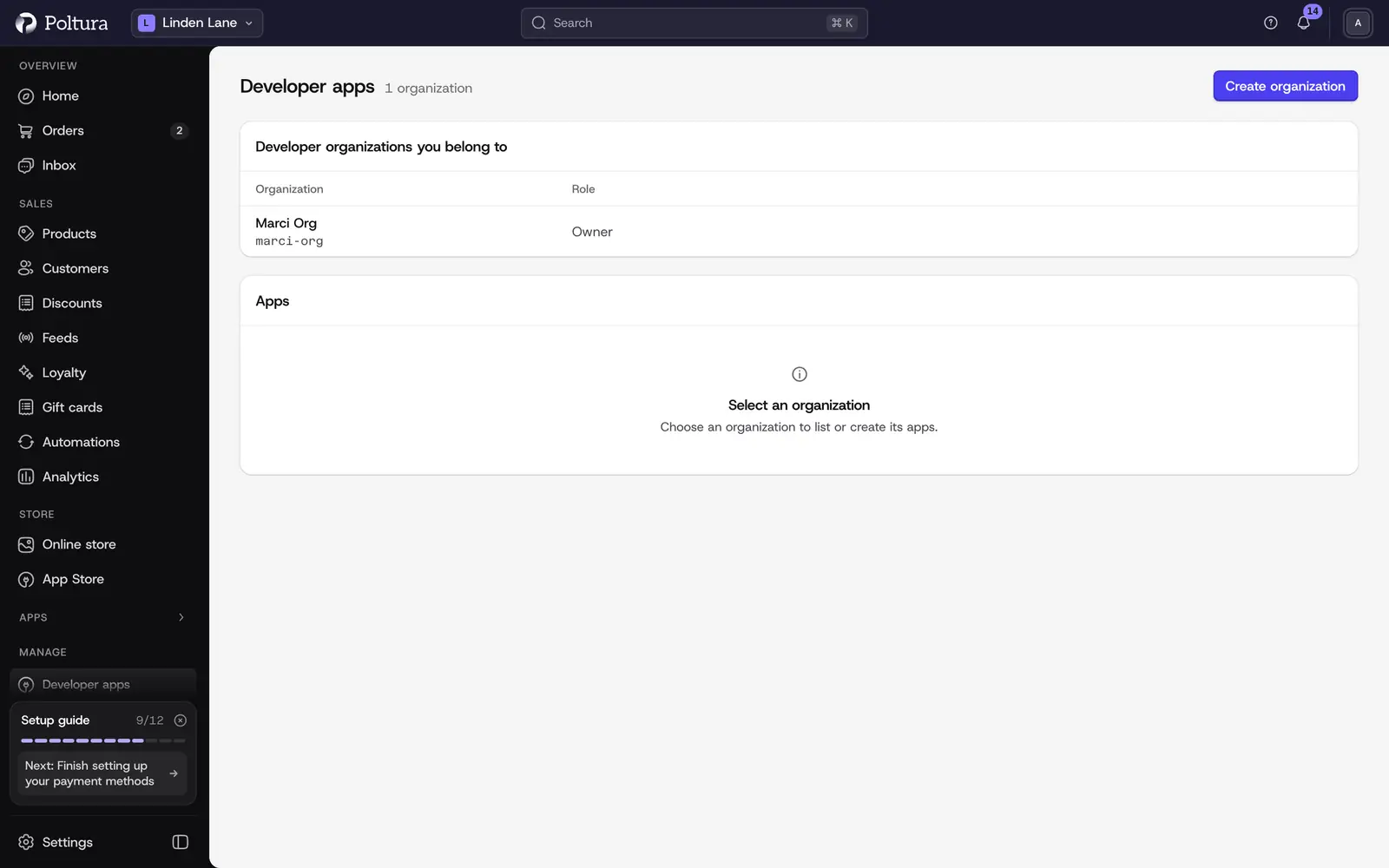
Open the workspace
Switch on developer mode. A Manage group appears in the sidebar with Developer apps. The page does not depend on a store: it opens even when your account has no store.
The page has three parts: your developer organizations, the apps of the organization you select, and its publish tokens.
Create a developer organization
A developer organization owns your apps. It is separate from the organization that owns your stores.
Open Developer apps and select Create organization.
Type a Slug: lowercase letters, digits and hyphens, 2 to 64 characters.
Type a Display name.
Select Create. The organization appears in the list with your Role.
A member's role is Owner, Publisher or Member.
Create an app
Select your organization in the list. Its apps are listed under Apps.
Select Create app.
Type a Handle. It is the stable public identifier of the app, in lowercase letters, digits and hyphens.
Type a Display name and, if you like, a Description.
Tick Listed for discovery if the app should be listed for merchants once it is approved.
Select Create. The app appears in the list with the status No approved production release.
Read the app page
Select an app to open it. The page shows:
- Status: whether the app is Listed or Unlisted, or App suspended or App revoked.
- The identifiers of the app and its organization, and the Handle.
- Published permissions: the data the approved release asks merchants for, each marked Required or Optional. Until a production release is approved it reads No approved production release.
- Origin and Redirect URIs of the approved release.
- Releases: every release you submitted, with its Version, Status and Channel.
Submit a release
A release is one version of your app: a manifest file and the files it names. Poltura reviews every release before merchants can use it.
Open the app and go to Submit a release.
Choose the Channel: Production or Development.
Choose the Manifest file.
Add the other files your manifest names with Add extension, Add worker and Add stylesheet. Each file needs the path the manifest gives it.
Optionally type Notes for the reviewer.
Select Submit release. The release appears under Releases with the status Submitted.
The status then moves to In review and ends as Approved, Changes requested or Rejected. You cannot review a release of your own organization. Only an approved release on the Production channel becomes the version merchants install. A Development release is reviewed too, but it cannot be installed by merchants.
Create a publish token
A publish token lets you submit releases from a terminal, without the upload form.
Select your organization and go to Publish tokens.
Select Create token.
Type a Label and, under Expires in days, a number from 1 to 90. The default is 30.
Select Create token.
Select Copy token and store the token somewhere safe.
The list shows each token's label, when it expires and when it was last used. Select Revoke to stop a token from working. A revoked token cannot be restored.
Manage OAuth signing keys
An app that connects to stores through OAuth registers its public signing keys under OAuth signing keys.
- Register keys: paste your public keys into Public JWKS. Only public ES256 or RS256 keys are accepted. A private key is rejected.
- Rotate keys: replace the current public keys with new ones.
- Disable client: switch the OAuth client off. You must give a Reason.
Good to know
- A merchant sees the permissions your release asks for and approves them when installing, and again for every update.
- Removing an app from a store does not erase the data your own servers keep about that store. That is your responsibility.
If something goes wrong
- "Developer access denied". Your session cannot manage public apps. Sign in with the account that belongs to the developer organization.
- "A record with this identity already exists." The slug or handle is taken. Choose another.
- "A file exceeds the supported upload size. Nothing was sent." Make the file smaller and submit again.
- "The upload does not match the required fields." A file is missing or a path differs from the manifest.
- "This record changed since it was loaded. Reload and try again." Someone else changed it in the meantime. Reload the page.
- "Developer apps unavailable". The list could not be loaded. Nothing was changed. Try again in a moment.