This page appears only when developer mode is switched on.
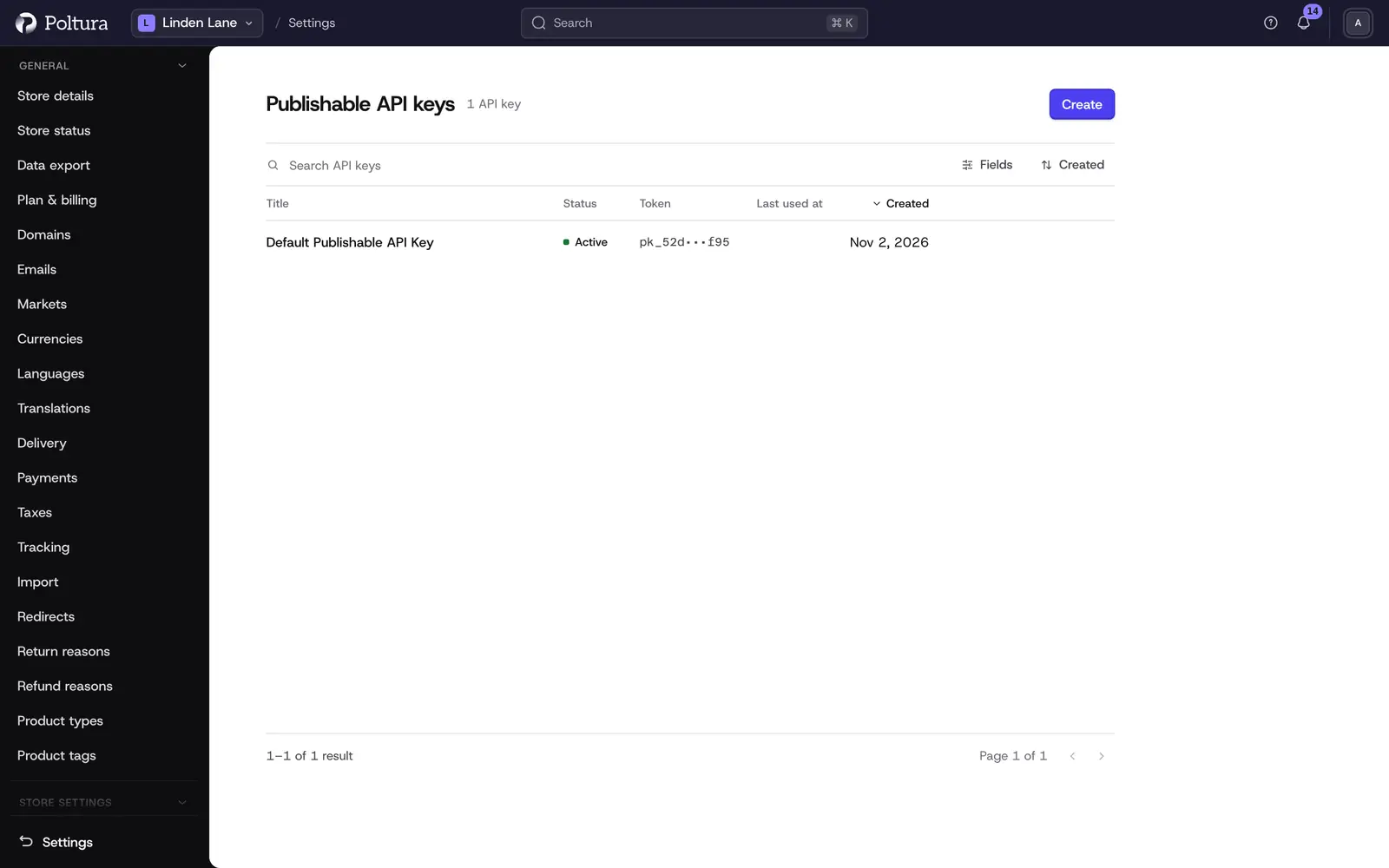
A publishable API key identifies a storefront. It is public: it may sit in the code of a website. It decides which sales channels that storefront can see. The keys are listed in Settings → Developer → Publishable API Keys.
You need this page when you build your own storefront. To connect a back-office system to your store, use an API token instead. Create a personal one in Poltura ID under Account → API tokens, or an organization one under Settings → Organization → API & access. A token holds only the permissions and stores you choose.
Before you start
You need a role that includes store settings, such as Owner, Administrator or Store manager.
Create a publishable key
Open Settings and choose Publishable API Keys in the Developer group.
Select Create.
Type a Title that says what the key is for, then save.
The page of the new key opens with the status Active. The Token row shows the whole key with a copy button and the note Public, safe in a storefront.
In the Sales Channels section select Edit sales channels.
Tick the channels this key may reach and save.
The section now lists the channels. A storefront that sends this key sees the products of these channels only.
You can open the page again at any time to copy the token. A publishable token is not hidden after creation.
Rename a key
Open the key from its list.
Select Edit API key.
Change the Title and save.
Renaming does not change the token, the linked channels or the status.
Revoke a key
Revoke a key when it leaked or when the integration that used it is retired.
Open the key from its list.
In the Revoke API key section at the bottom select Revoke API key.
Type the title of the key to confirm, exactly as it is written.
Select Revoke API key.
The key now shows the status Revoked, and the Details section shows Revoked at and Revoked by.
To replace a key without an outage, create a second key first, link the same sales channels, switch your storefront to it, and only then revoke the old key. Several active keys can exist side by side.
Delete a key
Only a revoked key can be deleted. Deleting removes it from the list for good.
Open a revoked key.
In the Delete this API key section select Delete API key.
Type the title of the key and confirm.
You return to the list and the key is gone.
Good to know
- Each list shows Title, Token (shortened), Status, Last Used At and Created. You can search by title and filter by created, updated or revoked date.
- Last Used At stays empty for now. Do not use it to decide whether a key is still in use.
- Created by and Revoked by show a technical identifier, not a person's name.
- Two keys may have the same title. Give every key its own title, because revoking and deleting ask you to type it.
- A title can be up to 200 characters long.
- A publishable key never gives admin access.
If something goes wrong
- "An API key has to be revoked before it can be deleted." Revoke the key first.
- "That does not match, so nothing was changed." The title you typed differs from the key's current title. Check capital letters, and check whether someone renamed the key.
- "That API key could not be found". The key was deleted or belongs to another store.
- A storefront stopped loading products. Its key was revoked or has no sales channel linked.