This page appears only when developer mode is switched on.
A tax region holds the tax setup of one country. It has a default rate, overrides for products that are taxed differently, and optional sublevels for parts of the country. The everyday Taxes page shows the same data as one standard rate per country. Use Tax Regions for what Taxes does not offer: sublevels, the tax provider, deleting a rate and deleting a whole tax region.
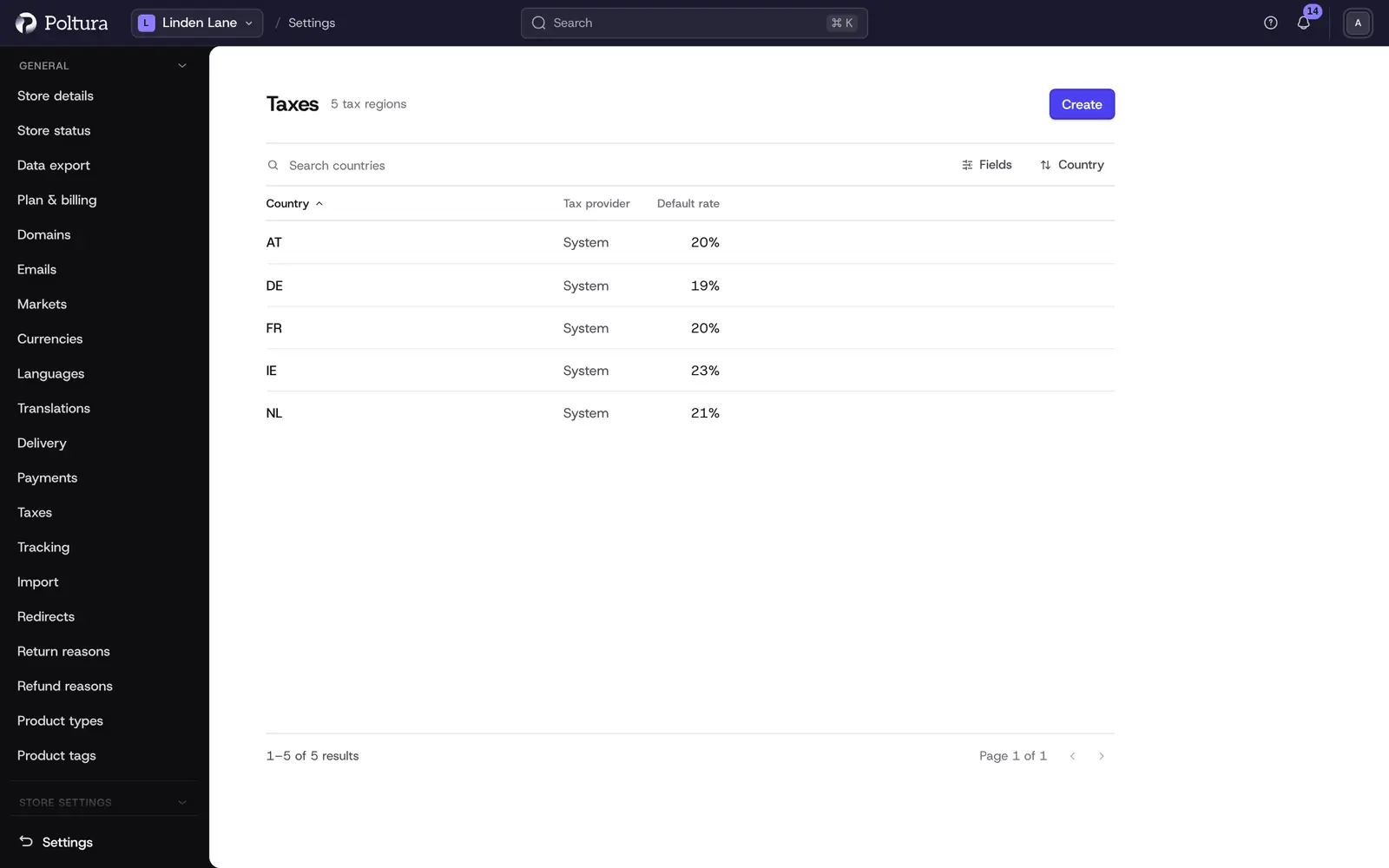
How Taxes and Tax regions relate
- The Standard rate of a country on the Taxes page is the default rate of that country's tax region.
- Saving a first rate on the Taxes page creates the tax region for you.
- The overrides listed on a country's Taxes page are the overrides of its tax region.
- Whether prices include tax is set per currency. Change it under Currencies.
Before you start
You need a role that includes store settings, such as Owner, Administrator or Store manager. A country must be in one of your markets before you can create a tax region for it.
Create a tax region
Open Settings and choose Tax Regions in the Developer group.
Select Create.
Choose the Country. Only the countries in your markets are listed.
Choose the Tax provider.
Optionally fill in the Default rate section: Name, Tax code and Rate (%). Leave all three empty to create the region without a rate.
Save. The page of the new tax region opens.
A country can have one tax region. Until the region has a default rate, nothing is charged in that country unless an override matches.
Set or change the default rate
Open the tax region.
In the Default tax rate section select Create default tax rate, or the pencil on the existing rate.
Fill in Name and Rate (%). Tax code is optional.
Save.
The name of the rate is what appears on the order. A rate is a number from 0 to 100, written with a dot as the decimal separator.
Add an override
An override replaces the default rate for the products, product types or shipping options it targets. Use it for goods with a reduced rate.
Open the tax region and select Add override in the Overrides section.
Fill in Name and Rate (%).
Under Targets select Choose products, Choose product types or Choose shipping options.
Select Add target, find the item and pick it. Repeat for more targets, then close the picker.
Save. The override is listed with the number of its targets.
An override can hold up to 20 targets in total. An override saved with no target never applies.
When a product is targeted directly by one override and through its product type by another, the override on the product wins.
Add a sublevel
A sublevel is a tax region for one part of a country, such as a state or a province, with its own default rate and overrides.
Open the tax region of the country and select Add sublevel in the Sublevels section.
Type the Sublevel code, the ISO 3166-2 subdivision code, for example
HU-BU.Optionally fill in a default rate.
Save. The page of the sublevel opens.
On the sublevel page you add a default rate and overrides the same way as on a country. For an address in that part of the country, the sublevel's rates are tried first, then the country's.
On a sublevel rate you can turn on Combinable. The rate is then charged on top of the country's rate, not instead of it.
Change the tax provider
The tax provider calculates the tax lines at checkout.
Open the tax region and select the pencil beside Tax provider in the General section.
Choose another provider and save.
The System provider charges the rates you set here and nothing more. The provider that comes with the Billingo app also applies reverse charge for EU business customers with a verified VAT number and a zero rate outside the EU. While the Billingo app is active, country tax regions are switched to its provider automatically, so a different choice made here does not last.
The country of a tax region cannot be changed.
Delete a rate, an override, a sublevel or a tax region
- A rate or an override: open it with the pencil, select Delete tax rate or Delete override, and type its name.
- A sublevel: open it, select Delete sublevel and type its code.
- A tax region: open it, select Delete tax region in the Delete this tax region section and type the country code, for example
HU.
Orders already placed keep the tax they charged.
Good to know
- A change takes effect on tax calculated afterwards. There is no scheduling, so change a rate at the moment it becomes valid.
- The list is titled Taxes and shows Country, Default rate and Tax provider. Its search matches two-letter country codes, not country names.
- Overrides can target products, product types and shipping options only.
- Combinable has an effect on sublevel rates only. On a country-level override it changes nothing.
- Nothing warns you when two overrides in the same region target the same product. Keep one override per product.
- A sublevel code is not checked against the country. A wrong code never matches an address.
- Selling across the EU is modeled as one tax region per destination country. There is no separate OSS switch or report.
- Many labels on these pages are in English, also when the admin language is Hungarian.
If something goes wrong
- "Another record in this store already uses that value." on Country. The country already has a tax region. Open it from the list.
- "That value is too long." on a rate. The rate is above 100.
- "A default already exists". The region has a default rate. Edit it.
- "Too many items selected". The override has more than 20 targets. Split it into two overrides.
- A decimal comma turns
27,5into275. Type27.5. - No tax on orders to a country. The country has no tax region, no default rate, or no tax provider. Check the Taxes page: a country that needs attention shows Set rate.