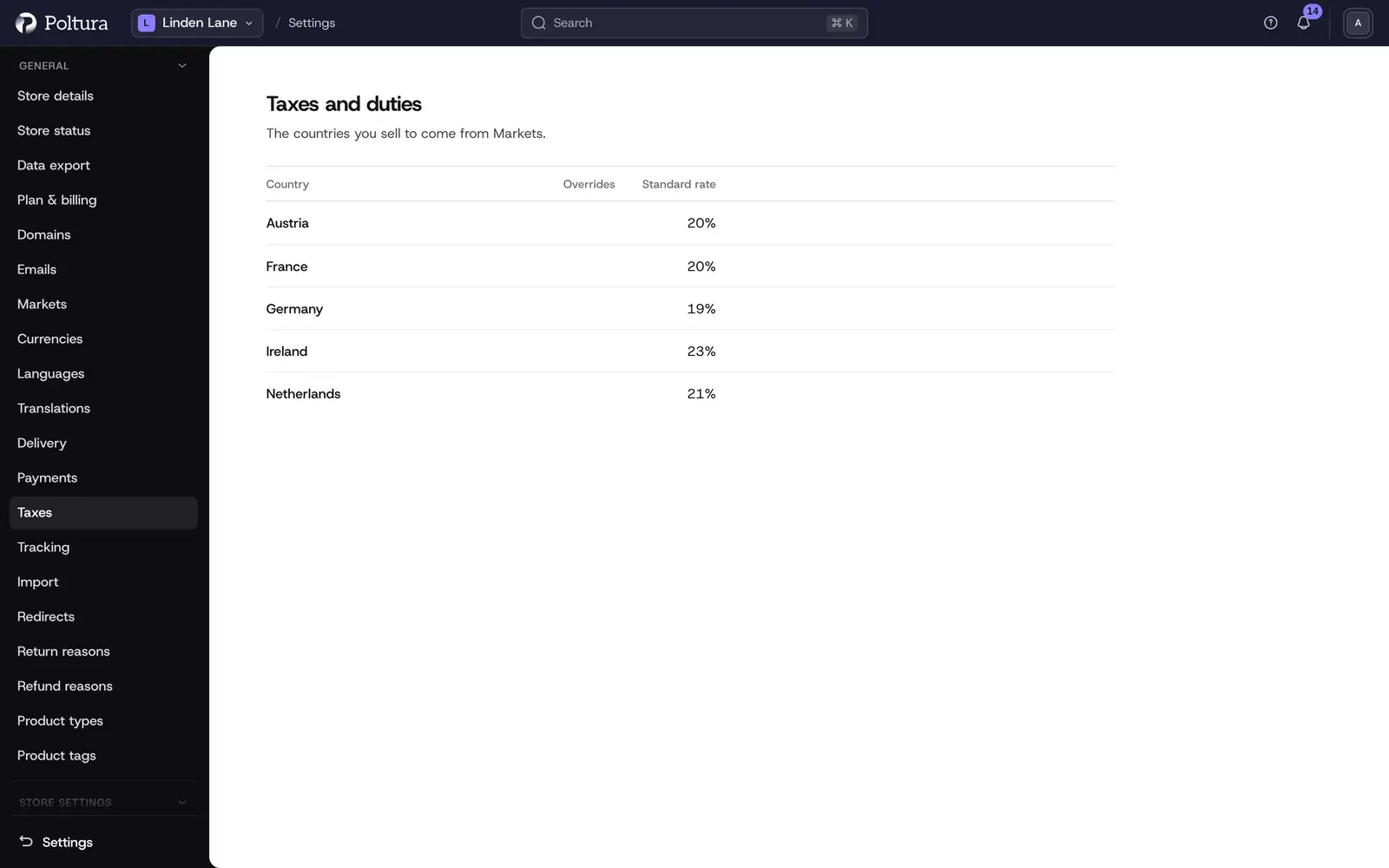
The Taxes page, titled Taxes and duties, lists every country you sell to with its tax rate. Here you set the standard rate for each country. You can also add overrides for products, product types or delivery methods that need a different rate.
The list has four columns: Country, Tax-inclusive pricing, Overrides and Standard rate. A country without a rate shows Set rate. Orders to that country are calculated with no tax at all.
Before you start
- You need the Owner, Administrator or Store manager role.
- Only the countries in your markets are listed. Add a country to a market under Markets.
- Poltura does not give tax advice. Check the rates you charge with your accountant.
Set the tax rate of a country
Open Settings and choose Taxes.
Click the country's row. Its page opens with the sections Standard rate, Overrides and Setup.
Click Set tax rate (or Edit tax rate when a rate exists).
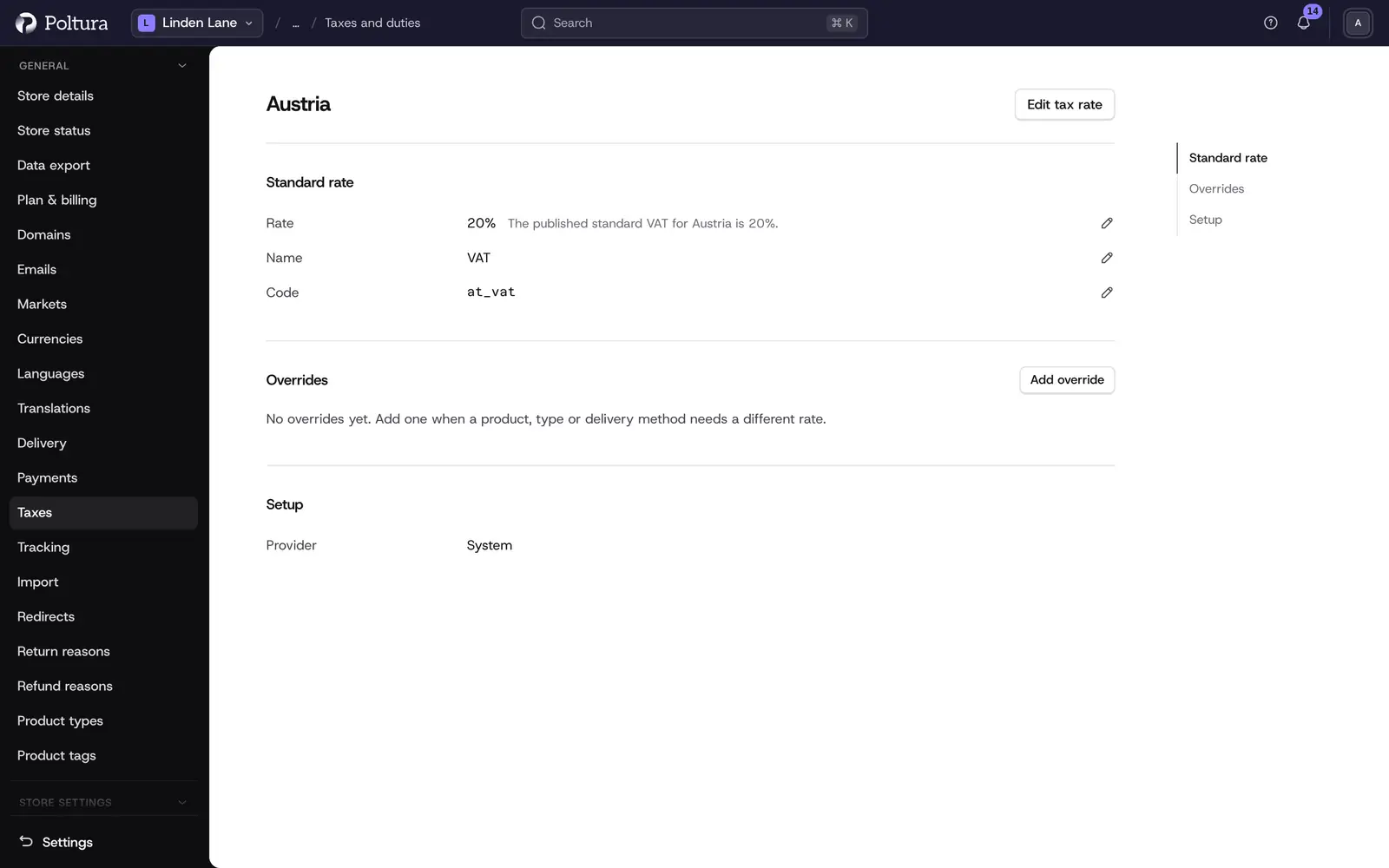
Next to the rate you see the published standard VAT of the country. Fill in Rate (%) and Name. When the country's published standard VAT rate is known, the rate is prefilled with it and the name with VAT. You can simply save. The name is shown on the order and the invoice beside the tax amount.
Check the Code. It identifies the rate in exports and integrations.
Click Save. The Standard rate section shows the rate, for example
27%.
A rate of 0 is a valid rate. The country then reads 0%, not Set rate.
Charge a different rate for some products
An override replaces the standard rate for what it targets, for example a reduced rate for books.
On the country's page, in the Overrides section click Add override.
Fill in the name, the tax code and the rate.
Under the targets choose what the override applies to: products, product types or shipping options. Search in each picker and add the items.
Save.
- An override can hold up to 20 targets in total.
- When a product is targeted directly and through its product type by two overrides, the override on the product wins.
- Do not target the same product with two overrides in one country. Nothing decides which of them is charged.
- To change or remove an override, open it with its pencil. Removing asks you to type the override's name.
The override screens belong to the developer-mode Tax regions pages and appear in English. After saving you land on the tax region. Go back to Settings → Taxes to return to the country.
Tax-inclusive pricing
The Tax-inclusive pricing column and the Setup section show whether prices already contain tax. You cannot change it here. It is set per currency under Currencies.
Good to know
- A change applies to tax calculated from then on. There is no scheduling. Orders already placed keep the tax they charged.
- A country added with Add market on Markets gets its standard rate. A country added to an existing market with Add countries does not get one automatically: its market page shows it under Before it goes live.
- One rate per country is all most stores need. Rates for parts of a country, the tax provider and deleting a rate are on the developer-mode Tax regions pages.
- Selling across the EU is handled as one rate per destination country. There is no OSS threshold or report on this page.
- Invoicing apps can change how tax is applied to business customers. See Billingo and Számlázz.hu.
If something goes wrong
- "That value is too long." The rate is above 100. If you typed a comma, the field dropped it:
27,5became275. Type27.5. - A country is missing from the list. You do not sell to it yet. Add it to a market under Markets.
- "No tax is set up for some countries you sell to". At least one country you sell to has no rate. Open each country that shows Set rate.
- "Too many items selected". An override has more than 20 targets. Split it into two overrides.
- The saved code differs from what you expected. The drawer suggests the country code followed by
_vat. Check the Code field before you save.