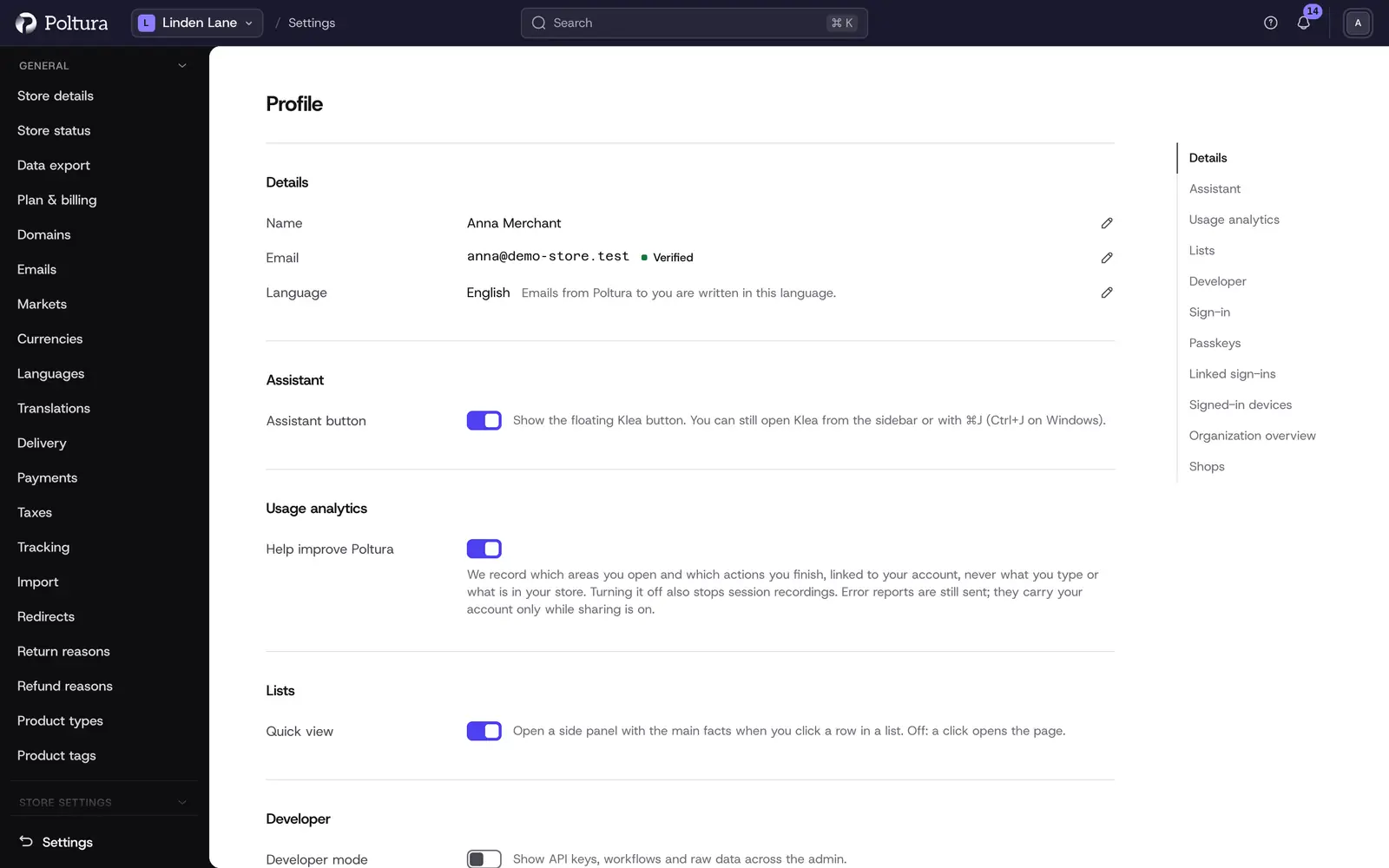
The Profile page is your own Poltura account: your name, your email address, how you sign in and where you are signed in. Every team member has it, whatever their role. Below your account the page summarizes the organization you work in.
You also reach the page from the user menu at the top, under Profile settings.
The sections are Details, Assistant, Lists, Developer, Sign-in, Passkeys, Linked sign-ins and Signed-in devices, followed by the organization.
Before you start
Changes that affect how you sign in ask you to confirm it is you first, with your passkey, a code from your authenticator app or your password. After you confirm, you are not asked again for 15 minutes on that device. Removing a sign-in method is the exception: each removal asks again.
Change your name and email language
Open Settings and choose Profile.
In the Details section click the pencil next to Name, or next to Language to start there.
Change First name and Last name, or pick another Language.
Click Save.
The Language here is the language Poltura writes emails to you in. It does not change the language of the admin itself. You switch that in the user menu. See Admin basics.
Change your email address
In the Details section click Change email.
Type the New address, type it again in Repeat the new address and submit. Confirm it is you if asked. If the two addresses differ, nothing is sent and you see "The two addresses are different."
A code is sent to the new address, and your old address is told about the change.
Enter the Verification code and click Verify. The address now reads Verified.
Verifying a new address signs you out on your other devices.
Change your password
In the Sign-in section choose Change password on the Password row.
Enter your Current password and a New password of at least 8 characters. The meter under it rates the new password from Weak to Strong as you type. A longer password that is not built from your name or email scores higher. Strong takes at least 15 characters. Below that the meter suggests 15 or more characters, or turning on two-step verification.
Type the new password again in Repeat the new password. If the two differ, nothing is sent and you see "The two new passwords are different."
Tick Sign out of every other device if someone else may know the old password.
Click Change password.
Set up an authenticator app
An authenticator app adds a second step to signing in: a 6-digit code from an app on your phone.
In the Sign-in section click Set up an authenticator app.
Scan the code with your authenticator app, or enter the key shown below it.
Type the 6-digit Code from the app and click Turn on.
The drawer shows Your recovery codes. Save them somewhere safe now: each code signs you in once if you lose your phone, and they are shown only this once. Copy the codes copies them all.
Click I saved them.
- New recovery codes replaces every old code at once.
- Turn off asks first, then removes the authenticator app and its recovery codes: signing in no longer asks for a code, and the recovery codes stop working.
Add a passkey
A passkey lets you sign in with your fingerprint, face or your device's screen lock instead of a password.
In the Passkeys section click Add a passkey.
Follow your browser's prompt.
The passkey appears in the list, named after its provider or device.
Use the pencil on a passkey to rename it, so you can tell your devices apart, and the trash icon to remove it. Removing asks first, because you won't be able to sign in with that passkey anymore. Cancel keeps it.
Check where you are signed in
Signed-in devices lists every device signed in to your account, this one first and the others by when they were last active, ten to a page, with how each signed in and its location.
- The power icon on a row signs that device out.
- Sign out everywhere asks first. In the dialog, leave Also sign out this device unticked to keep the device in your hands signed in and sign out every other one. Tick it to end every session, this one included. Cancel changes nothing.
If you see a device you do not recognize, sign it out and change your password.
Turn quick view on or off
In the Lists section, the Quick view switch decides what a click on a row does in the Products, Orders, Customers and Inventory lists. When it is on, a side panel opens beside the list with the main facts. When it is off, a click opens the page straight away. Lists that are already open follow the switch at once. The choice applies only to you, in this browser.
Turn developer mode on or off
In the Developer section, the Developer mode switch shows the technical screens: API keys, workflows and raw data. The extra pages appear in the sidebar straight away. The choice applies only to you, in this browser. See Developer mode for what each page does.
The organization block
Under your account, Organization overview shows the Name, the Slug and the Organization language of your organization, with links to its billing, domains and team. Owners and Administrators see Edit organization, which changes the Name and the Organization language. Emails from Poltura to your company use that language unless a person picked their own.
The block also lists your first five shops with a link to all shops.
Good to know
- An email tells you about every change to how you sign in: a changed password, a passkey added or removed, the authenticator app switched on or off, new recovery codes, a changed email address and signing out everywhere.
- Linked sign-ins lists the services, such as Google, that can sign you in. Removing one asks first. A linked sign-in that is your only way to sign in cannot be removed. In Poltura ID, an account that signs in only with a linked service must add a passkey first before disconnecting it.
- Your profile is the same in every store of the organization.
- If you also work in Poltura Console, its account page shows the same account and asks the same questions. Signing out everywhere there with Also sign out this device ticked signs you out of the Console too, in every tab.
- Some actions elsewhere in the admin, such as erasing an email recipient or blocking a team member, need a sign-in with a passkey or an authenticator app. Set one up here.
If something goes wrong
- "Too many attempts. Wait a few minutes and try again." Confirmations and account changes are limited. Wait and retry.
- "Another account already uses this email address." Choose a different address.
- "This is the only way you can sign in, so it cannot be removed." Add a password or a passkey first.
- "This item no longer exists. Reload the page." It was already removed, perhaps in another tab.
- The page says your account is not answering. Nothing was changed. Try again in a moment, or sign in again.