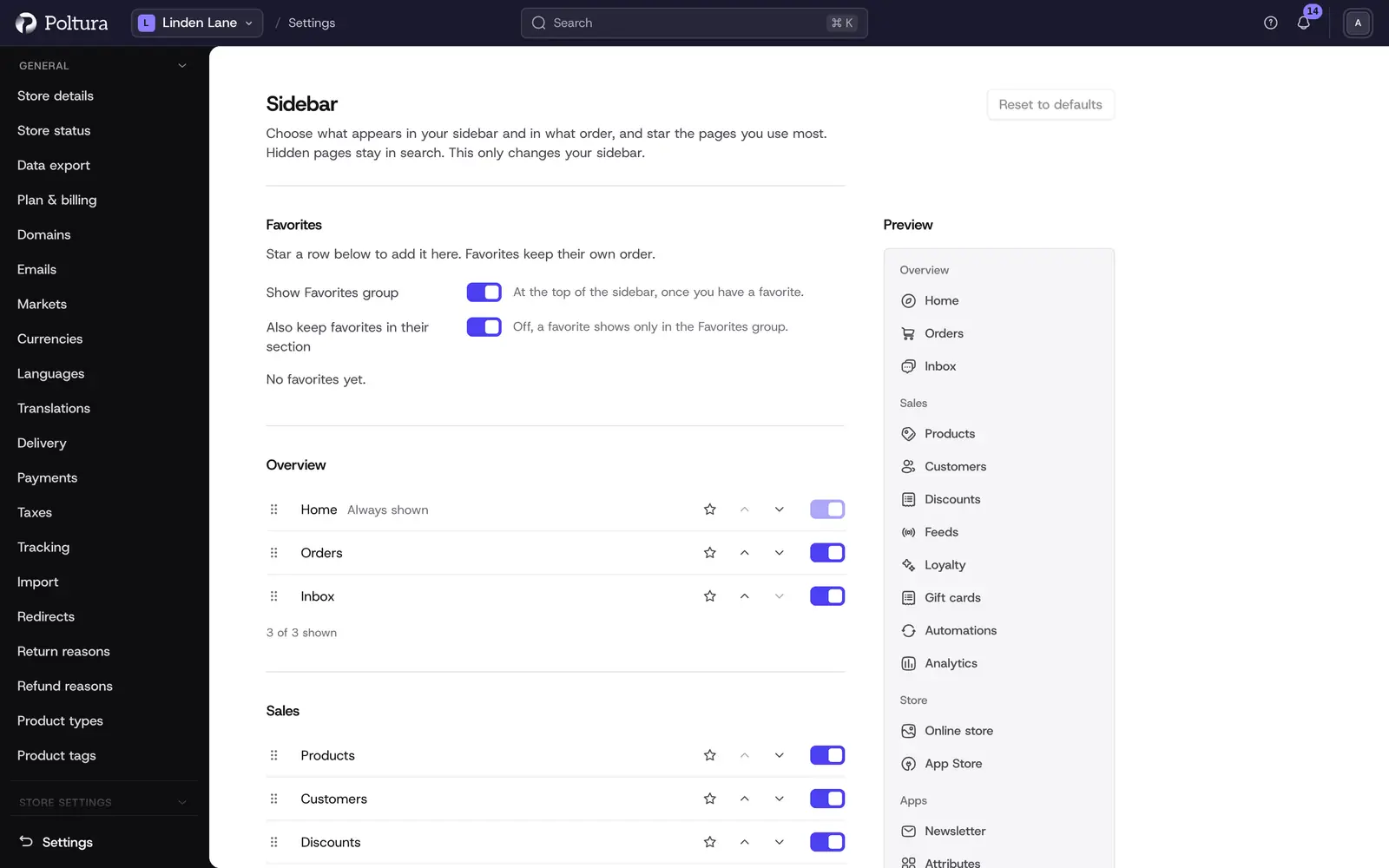
The Sidebar page lets you arrange the main sidebar of the admin the way you work. Hide what you do not use, change the order and star your most used pages as favorites. The arrangement is yours alone. It does not change anyone else's sidebar, and it is saved per store.
Hiding a page only tidies up the sidebar. A hidden page stays in search, opens from its address as before, and no permission changes.
Before you start
Every team member can use this page, whatever their role. You also reach it from the Customize row at the end of the Apps group in the sidebar.
Read the page
- Favorites at the top lists the pages you starred, in their own order.
- One section follows for each section of the sidebar: Overview, Sales, Store and Apps. Under each list, a line such as "6 of 8 shown" counts the visible rows.
- Preview shows what your sidebar will look like.
If you never customized your sidebar, everything in the first three sections is shown, and in Apps the first 8 are shown. Further apps are hidden until you show them.
Arrange your sidebar
Open Settings and choose Sidebar.
To hide or show a row, use its switch. Home is marked Always shown and cannot be hidden.
To change the order, drag a row by its handle, or use its up and down arrows. A row moves within its own section only.
To add a favorite, click the star on a row. The row appears in Favorites. Click the star again to take it out.
Watch the Preview follow your changes.
A bar with Unsaved changes appears. Click Save, or press
Ctrl+S(Cmd+Son a Mac). A message confirms "Sidebar saved" and the sidebar changes.
Discard in the save bar drops your unsaved changes.
Use favorites
Favorites appear as a Favorites group at the very top of your sidebar, above Overview, so one click takes you to the pages you use most. Two switches control it:
- Show Favorites group: shows the group at the top of the sidebar once you have a favorite.
- Also keep favorites in their section: when it is off, a favorite shows only in the Favorites group and not in its own section as well.
A favorite is a shortcut to the page. A row you hid in its section can still be a favorite.
Go back to the default
Reset to defaults at the top of the page returns your sidebar to the default arrangement.
Good to know
- If you hide every row of Sales or Store, that section disappears from your sidebar. Its block stays on this page so you can bring it back.
- If you hide every app, the Apps group stays with only the Customize row, so you can always get back here.
- After your first save, an app you install later is added to your sidebar as visible. Before that, an app installed beyond the first 8 starts hidden.
- When an app is uninstalled, your choice for it is remembered and applies again if the app comes back.
- Whether the Apps and Favorites groups are folded open is remembered per browser, separately from this arrangement.
- A change you saved on another device can take up to a minute to show.
- Pages you may not open because of your role are not listed here at all.
If something goes wrong
- "The sidebar was not saved. Try again." Save again. If it keeps failing, reload the page and sign in again. Your session may have ended.
- "Sidebar settings are not available right now". Try again in a moment. Your sidebar keeps its current layout.
- A page you need is missing from the sidebar. You may have hidden it. Find it with search, or switch it back on here. See Admin basics.
- An app is not in the list. It is not installed or not switched on for this store. See App Store.