The Poltura admin is where you run your store: products, orders, customers, the online store and every setting. This page shows how the screen is laid out and where to read more about each area.
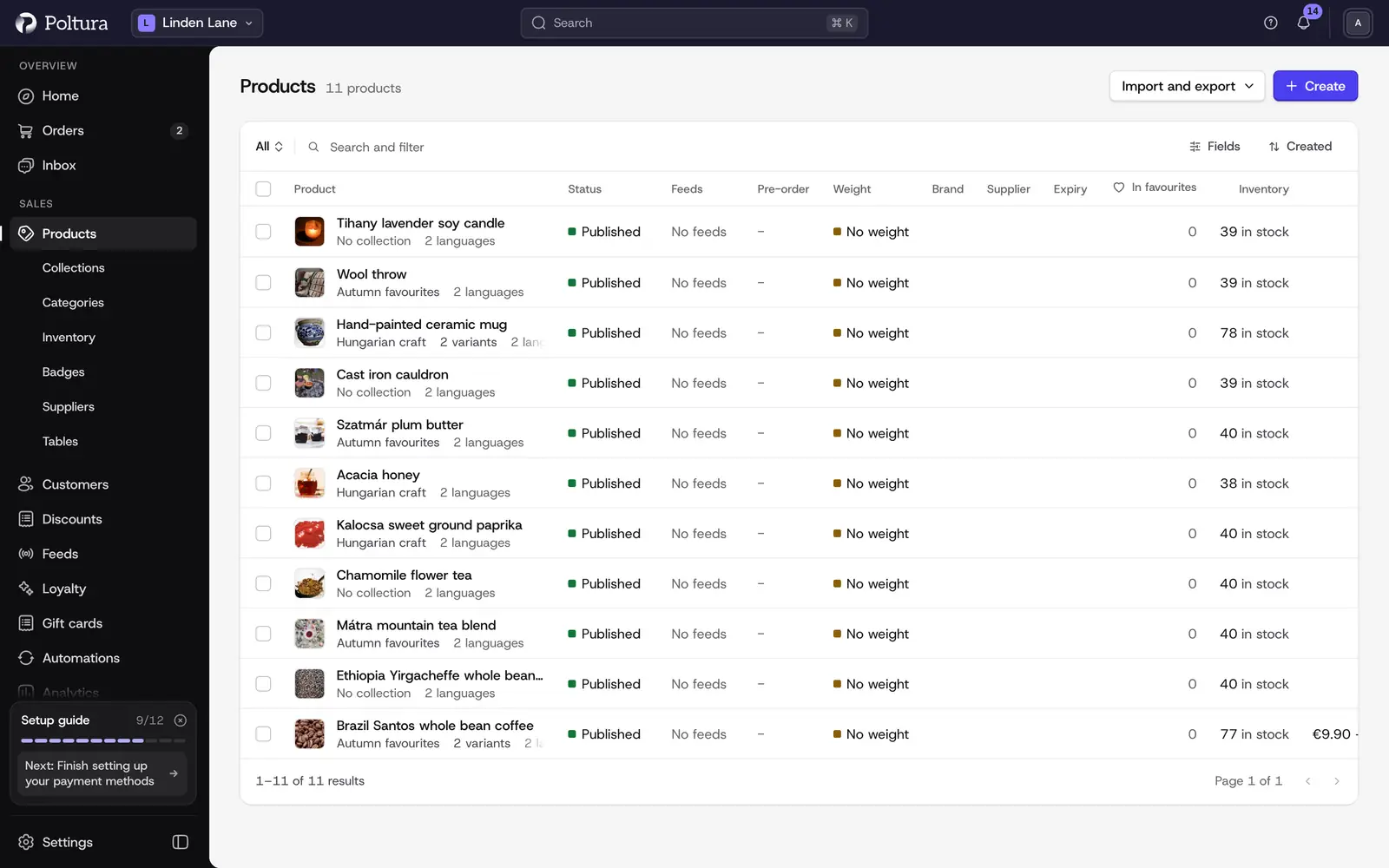
The sidebar
The sidebar on the left lists the places you work in every day, in labeled groups.
- Overview: Home, Orders (with Returns under it) and Inbox.
- Sales: Products (with Collections, Categories and Inventory), Customers (with Segments), Discounts and Feeds. Built-in features such as Loyalty, Gift cards, Automations and Analytics appear here when they are active in your store.
- Store: Online store (with Themes, Content and Forms) and the App Store.
- Apps: the apps installed in this store. The Customize link opens Sidebar, where you choose which apps show and in what order.
A row with a small arrow opens to show the pages under it. A number beside Inbox means conversations with unread messages.
At the bottom of the sidebar you find Settings and, when the assistant is switched on for your store, Assistant.
The top bar
The bar across the top stays in place on every page.
- Store menu (the name of your store): switch to another store or choose Create a store. See Admin basics.
- Breadcrumbs: show where the current page sits, so you can step back up.
- Search: finds orders, products, customers, settings pages and more. See Admin basics.
- Notifications (the bell): new inbox messages, billing notices and store activity.
- Your avatar: Profile settings, Store settings, Show tour, Language, Theme and Log out.
While your store is still private, a bar above the page says Your store is private. and offers Preview store and Go live. See Go live.
Settings
Settings opens its own sidebar. Choose a page, and use the link at the bottom of that sidebar to return to the store.
- General: store details, store status, plan and billing, domains, emails, markets, delivery, payments, taxes, import, redirects, translations, return and refund reasons, product types and tags.
- Store settings: brand, selling setup, customer accounts, abandoned cart, order numbers, returns, return numbers, pre-orders and Notify me. See Store settings and selling defaults.
- Organization: the shops, domains and people of your company.
- My Account: your profile and your own sidebar.
- Developer: appears only when developer mode is on.
Where to read about each area
| Area | Start here |
|---|---|
| Getting set up | Create your store, Setup guide, Go live |
| Daily work | Home, Orders, Returns, Inbox |
| Catalog | Products, Inventory |
| Customers and selling | Customers, Discounts, Loyalty, Feeds |
| Results | Analytics |
| Your storefront | Themes, Customizer, Pages, blog and content |
| Configuration | Store details, Markets, Payments, Delivery, Taxes |
| Help from AI | Klea, the assistant |
| Extending the store | App Store, Developer mode |
Good to know
- What you see depends on your role. A page you have no access to does not appear in the sidebar or in search.
- Each store has its own products, orders, settings and apps. Everything you do applies to the store named in the top bar.
- You can hide, reorder and star sidebar rows for yourself without changing anyone else's admin. See Sidebar.
- The admin is complete in English and Hungarian. See Admin basics.