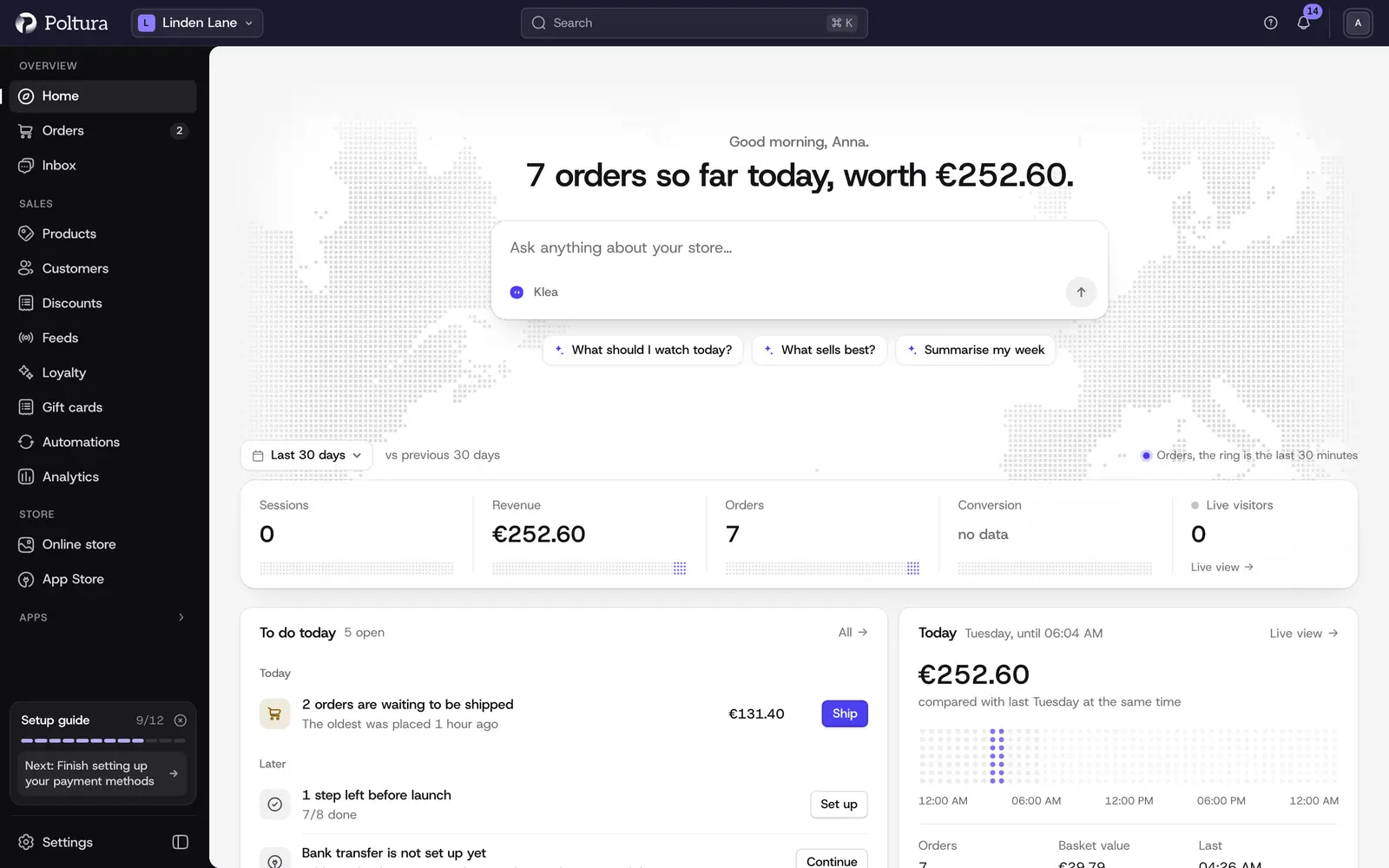
Home is the first page you see after signing in. It shows how the store is doing in the period you choose, what is waiting for you, and gives you a quick way to ask the assistant a question.
Choose the period
Open Home.
Select the period button at the start of the figures. It shows Last 30 days by default.
Choose Today, Last 7 days or Last 30 days.
Every figure on the page now covers that period and is compared with the period before it: yesterday, the previous 7 days or the previous 30 days.
Read the key figures
The strip at the top shows four figures, each with its change and a small trend line.
- Sessions: visits to your storefront.
- Revenue: revenue in the period.
- Orders: the number of orders.
- Conversion: the share of sessions that ended in a purchase.
Select a figure to open the matching report in Analytics. Orders opens the order list. The Live visitors pill at the end shows how many people are in the store right now and opens the Live view.
Behind your greeting, a map shows live orders as they arrive. When an order comes in, a New order notice appears with a link to it.
Ask the assistant from Home
If the assistant is switched on for your store, a box under the greeting says Ask anything about your store….
Type your question, or select one of the suggestions: Summarise this period, What needs my attention? or Which products sell best?
Press
Enteror select the arrow button.The assistant panel opens with the answer.
See Klea, the assistant for what you can ask.
See what to do today
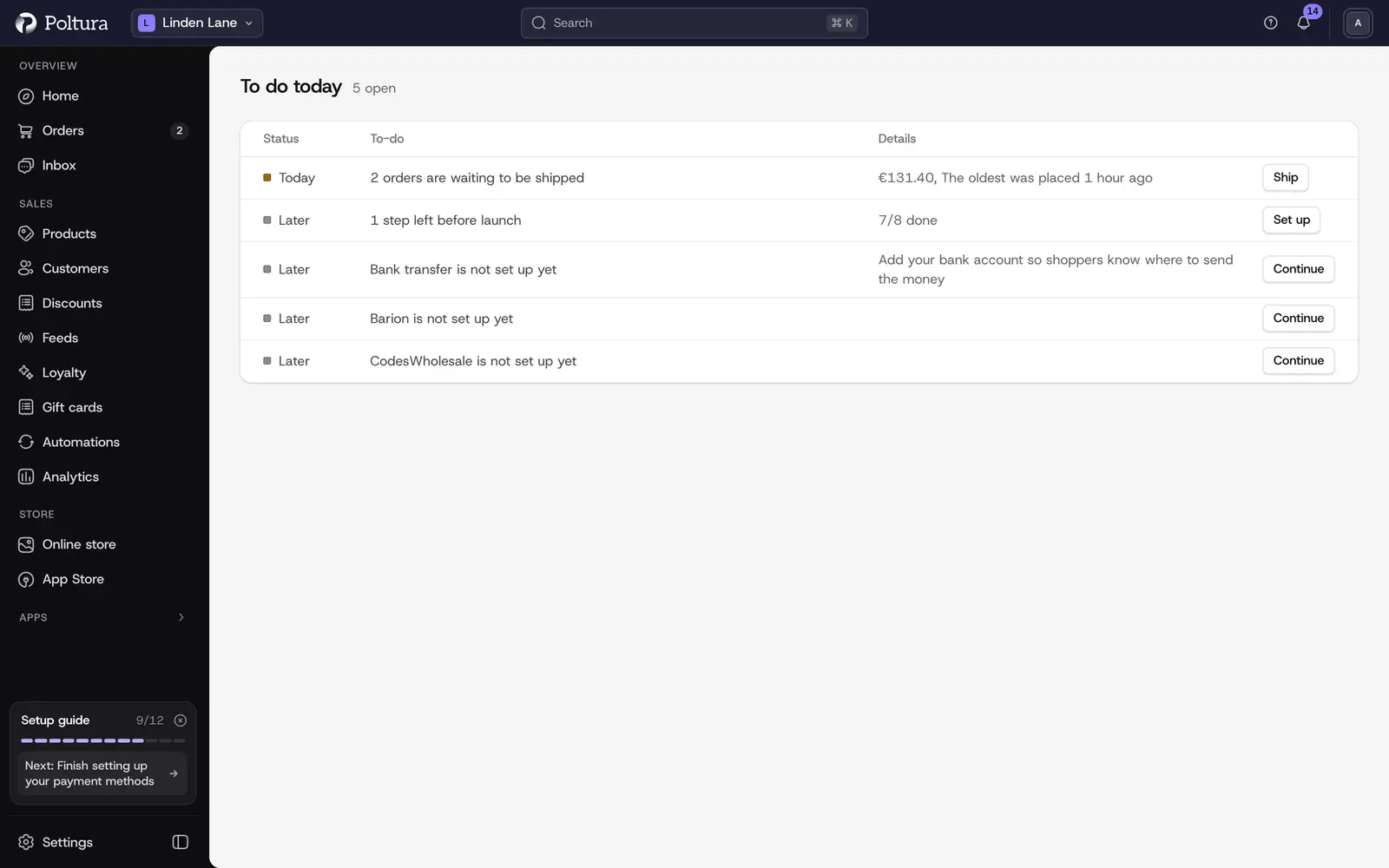
The To do today block lists work that is waiting, newest worries first, with a count of how many are open and how many of them are urgent. Each to-do is grouped as Urgent, Today or Later, and has a button that opens the page where you deal with it.
- Waiting to ship: orders that have not been shipped yet. Ship opens the order list narrowed to them. See Fulfill and ship.
- Return request: returns that need your decision, with the days left to decide. Decide opens them. See Returns.
- Unread message: chats and emails nobody has opened. Open takes you to the inbox.
- Running low on stock: items that are sold out or almost out. Stock opens the inventory narrowed to them.
- Set up an app: an app you installed that still needs its settings. Continue takes you to where you finish it.
- Storefront status: shown when your storefront is closed, password protected or not reachable. Preview opens it. See Store status.
- Invoice not created and Pro-forma awaiting payment: with Billingo or Számlázz.hu, invoices that could not be issued and pro-formas waiting for the buyer's money. Fix it and Take a look open the list of those documents. See Billingo.
Select All to open the full list of everything that is open. Each row is one to-do with its status, what it is about and a button. Selecting a row opens the same page as the button. When nothing is waiting, the list says Nothing to do right now.
The rest of the page
- Sales: the revenue curve for the period, with the daily average and the previous period for comparison.
- Conversion funnel: how many sessions added to cart, reached checkout and purchased.
- Recent orders: the latest orders with their payment and fulfillment status. View all opens the order list.
- Today: today's revenue, the number of orders and when the last one arrived, with a link to the Live view.
- Top products: the best sellers of the period by revenue.
- Customers: new customers, the returning customer rate and the average order value.
- Insights: short observations, for example which product brings most of the revenue or which hours are busiest. Shown only when there is something to say.
- Shortcuts: Add product, Create discount, Customize theme and View analytics.
Good to know
- Until the store has taken its first order and the setup guide is complete, Home greets you with Get ready to sell and puts the setup guide first.
- When your store is closed or a payment is overdue, a card at the top of Home says so and links to Store status. An open store in good standing shows no card.
- Apps can add their own cards to Home.
- Session figures come from storefront tracking. A new store shows No session data for this period yet until visitors arrive.
- A figure marked as an estimate is calculated from a partial period.
- Home always shows the store named in the top bar. To see another store, switch store.
If something goes wrong
- "Sales figures are not available for this store yet." The store could not return its figures. Reload the page in a moment.
- The ask box is missing or grayed out. The assistant is not switched on for this store, or your role does not include it. See Klea, the assistant.
- "No store yet". Your account has no store. See Create your store.