Store status decides who can visit your storefront. The store is either open to everyone or closed behind a page. A storefront password can let chosen people past the closed page. The tag next to the page title shows the result: Open, Closed or Unavailable.
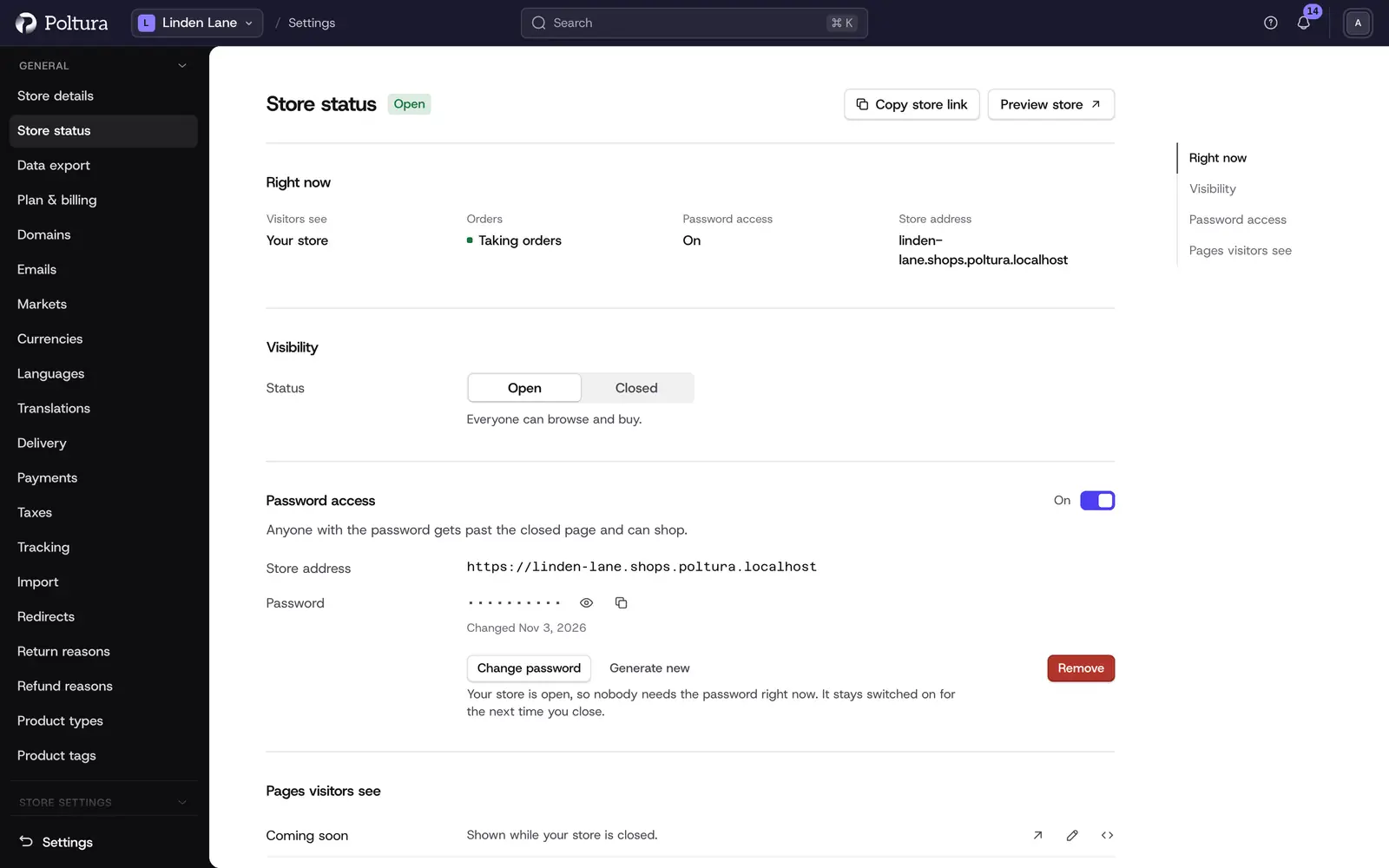
The page has four sections:
- Right now: what visitors see, whether the store takes orders, whether password access is on, and the store's address.
- Visibility: open or closed, and which page a closed store shows.
- Password access: the storefront password.
- Pages visitors see: the Coming soon, Maintenance and Payment needed pages.
Before you start
- Only an Owner or Administrator can change the status. A Store manager can read the page; the page then says "You can see the store status, but only admins can change it."
- Opening the store and the Maintenance page need a paid plan. A store that has not gone live shows its Coming soon page. See Go live.
Open or close the store
Open Settings and choose Store status.
In the Visibility section set Status to Open or Closed.
If you chose Closed, pick the Page shown while closed: Coming soon or Maintenance.
A bar with Unsaved changes appears. Click Save, or press
Ctrl+S(Cmd+Son a Mac).The header tag changes and Right now shows what visitors see: Your store, Coming soon page or Maintenance page.
An open store takes orders and can be found by search engines. A closed store takes no orders from the public, and neither closed page is indexed. The Maintenance page tells browsers and search engines that the store is temporarily unavailable and should be tried again later.
Let people in with a password
A storefront password lets people past the closed page. Use it, for example, to show the store to a colleague before it opens.
In the Password access section switch on Let people in with a password. The switch applies at once.
If no password was saved yet, one is generated for you and shown.
Click Copy link and password to copy the store's address and the password together, then send them to the person.
Working with the password:
- Show and Hide reveal and mask it. Copy copies it without showing it.
- Change password (or Set a password) opens a drawer with a New password field. Finish with Save password.
- Generate new makes a random password and shows it.
- Remove asks "Remove the password? Password access turns off too." Confirm with Remove password.
On a paid store, anyone with the password gets past the closed page and can shop. On a store without a plan they can look around, but orders start only once you pick a plan.
Edit the pages visitors see
The Pages visitors see section lists three pages:
- Coming soon: shown while the store is closed.
- Maintenance: shown while you are closed for maintenance.
- Payment needed: shown while a payment is overdue. Visitors cannot get past it.
Each page has Preview, Edit in theme editor and Edit code. The page that visitors currently get is marked Shown now. You need a published theme to edit these pages. See Themes.
Good to know
- The store's free address is shown in Right now as Store address. Your own domain is connected on the Domains page.
- The password switch and the password actions apply immediately. Only Visibility uses the save bar.
- Save a Visibility change before you leave the page. An unsaved choice is lost without a warning.
- While your store is open, nobody needs the password. The setting stays switched on for the next time you close.
- When a plan bill stays unpaid, the header reads Unavailable and visitors see the Payment needed page. Paying reopens the store with the status you set before. See Plan and billing.
- Every status change is recorded with who made it.
If something goes wrong
- "Opening your store needs a plan." The store has not gone live yet. Start a plan on the Plan and billing page.
- "Pay the open invoice first to change this." A bill is overdue. Pay it, then change the status.
- "The store status can't be read right now." Click Try again in a moment.
- Copy link and password is missing. It is offered only when the store has an address, is closed, password access is on and a password is set.