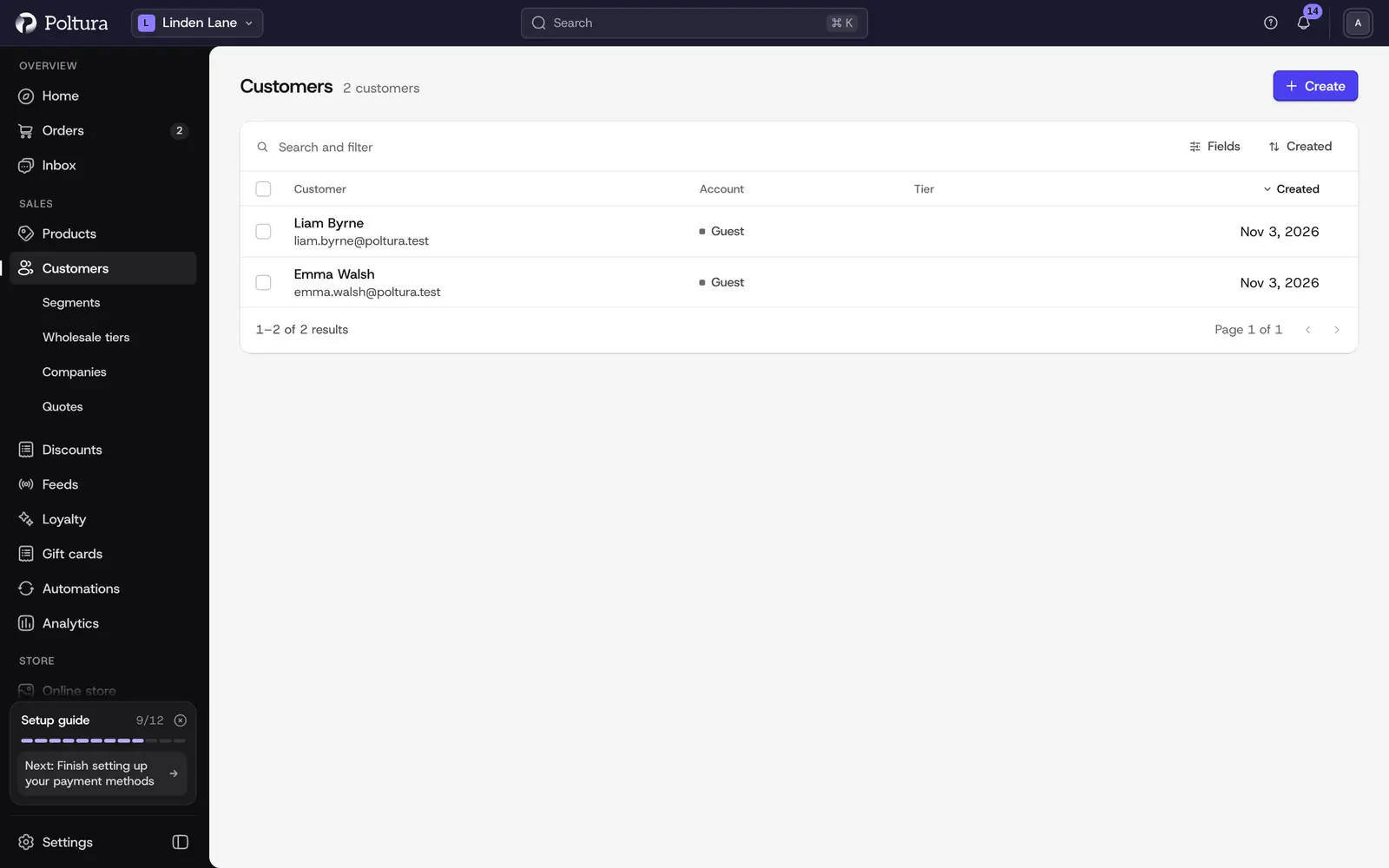
The Customers page lists everyone who has an account in your store or has ordered as a guest. From here you open a customer's page, add a customer by hand or remove customers you no longer need.
The pages in this section:
- Customer details: one customer's orders, addresses and segments, and how to edit or delete them.
- Segments: groups of customers that can get their own prices and discounts.
- Customer accounts and sign-in: how shoppers register and sign in on your storefront, and who sees prices.
- Wholesale tiers: own prices, terms and applications for business buyers.
- Business accounts: companies with several buyers, payment terms, quotes and contract prices.
Read the list
Every row is one customer with these columns:
- Email: the address the customer orders with.
- Name: first and last name, when known.
- Account: Registered for a customer with a storefront account, Guest for someone who ordered without one.
- Created: when the customer was first recorded.
On a wide screen, one click on a row opens a side panel with the main facts and a View customer link. A second click opens the customer's page. You can turn the side panel off under Settings → Profile.
Find a customer
Open Customers.
Type a name or an email address in the Search field.
To narrow the list, add a filter: Account (Registered or Guest), Customer groups (a segment), Created or Updated.
To change the order, sort by Email, Name, Created or Updated.
Select the customer to open their page.
You can keep a set of filters as a saved view. See Admin basics.
Add a customer by hand
Customers normally appear by themselves when they register or order. Add one by hand when you want to prepare a record first, for example to put a business partner into a segment before their first order.
On the Customers page, select Create.
On Create Customer, fill in Email. First Name, Last Name, Company and Phone are optional.
Save. The new customer opens and is marked Guest, because they have no storefront account yet.
A customer you add this way cannot sign in until they register on the storefront themselves. You cannot set a password for them.
Delete several customers
Tick the customers in the list.
Choose Delete in the bar that appears.
Confirm. The customers disappear from the list.
To delete a single customer, see Customer details.
Good to know
- A guest and a registered customer with the same email address can exist side by side. Orders placed while signed out stay with the guest record.
- The email address of a registered customer cannot be changed in the admin. The customer changes it in their own account.
- Customers imported from another platform appear here as well. See Import.
- Newsletter consent is kept separately from the customer record. See Newsletter.
- The admin search (
Cmd+KorCtrl+K) finds customers too.
If something goes wrong
- No customers match the current filter criteria. Remove a filter or clear the search field.
- A shopper says they registered but is listed as Guest. They ordered while signed out. Their account and the guest record are two rows.
- You cannot find someone who subscribed to the newsletter. Subscribers are not customers until they register or order. Look on the Newsletter page.