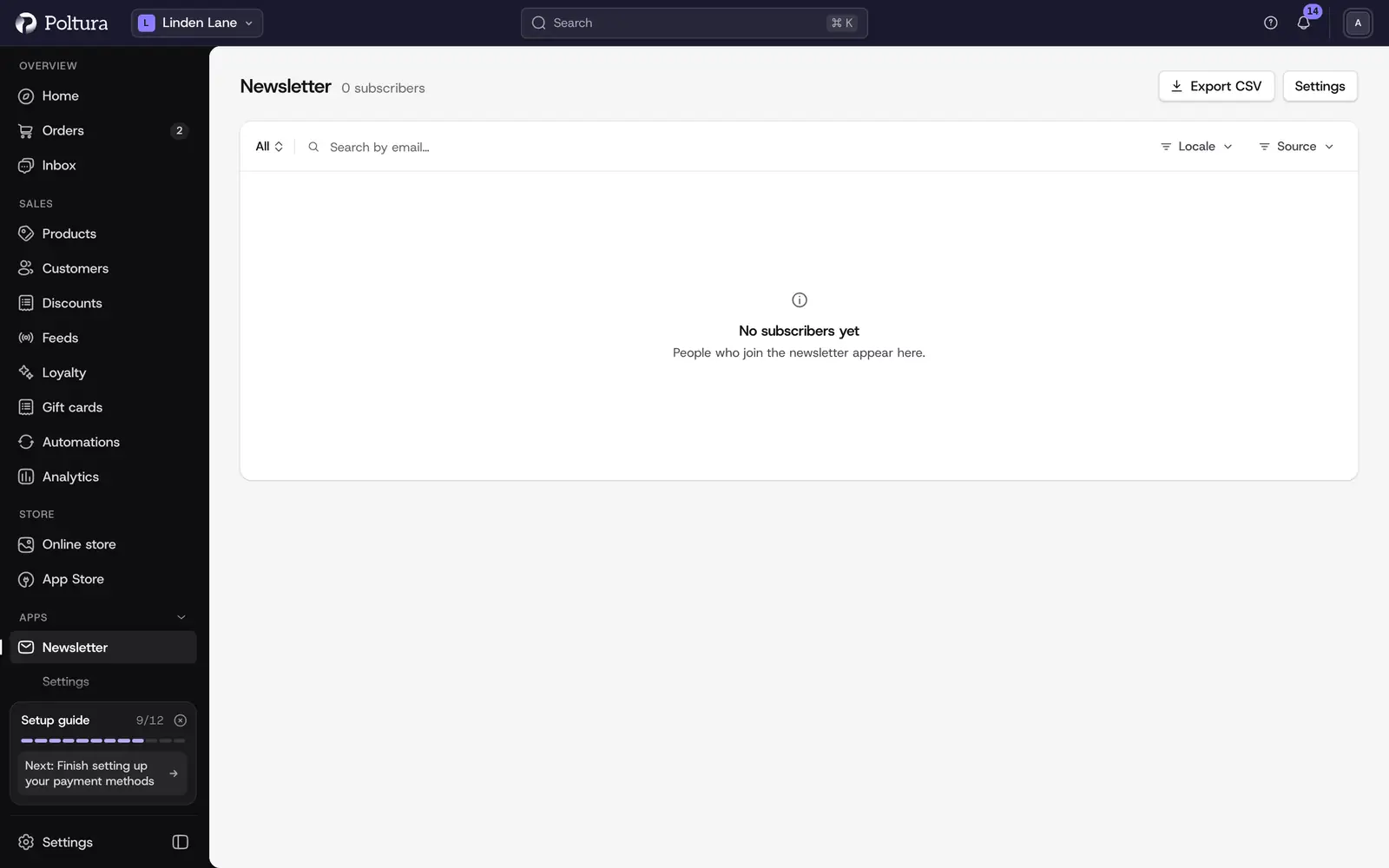
Newsletter is the list of people who agreed to receive marketing email from your store, together with the proof of their consent. Shoppers subscribe on the storefront; you cannot subscribe someone yourself.
This page covers signup and consent. To write and send emails to your subscribers, see Broadcasts and Email automations.
Where subscribers come from
- The newsletter form in the storefront footer or in a section, and the newsletter popup.
- The opt-in checkbox at checkout.
- The marketing email preference in the customer's account.
- Customers you import from your old shop. See Import.
Start collecting subscribers
Open Newsletter and select Settings.
Turn on Newsletter enabled and select Save. When this switch is off, the public signup surfaces stay hidden.
Open Forms and check the newsletter form: its fields, the consent text and the translations. Publish the form to apply changes.
In the Customizer, open the theme's newsletter settings to show the footer signup and edit its heading, description and button.
Open your storefront and subscribe with a test address. It appears on the Newsletter page.
Read the subscriber list
The status menu filters the list:
- Pending: signed up, but has not confirmed yet. Only with double opt-in.
- Subscribed: may receive the newsletter.
- Unsubscribed: opted out.
- Suppressed: blocked from marketing email.
Each row shows Email, Status, Address (Verified or Unverified), Activity (Recent or Sunset), Source, Locale, Subscribed and Updated. Search by email, and filter by Locale and Source.
Select a subscriber to see the linked customer, where and when they subscribed, and the Consent events: every subscription, confirmation and unsubscription as it happened.
Export subscribers
Open Newsletter.
Set the status, the search and the filters to the audience you need.
Select Export CSV. The file with the filtered subscribers downloads.
An export is a snapshot. Someone on it may unsubscribe later, so do not treat an old file as permission to send.
Unsubscribe someone
Open the subscriber.
Select Unsubscribe.
Confirm with Unsubscribe. The status changes to Unsubscribed and newsletter mail to this address stops.
Settings
Open Newsletter and choose Settings. Select Save after a change.
- Newsletter enabled: the master switch for signups.
- Require double opt-in: new signups stay Pending until the confirmation link in the email is used. The link is valid for 48 hours and can be used once.
- Send marketing only to verified addresses: an address is verified once it confirms the opt-in link or receives a delivered order or account email. Unverified subscribers get no marketing until then. Switching this off needs a plan that allows it and an established sending reputation.
- Send welcome email: a welcome email is sent only after the subscription is confirmed.
- Email readiness: shows whether the Confirmation email and the Welcome email are Configured. Both need a configured sender and a storefront URL. See Emails and Domains.
The confirmation and welcome emails are theme emails that you edit with the theme. See Themes.
Good to know
- Subscribers with no order and no renewed consent in 12 months show as Sunset and get no marketing.
- Every marketing email carries a one-click unsubscribe link.
- A subscriber does not have to be a customer. A subscriber who is not linked to a customer shows as Guest.
- On a customer's page, the Customer Preferences block shows their subscriptions and recent consent events. See Customer details.
- Changing the theme does not change your subscribers.
- After a signup, the confirmation email is queued and usually leaves within a minute or two.
If something goes wrong
- The signup form does not show on the storefront. Newsletter enabled is off, the form is not published, or the footer signup is hidden in the theme's settings.
- Double opt-in needs a configured confirmation email. Set up the email sender and the storefront URL first, then turn the option on.
- Your plan does not allow marketing to unverified addresses, so this rule stays on. The verified-address rule cannot be switched off on your plan. See Plan and billing.
- Someone else saved these settings. Reload the page and save again.
- A subscriber stays Pending. They have not used the confirmation link. The link expires after 48 hours; they can subscribe again to get a new one.