Broadcasts are one-off email campaigns: newsletters, sale announcements, service messages. You write the email in the block editor, pick who gets it and send it now or on a schedule. Marketing campaigns go only to people who agreed to marketing emails. The app needs "Email campaigns" on your plan. Plus and Pro include it. See Plan and billing.
Before you start
- The app comes installed on new stores.
- Your business name and postal address are filled in under Store details. Marketing emails must show them.
- Your store is live. Nothing is sent to customers before that. Test emails to your team work at any time. See Go live.
- For marketing campaigns you need subscribers. See Newsletter.
Set up Broadcasts
Open Broadcasts in the Apps group of the sidebar. If it is not there, open the App Store, choose Broadcasts, then select Install and Turn on. See App Store.
Optionally set the sender name and reply address in the app's settings, see Settings.
Select New campaign and follow Start a new campaign. On a new store the page offers Write a newsletter as a shortcut.
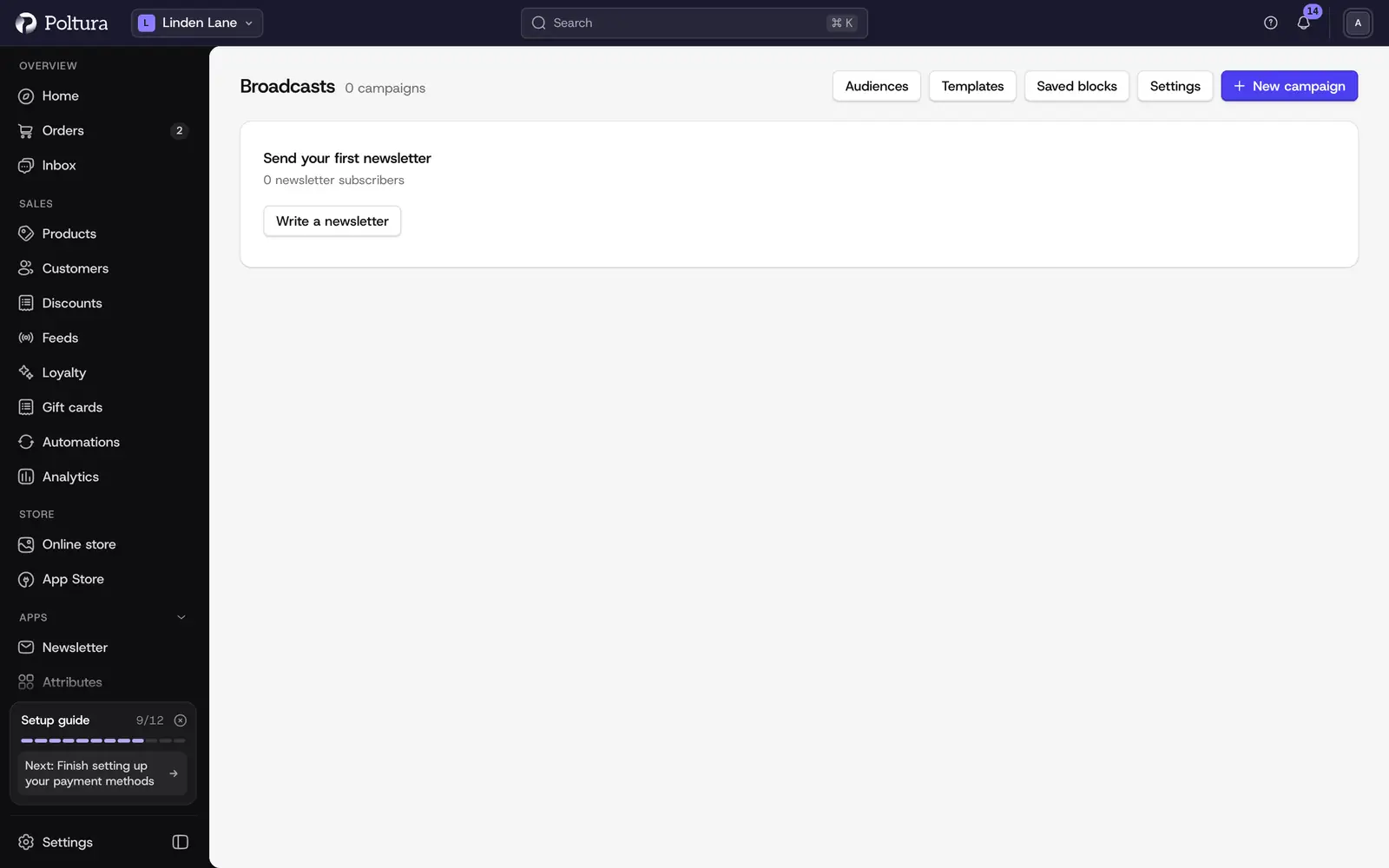
Settings at the top opens the sending speed.
Settings
The app has no settings of its own in the App Store. Its emails use:
- Sender name and reply-to address: the store's sender for marketing emails, set under Settings → Emails.
Mail always goes out from the store's own address. A single campaign can use its own Sender name and Reply-to address in its Details step.
How fast campaigns go out is set on the Broadcasts page: select Settings to open Sending. The defaults suit most stores.
- Emails sent together: a campaign sends this many emails, then pauses (100 to begin with).
- Pause between groups (minutes): the pause before the next group (1 to begin with).
- Most emails sent together: the upper limit for any campaign (500 to begin with).
- Campaigns sending at the same time: further campaigns wait until one finishes (1 to begin with).
Start a new campaign
On the Broadcasts page, select New campaign.
Choose how the email starts: Blank, a design from the Gallery (such as Newsletter, New arrivals, Sale with a code, Back in stock, Story or Plain letter), one of My templates, or a copy from Recent campaigns. Where Describe your campaign is offered, you can instead describe the email in a few sentences and select Create with the assistant.
Under Campaign details, enter the Campaign name. Only you see it.
Choose the Type. Marketing goes only to people who agreed to marketing emails and ends with an unsubscribe line. Operational is a service message to every customer in the audience, without marketing consent.
Select Create and open the editor. The campaign opens as a Draft.
The campaign gets its own copy of the starting point, so later changes never touch the template or the campaign it came from.
Write, check and send a campaign
A campaign has four steps: Details, Content, Recipients and Review. Move with Next, Back and Save and continue.
In Details, write the Subject and the Preview text in the store's default language. Insert adds a placeholder such as the customer's first name.
In Content, build the email from blocks. Switch the language to write the other languages, or use Translate missing. The Design panel changes the font and logo for this campaign only.
In Recipients, choose the Audience. The page shows how many recipients match right now. Under Leave out you can exclude other audiences.
In Review, read the list under Before you send and fix every item it names.
Under Test email, pick a team member in Send to and select Send test. Test emails can only go to members of the store's admin team.
Select Send now, or pick a time in Send at and select Schedule. The time is in the store's time zone.
After sending, the campaign page shows the report: Audience count, Processed, Sent and Failed. Under Runs select View to see the Recipients of a run with the status of each delivery, and search by email address.
In the list, Duplicate copies a campaign and Delete removes one. Only a draft, canceled or failed campaign can be deleted.
Create and manage audiences
An audience is a group of customers you set up once and use in any campaign. Two are built in: Newsletter subscribers and All customers. They cannot be changed, but you can Duplicate them.
Open Broadcasts and choose Audiences.
Select Create.
Enter a Name and, if you like, a Description.
Under Customers, choose Every customer, Customers with an account or Guest shoppers. Turn on Only newsletter subscribers to keep only people who signed up and have not unsubscribed.
Narrow by Languages and Regions, or leave them empty to include all.
Select Save audience. The list shows the audience with its current size.
An audience that a campaign still uses cannot be deleted. Open the campaign and choose another audience first.
Reuse a campaign as a template
Open the campaign's Content step.
In the editor menu, select Save as template, give it a name and select Save template.
Open Broadcasts and choose Templates to see it. Use in a new campaign starts a campaign from it; Rename and Delete are in the same row.
Deleting a template does not change campaigns that already used it: they keep their copy.
Reuse blocks across emails
In any email editor, select a block, open its menu and choose Save block.
Give it a Name, choose Use as (Content, Header or Footer) and select Save block.
Add it to another email from Saved blocks in the block list.
Open Broadcasts and choose Saved blocks to rename or delete saved blocks.
A linked saved block is marked "(linked)" in an email. A change to the saved block reaches every campaign that uses it; Unlink turns it into the email's own copy. If you delete a linked saved block, that part is left out of the emails that used it.
Good to know
- Statuses: Draft, Scheduled, Sending, Completed, Cancelled, Failed.
- There is no open or click tracking.
- If someone else changes the campaign while you edit, reload the page and repeat your change.
If something goes wrong
- "The broadcast could not be started." The email needs a subject in the store's default language and, for a marketing campaign, a visible unsubscribe line. Add it back in the Content step with Add unsubscribe.
- "Marketing emails need your business name and postal address." Fill them in under Store details, then send again.
- "Nobody is in this audience yet". Subscribers join when they sign up on your storefront. If the page says newsletter signup is off, select Turn on newsletter signup.
- "The audience has no recipients right now." Choose another audience or widen this one.
- "No admin team member can receive test emails." Add a team member under People and roles.
- Some deliveries show "Failed". Open the run under Runs and read the Error column of the recipient.