The Microsoft Clarity app adds Clarity's free session recordings and heatmaps to your storefront pages, so you see where shoppers click, scroll and get stuck. It runs only for shoppers who accept analytics cookies, and it never records checkout or account pages.
The app installs on every plan and works in every country.
Before you start
- A free Microsoft Clarity account and a project for your store's address, created at clarity.microsoft.com. You can skip Clarity's install step: Poltura adds the code.
- The project ID, on the project's Settings, Overview page.
- On the project's Settings, Setup page, turn cookies off by default. Poltura tells Clarity who accepted cookies.
Set up Microsoft Clarity
Open the App Store and open Microsoft Clarity. Select Install. See App Store.
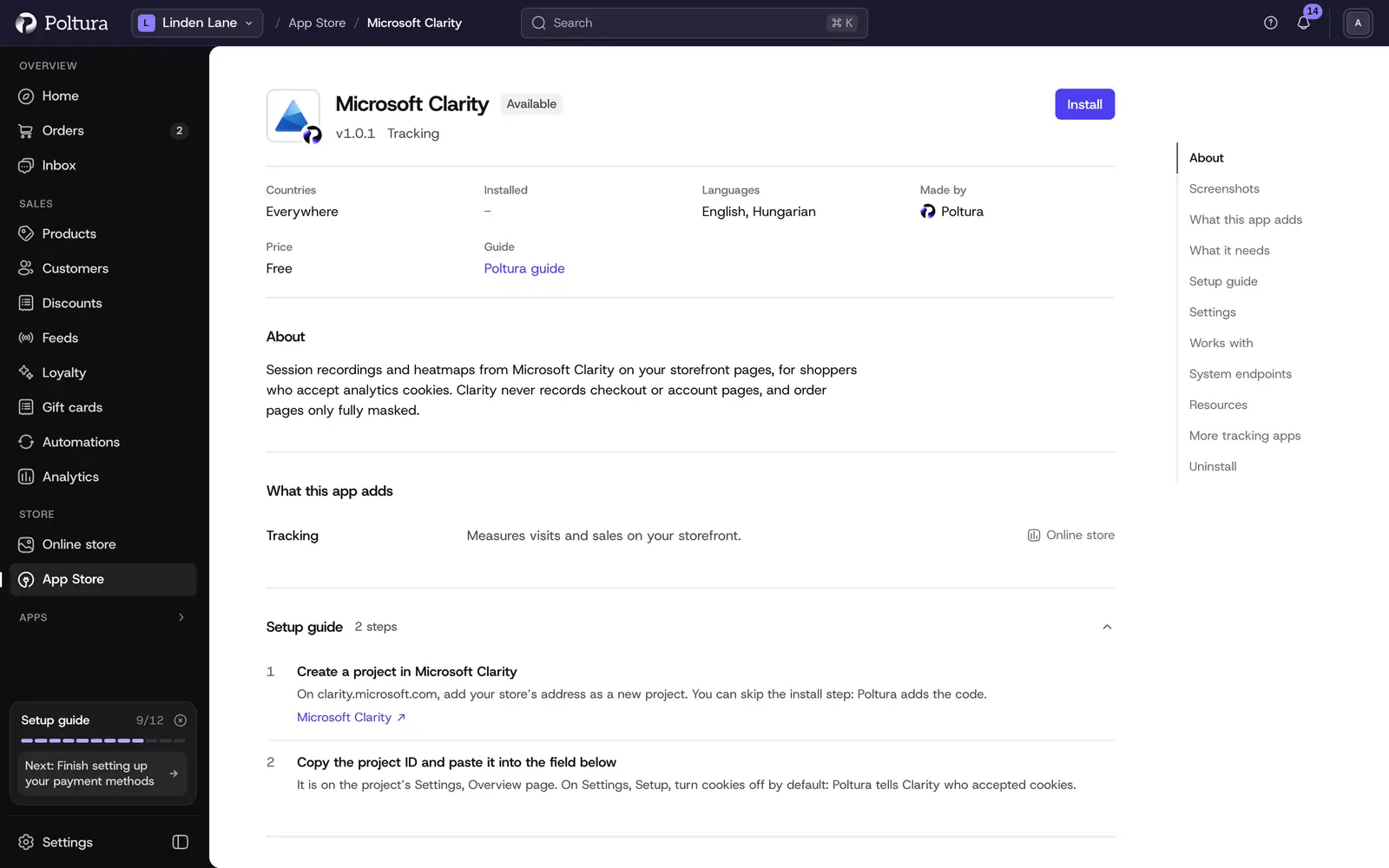
The setup guide on the page repeats the two steps you do in Clarity. Under Settings, paste your project ID into Project ID. You can also paste the whole Clarity tracking code. The field finds the ID in it.
Select Save, and turn the app on if it is off. See App Store.
Settings
- Project ID: the ID of your Clarity project, lower-case letters and digits, or the tracking code holding it. Only the ID is saved. Clarity stays off until it is set.
What Clarity records, and what it never does
- Storefront pages: home, categories, products, the cart, content and blog pages, with Clarity's own masking: the content of input fields, numbers and email addresses is never uploaded. Keep the project's masking on Balanced or Strict in Clarity's settings.
- Checkout and account pages: never. Clarity does not run on the checkout steps, sign-in and registration, the profile, orders and returns pages. Moving from a storefront page to one of them loads a fresh page, so a recording that already runs stops before them.
- Order pages: the thank-you and order status pages are recorded with every element masked, so the buyer's name, address and order never reach Clarity.
Searches, products added to the cart or the wishlist, contact and newsletter sign-ups and orders are marked in recordings as Clarity events (search, add_to_cart, add_to_wishlist, generate_lead, purchase), so you can filter recordings by them. They carry no shopper or order data.
What shoppers see on your storefront
Nothing changes on the page. Clarity loads only after the shopper accepts analytics cookies and learns their choice through its Consent API. When they withdraw it, Clarity deletes its cookies and stops recording. The cookie table lists Clarity's cookies while a project ID is set. See Cookie consent.
If something goes wrong
- No recordings arrive. Check that the project ID is set and the app is on, and that you accepted analytics cookies in the browser you test with. Recordings appear in Clarity within about an hour.
- Recordings show text you expected masked. The project's masking is set to Relaxed in Clarity. Set it to Balanced or Strict.
- A page is missing from recordings. Checkout and account pages are never recorded, by design.