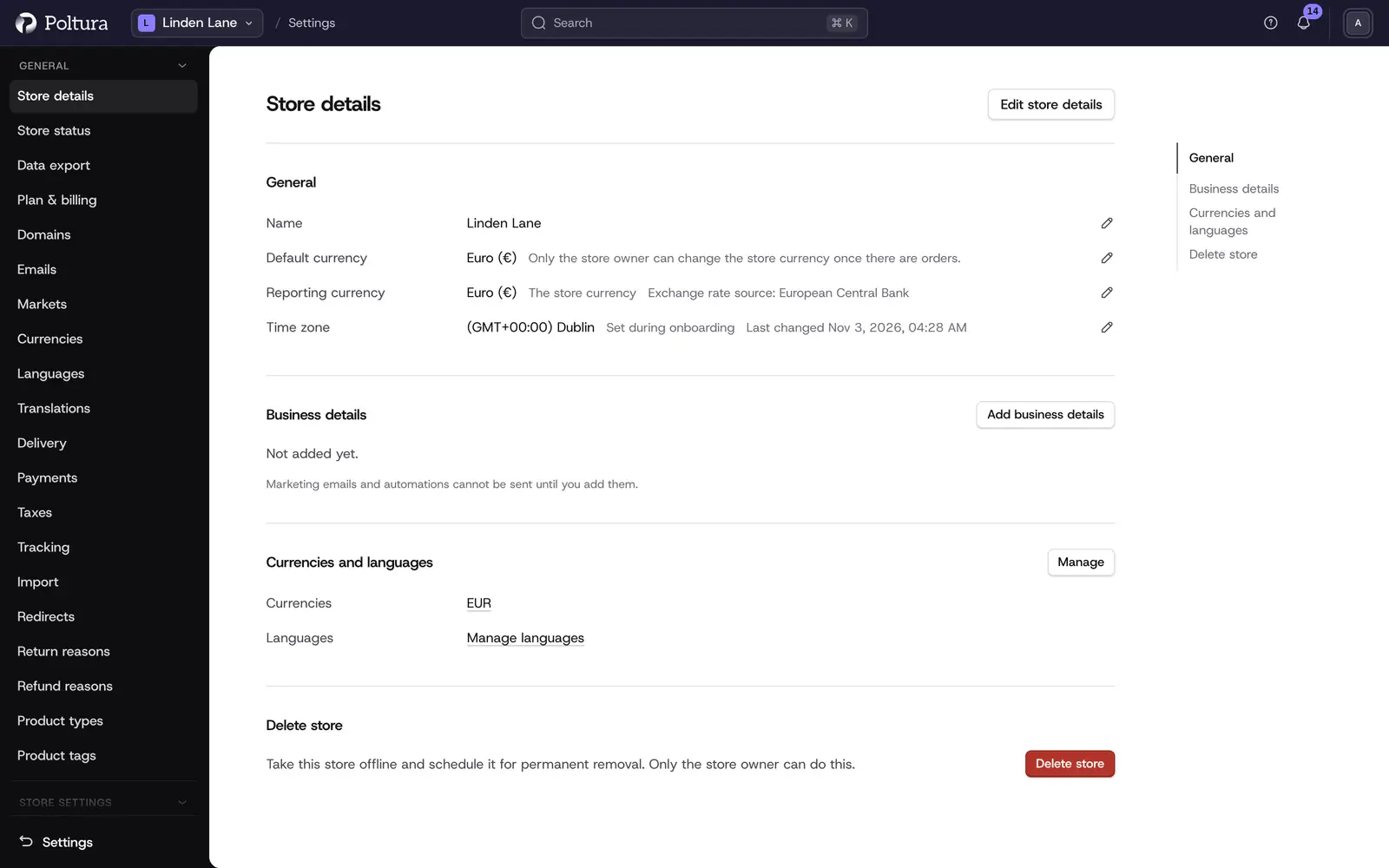
Store details holds the basics of your store. That is its name, default currency and time zone, the business details printed on marketing emails, the currencies you price in and the languages you sell in. The page only shows these values. You change them in a drawer that opens from a button or a pencil icon.
Before you start
- You need the Owner, Administrator or Store manager role to change anything here.
- Only an Owner or Administrator can delete the store.
- The Languages section appears only when translations are available for your store.
Change the name and default currency
Open Settings and choose Store details.
Click Edit store details, or the pencil beside Name or Default currency.
Type the new Name, or pick another Default currency. Only currencies the store already has are offered. Manage currencies takes you to the currency list.
Click Save. The drawer closes and the General section shows the new values.
Add your business details
Marketing emails and email automations cannot be sent until the store has a legal business name and a postal address. Both are printed in small type at the bottom of every marketing email.
In the Business details section click Add business details (or Edit business details).
Fill in Legal business name, Street address, Postal code, City and Country. The company registration number and the VAT number are optional.
Click Save. The section now shows the business name, the address and the numbers.
To remove the details, open the drawer again, empty every field and save.
Add or remove currencies
In the Currencies section click Add currency.
Tick one or more currencies. Use the search box and the pages to find them. Your ticks are kept while you search.
Tick Tax inclusive pricing on a row if your prices in that currency already contain tax.
Click Add currency. The new currencies appear in the table.
The switch in the Prices column says whether prices in that currency include tax. It applies the moment you flip it. There is no save button.
To remove a currency, click the trash icon on its row, tick Yes, remove this currency from the store and click Remove. The default currency has no trash icon. Make another currency the default first.
Add or remove languages
In the Languages section click Add language.
Tick the languages you want and click Add language.
The languages appear in the table and can be translated on the Translations page.
To remove a language, click the trash icon on its row, type the language's name exactly as shown and click Remove.
Change the time zone
The store's time zone decides where a day starts and ends in reports, schedules and date filters.
Click Edit store details, or the pencil beside Time zone.
Search the Time zone list by city, for example "Budapest" or "new york", and pick a zone.
Click Save. A question appears: Change the store time zone? It lists what moves and what stays.
Click Change time zone. The General section shows the new zone.
What the change does:
- Analytics are recalculated for the new zone. Reports may show a notice while this runs.
- Order and return numbering keep the zone saved in their own settings.
- Email automations and alert schedules switch to the new zone unless a zone was picked for them. Chat hours and promotion restrictions keep their own zone.
- Return deadlines of existing orders and emails that are already scheduled do not change.
- Scheduled banners, content, campaigns and gift card expiry dates keep their exact moment, so their local clock time shifts.
If the zone was set automatically (during setup or by an import), the drawer shows Keep this time zone. Tick it and save so that later imports and automatic updates cannot change it.
Developer settings and custom data
With developer mode switched on, the page gains a Developer section with the store's default region, sales channel and location, and a Custom data row.
Switch on developer mode, then open Settings → Store details.
In the Developer section click the edit icon on the Custom data row. The Edit custom data drawer lists every key and value with one empty row at the end.
Change a value, add a row, or delete a row from its menu.
Click Save.
A value of true or false is stored as a yes or no value and a number is stored as a number; everything else is text. Rows that hold lists or objects are read-only and can only be changed through the API.
Delete the store
Scroll to the Delete store section and click Delete store.
Type the store's name exactly, including capital letters.
Click Delete store. You land on your list of stores.
Good to know
- Plan invoices and billing dates do not follow the store time zone. They stay on Budapest time.
- Add market can add a currency to the store for you. See Markets.
- The number of languages is limited by your plan. See Plan and billing.
- Whether prices include tax is set per currency under Currencies, not here.
If something goes wrong
- "This store is not answering right now". Nothing was changed. Wait a moment and try again. If it stays, sign out and sign in again.
- "You don't have permission". Your role can read the page but not change it. Ask an Owner or Administrator.
- A currency cannot be removed. It is the default currency, or the store's last one. Choose another default in Edit store details first.
- Typing the name does not delete the store or remove the language. The name must match exactly, including capital letters.