Translations is one workspace for every language of your store. It tells you how far a language is and lists what still needs a translation. It opens each item with the original beside the text you write. When you want, it starts machine translation in the background.
The first language of the store is the original. Customers who choose another language see the translation where one exists, and the original text everywhere else. So a page is never blank.
Before you start
- You need a role that can use translations, such as Owner, Administrator or Store manager.
- With one language the page only says that your store speaks one language and offers Add language. Add a second language to see the rest.
- Machine translation is done by AI and spends the store's AI credits. See AI credits.
- How many languages a store can have depends on your plan. See Plan and billing.
Overview
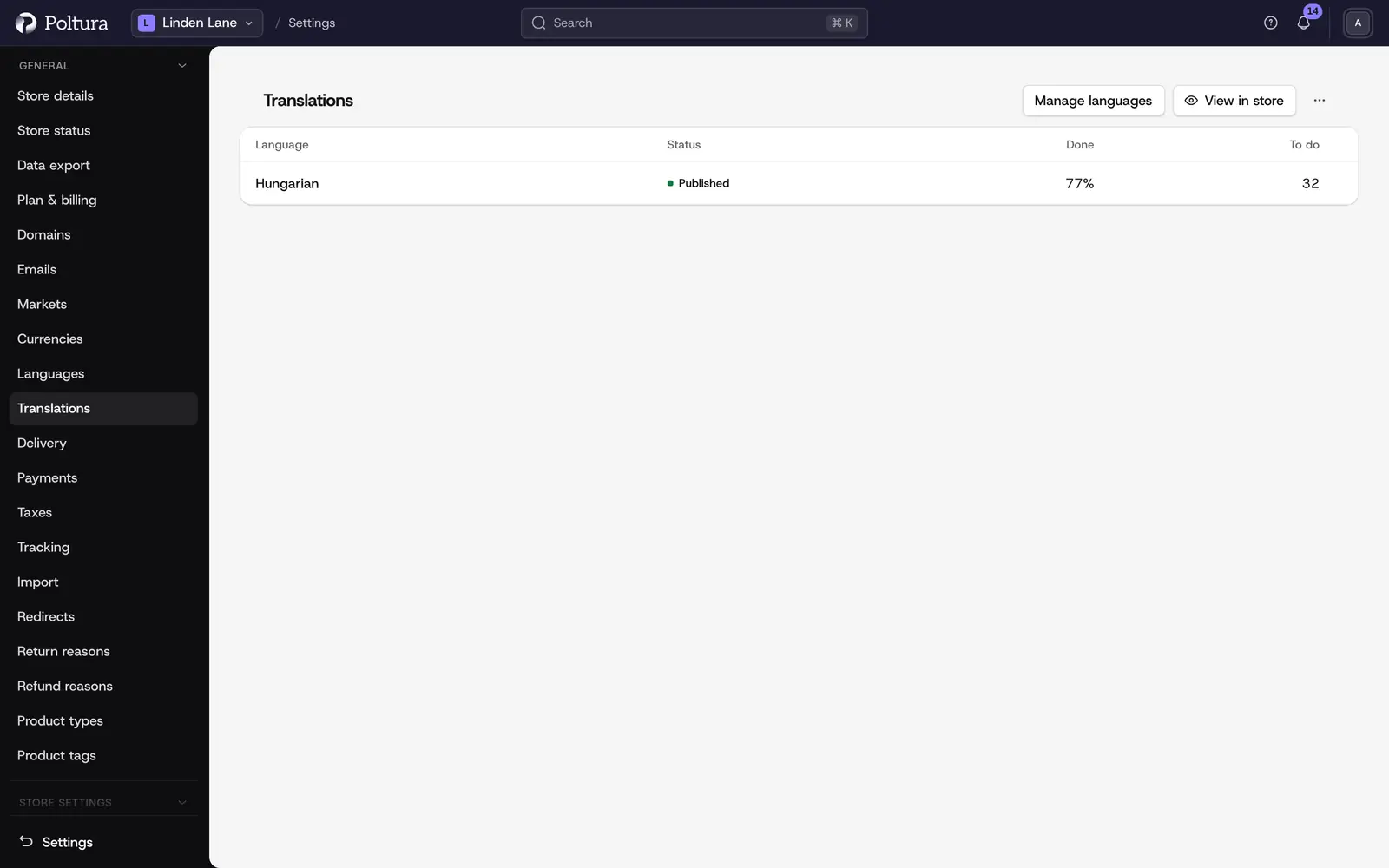
Translations opens with the list of your store's languages. Each row shows how much of the language is done, how many texts still need work and whether it is published. Click anywhere on a row to open that language's overview, or use the row's menu to view your store in it. You add, remove and publish languages with Manage languages, on the Settings → Languages page.
When your theme is written in a different language from your store's, the store's own language is listed too, for example as Hungarian (theme only). There you translate only the theme's texts, so that row has no published state.
In the overview, use the language menu in the head to switch languages. The workspace remembers the language you used last.
- The headline says how much of the store is translated into the language, for example Your English store is 71% done, and one sentence says how many places still show the original.
- Translate the missing starts machine translation for what has no translation yet. While a translation is running, the button gives way to its progress.
- Your to-dos lists changed texts first, then the types with the most untranslated items, each with a few examples. A sentence opens the list for that type.
- All content lists every type your store has, grouped as Catalog, Content and Store, each with its to-dos or Done.
- The head menu opens the Glossary and the Automatic translation switch. Both are also linked at the bottom of the page.
A language you have just added reads Counting… for a few seconds while its texts are checked. It never reads as fully translated before that is done. A store with nothing to translate yet says so instead of showing a percentage.
Work through a list
Open a type, for example Products, to see its items with the original, the translation or Not translated yet, and a state.
- To do, Done and All filter the list and show their counts. The default is To do: changed items first, then by name.
- The search narrows the list by name or text, in the original and in the translation.
- A row opens the item from anywhere on it.
- Translate the N missing appears when the whole type is listed. It is not offered while a search is active or on Done, because a run covers the whole type and language.
- A mark shows text an AI wrote.
Edit an item
An item opens in two columns: the original on the left, your translation on the right. A product carries its versions, options and option values; an attribute carries its values.
- Each field shows its state: Missing, Changed (the original changed after the translation was written, with the changed words marked) or done.
- Save and next (
⌘/Ctrl+Enter) saves only the fields you changed and opens the next to-do in the same order as the list.Option+↓skips to the next to-do,Escgoes back to the list. - Fields with a limit, such as search engine titles, show a counter.
- If you leave with unsaved changes, the page asks first.
- If someone changed a field you are saving, the page shows their text and lets you keep theirs or save yours.
A form or email translation you save goes live at once, without publishing the other edits in the draft. When some of it cannot go live yet, for example while the form has unpublished changes to its fields, the editor says Publishing needed and links to where you publish. Emails belong to the active theme only.
Add a language
Open Settings and choose Languages.
Click Add language and tick the languages you want.
Save. The new language appears in the Translations language list and in the language menu.
A new language can take up to 10 minutes to appear in the storefront's language switcher. Languages are removed on the Store details page.
Translate with machine translation
Click Translate the missing on the overview, or Translate the N missing on a list.
The run starts at once and is queued behind any run in progress. The page shows how many items are done, and you can leave it.
When it is finished, the numbers on the page change. Items that failed keep their old text and stay on the list; run it again to retry them.
- Translate the missing never touches an item that already has a translation.
- A translation you save by hand while a run is waiting wins: the run skips that item.
- Forms and email templates are not translated by background runs. Translate them in their editor.
Translate for a feed
A feed sends product text in the language of its market. Products that have no text in that language yet show the issue Not translated to the language, and they stay out of the feed or reach fewer people until they are translated.
Open the feed. It says how many products are missing the language, for example "120 products in this feed aren't translated into English yet".
Read the cost beside Translate now, for example "about 40 credits".
Click Translate now. The translation runs right there and shows its progress. You can leave the page.
To look at the products first, click See the products. Translations opens on the products list in that language, narrowed to exactly those products, with the cost line before you run.
- This is the same translation as everywhere else in Translations: the same glossary and rules, and AI credits only. Feeds have no allowance of their own.
- It translates the products the feed sends that miss the language, whole (names, descriptions, options and search engine texts), together with the category, tag and collection names those products send.
- Text is saved at once and marked as written by AI. A translation you wrote by hand is never replaced.
- One translation runs at a time per store. A second one waits for the first.
- A notification tells you when it ends, and the issue disappears after the feed's next update.
- If the feed's language is not one of your store's languages, there is no button. The issue sends you to Settings → Languages to add it first, see Add a language.
Translate new and changed content automatically
Automatic translation is off until you switch it on. Open Auto-translate on the Translations overview and switch on Translate automatically. From then on, AI translates new and changed texts, products included, into every language your store has translated in full, and the translations go live on their own. It uses AI credits. A translation you wrote by hand is never replaced.
Finishing a whole-store translation never switches it on: only you do, and Poltura records who switched it on or off and when. While it is on, the overview shows when it last ran, and every automatic translation leaves a notification with the number of texts it translated, so you can look through them.
Earlier, automatic translation could switch itself on after a whole-store translation. In stores where that happened, it has been switched off, and the overview tells you. Switch it back on there if you want it.
Keep a glossary
Glossary terms tell machine translation what to leave alone and what to translate your way, for example your brand name.
Open the Glossary from the head menu or the link at the bottom.
Add a term, for example a brand or product name.
Leave the rule on Never translated to keep the term as written, or choose Always translated as and fill in the translation for each language. A language left empty is translated freely.
Save. A glossary holds up to 200 terms.
A glossary change applies to machine translations made afterwards. Existing translations are not changed.
Translate on your store
View in store opens your storefront in the language you picked, inside the admin. Texts still to translate are underlined. Click any text, check the original and the suggestion, then save: the page updates in place. Open takes the text to the full editor. Switch the page at the top: home page, a product, a category, the cart or the checkout. If the page stops reacting to clicks, choose Reload.
Export and import
Under … › Export and import you download your texts as a CSV file: one row per text, the original beside its translation. Pick one language or all of them, and every text or only your to-dos. Edit the file in a spreadsheet and upload it again.
An upload first shows what it would change: how many rows are updated and which rows have errors, with their line numbers. Rows whose original changed since the export are listed apart and are not applied. Nothing is saved until you choose Apply. Imported texts count as written by hand, so automatic translation never overwrites them. A file exported from Shopify Translate & Adapt imports as it is.
Good to know
- Every translatable screen also has a language menu in its header, with a link to open the item in Translations.
- An outdated translation is still shown to shoppers as it is until you update it.
- Theme emails are written in English. If your store's original language is another one, Emails are listed for your own language too.
- Texts of the theme itself are translated in the Customizer; see Storefront wording.
If something goes wrong
- The translate buttons show a lock. Your plan does not include AI translation. See Plan and billing.
- A run shows failed items. Check that you still have AI credits under Plan and billing, then run it again; a new run retries what failed.
- A translation is already running. Wait for it to finish before you start another.
- A language cannot be added. Your plan's language limit is reached. Remove a language or upgrade.