The Theme Store lists the themes you can add to your store. You can try any of them with your own products and content before you decide. While you browse and try, customers keep seeing your current theme.
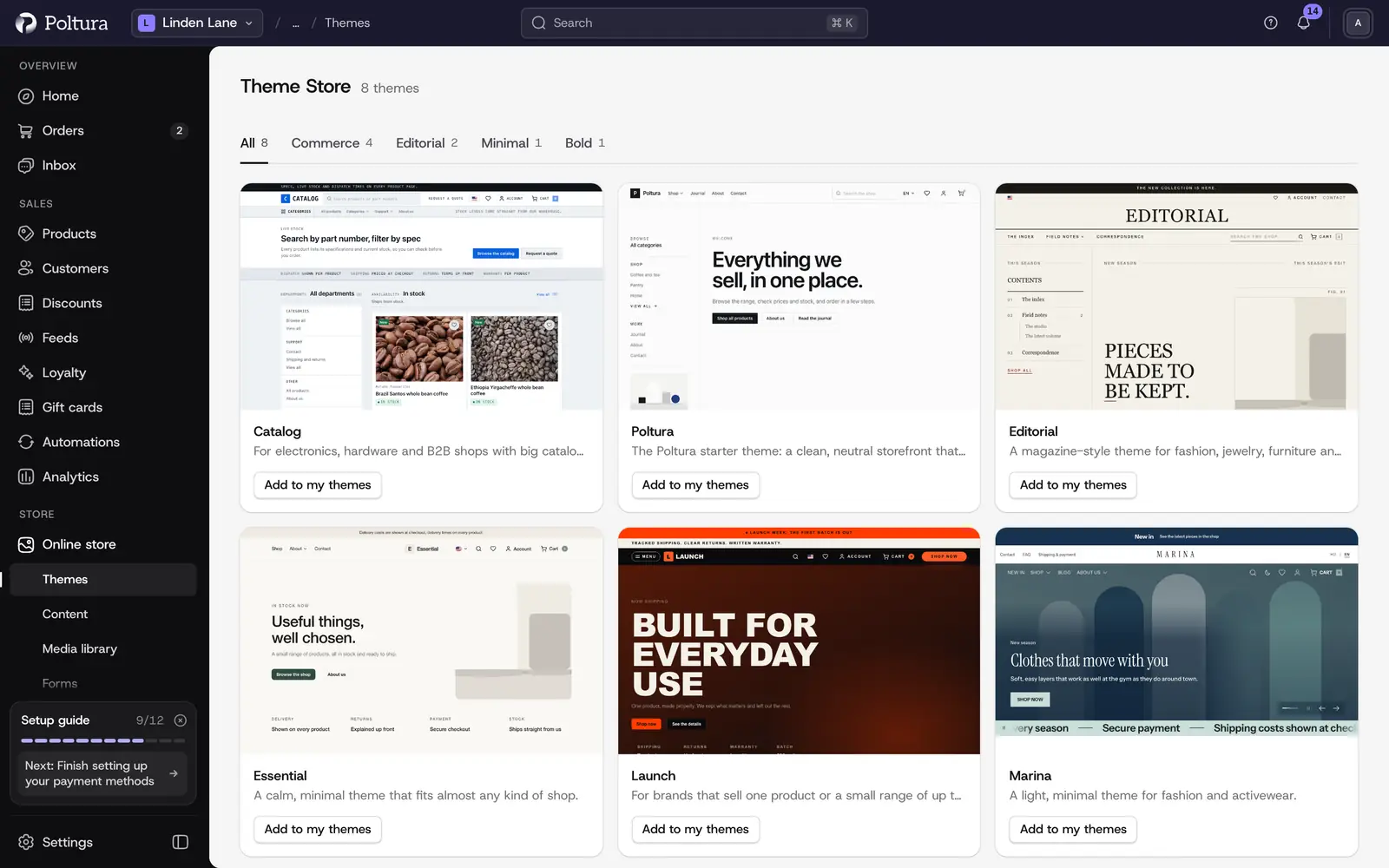
The themes you can choose from
There are eight themes to choose from. Every new store starts on Poltura.
- Poltura is the starter theme: a clean, neutral storefront that suits most shops. Its mega menu is built from your categories, and the home page is laid out in tiles.
- Catalog is for electronics, hardware and B2B shops with big catalogs and lots of specs. Search stays at the top of every page, and prices, stock and specs line up in columns, so shoppers can compare products at a glance.
- Editorial is a magazine-style theme for fashion, jewelry, furniture and other brands that sell through their story. Serif headlines and full-width images give products the space of a printed page.
- Essential is a calm, minimal theme that fits almost any kind of shop. Warm colors, soft corners and a centered header keep the pages quiet and put your product photos first.
- Launch is for brands that sell one product or a small range of up to about 20. The home page reads like a launch page, with bold full-width sections that lead shoppers from the first look to the buy button.
- Pop is a loud, playful theme for beauty, food and drink, streetwear and kids' brands. Bright colors, bold outlines and a scrolling banner give it the feel of a sticker shop, and the menu opens as one board with all your categories.
- Marina is a light, minimal theme for fashion and activewear. Large lifestyle photos lead the home page, product pages show a tall photo gallery, and filters and size charts open in side drawers.
- Rivet is a hands-on catalog theme for tools, DIY, garden and B2B shops. Categories sit next to the home page banner, and product cards show ratings, stock, key specs, discounts and a quantity picker, so shoppers can compare without opening every product.
Whichever you pick, you get the same page templates, storefront wording in English, Hungarian, German, Slovak, Romanian and Polish, emails that match the theme, and light and dark colors.
Browse the catalog
Open Online store and choose Themes.
Choose Add from the Theme Store.
Narrow the list with the category chips: All, Commerce, Editorial, Minimal or Bold.
Click a theme to open its page with the Showcase images, the About this theme text and the Details (author, category, when it was last updated and more).
A card shows Installed when the theme is already on your store, and Update available when the theme has been updated since you installed it.
Try a theme before you keep it
Preview installs the theme as a draft that expires, and takes you straight into the customizer filled with your own products and content.
Open the theme's page in the Theme Store.
Choose Preview.
Look around in the customizer: change pages, devices and settings as you like.
Go back to Online store → Themes. The theme is in your list with Preview expires and a date.
Open the actions menu on its row and choose Keep theme to keep it for good, or Discard preview to remove it.
Install a theme
Open the theme's page in the Theme Store.
Choose Install.
The theme appears in your list under Online store → Themes as a draft.
Customize it, then publish it when you want it to go live. See Themes.
Install an update
When a newer version of an installed theme is published, the theme shows Update available in your list, and its page shows an Update theme button. The update is prepared on your theme as a draft that you review before it goes live, and you can undo it after you publish it.
See Theme updates for how it works.
Good to know
- Preview and Install never touch your live theme.
- Installing the exact version you already have adds a second, separate copy. The admin warns you first.
- Themes in the store are signed by Poltura and checked on install. A package that does not match its signature is refused.
- A version marked Withdrawn keeps working where it is installed, but cannot be installed again.
If something goes wrong
- "Theme Store unavailable". The catalog cannot be reached right now. Your installed themes are not affected. Try again in a moment.
- "Another theme install is already running on this store." Wait for it to finish, then try again.
- "This version was withdrawn by its publisher." Pick another version of the theme.
- Verification failed. Nothing was installed. Try again later, and contact Poltura support if it keeps happening.