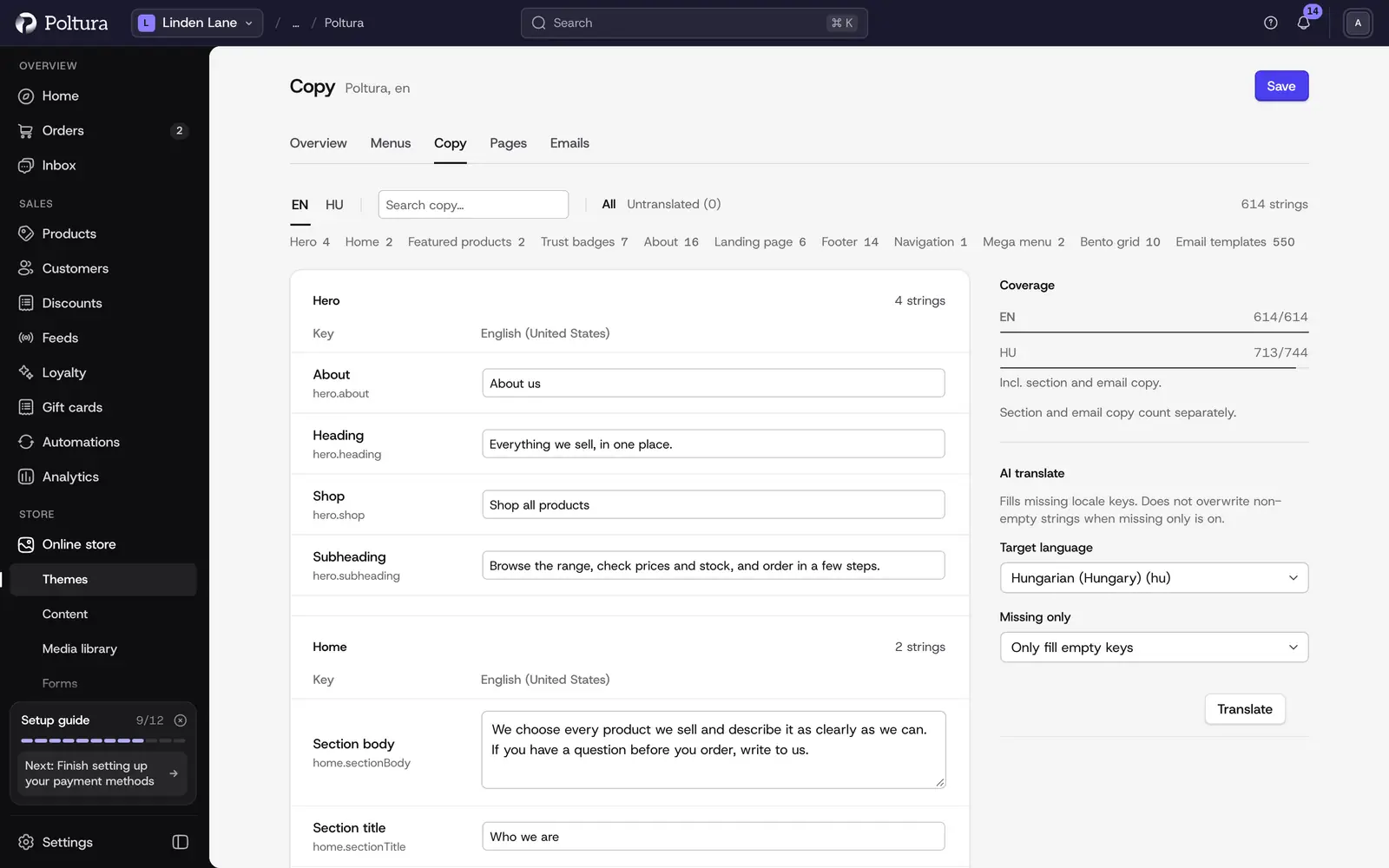
Every theme comes with ready-made wording: the hero text, navigation labels, footer lines, trust badges and more. The Copy tab of a theme lists all of it in one searchable table per language. You can reword anything and see at a glance what still needs translating.
This page is about the theme's own texts. The pages, blog posts and policies you write yourself are under Pages, blog and content, and product texts are translated under Translations.
Before you start
Add the languages your store sells in under Store details. The Copy tab shows one button per language.
Change a text
Open Online store and choose Themes.
Click the theme's name, then open the Copy tab.
Choose the language you want to edit with the language buttons at the top.
Find the text. Type a word into Search, or scroll through the groups such as Hero, Navigation, Footer or Trust badges.
Type the new wording into the field.
Choose Save. A Copy saved notice confirms it.
The change is saved to the theme's draft. Publish the theme to show it on your store.
Find what is not translated yet
Coverage at the top shows how much of the theme's wording exists in the chosen language.
Open the Copy tab and choose a language other than the source language.
Choose the Untranslated filter. The number in brackets is how many texts are missing.
Fill in the fields, or translate them all at once as described below.
Choose Save.
A text marked Same as source has the same wording as the source language. That is fine for brand names, and a hint to check everything else.
Translate a whole language with AI
Open the Copy tab and find AI translate.
Choose the Target language.
Under Missing only, keep Only fill empty keys to fill only the empty texts, or choose Overwrite all to replace every text in that language.
Choose Translate.
A notice tells you how many strings were translated. Read them through and correct what you want, then save.
AI translation uses AI credits.
Edit wording in the customizer
You can reach the same texts without leaving the preview. In the customizer, open Theme settings in the sidebar and choose Copy & locales. It shows how many texts are missing in each language. Texts that belong to a section are easier to change right on the section. Select it on the preview and edit its content. See Customizer.
Good to know
- All eight shipped themes come with complete wording in English, Hungarian, German, Slovak, Romanian and Polish.
- You can translate the theme's texts into any language of your store, not only those six. Built-in system labels that are not part of the theme fall back to your store's default language or English in other languages.
- Section texts and email texts count separately in the coverage.
- Email wording is edited per email, not here. The Email templates group links to the Emails tab. See Emails.
- The default wording makes no promises about delivery times, return windows, warranties or shipping costs. Write your own terms where you want to state them.
If something goes wrong
- "No copy matches". Clear the search or the untranslated filter to see every text again.
- A translated text does not show on the store. Check that you saved, then publish the theme. Also check that the shopper's language is one of your store languages.
- Shoppers see another language's wording. That text has no translation yet. Use the Untranslated filter to find it.