A theme page is a custom page that belongs to one theme, such as a campaign landing page or a lookbook. It has its own address under /pages/ and its own layout of sections. It is not tied to any text entry.
Most stores need content pages instead. Do you want an About us, Shipping or Contact page with text you write and translate? Create it under Pages, blog and content. Use a theme page when the page is mostly design: a landing page built from sections, or a page a developer codes.
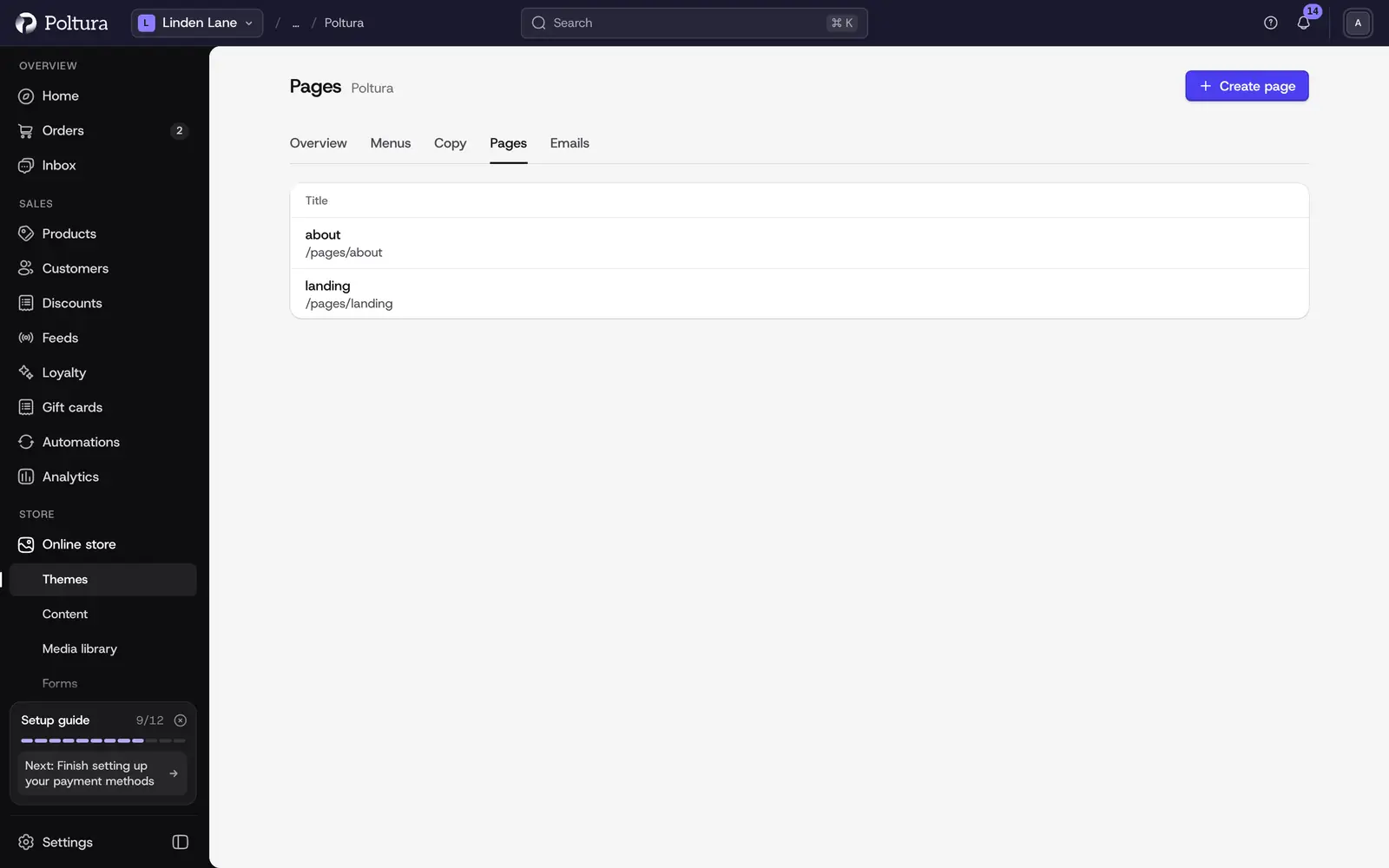
How theme pages differ from content pages
- A content page is an entry under Online store → Content. You write its title and text and set its status and search engine listing. It stays when you switch themes.
- A theme page is part of the theme. It is built from sections in the customizer or written in the theme's code. It goes live when you publish the theme. Another theme does not have it unless you create it there too.
Create a theme page
Open Online store and choose Themes.
Click the theme's name, then open the Pages tab.
Choose Create page.
Type a Handle, for example
about. The handle becomes the address:/pages/about.If you like, add a Title.
Choose Create. The page appears in the list with its Handle, Title and Path.
You can do the same without leaving the customizer: open Pages in the sidebar, choose Manage pages, then Add page.
Design the page
On the Pages tab, choose Customize on the page's row. The customizer opens on that page.
Choose Add section and build the page from sections and elements.
Check it on tablet and mobile with the device switch.
Choose Publish to put the theme, and the page with it, on your store.
Everything on the Customizer page applies here too: sections, elements, style, display conditions and translation.
Link to the page
A new page is not in your menus by default. Add it to a menu on the Menus page with a Link item, or pick it in any link field of the customizer.
Delete a theme page
Open the theme's Pages tab.
Choose Delete on the page's row.
Confirm with Delete.
Publish the theme to remove the page from your store.
Good to know
- Theme pages are saved in the theme's draft. They reach your store only when the theme is published, and only while that theme is live.
- In the customizer's Pages group you also see Site pages, the content pages of your store. Choose Edit content to change their text, or Customize this page only to give one of them its own layout.
- A developer can build a theme page entirely in code. See Theme code editor.
- The built-in pages of the store, such as the product page, cart, checkout, blog and FAQ, are not theme pages. You edit their templates in the customizer by going to them in the page menu.
If something goes wrong
- "No custom pages yet." The theme has none. Create the first one with Create page.
- The page shows "Page not found" on the store. The theme is not published yet, or the page was created in a theme that is not live. Publish the theme that holds the page.
- The page is empty. It has no sections yet. Open it in the customizer and add some.