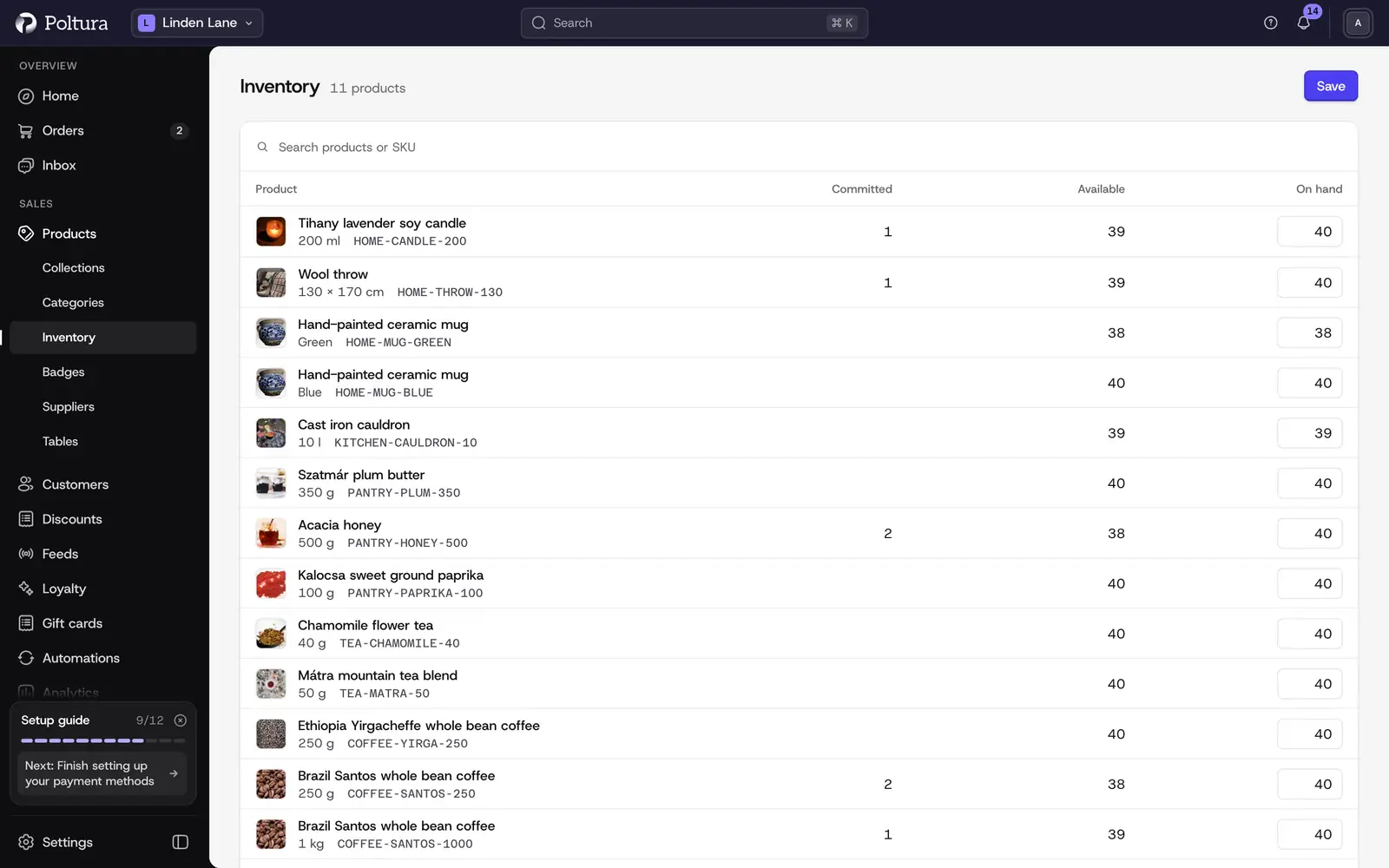
The Inventory page lists every product version whose stock you track, with the quantity you hold and how much of it is free to sell. Use it to count stock, correct quantities after a delivery and find versions that are running out.
This section also covers:
- Stock per location: keeping separate quantities for each warehouse or shop.
- Reservations: stock set aside for orders, a developer mode page.
Before you start
A version appears here only when Track quantity is switched on for it on the product. See Variants and options.
Read the list
Each row is one version of a product at one location. The columns are:
- Product: the product, the version and its SKU.
- SKU: the stock keeping unit of the version.
- Unavailable: stock that cannot be sold right now, for example a quantity that is still on its way to you.
- Committed: stock set aside for orders that are placed but not yet fulfilled.
- Available: what shoppers can still buy.
- On hand: what you physically hold. This is the number you edit.
Above the list you can:
- Search with Search products or SKU.
- Choose a location in the All locations menu.
- Filter by Available: Low stock shows versions with 5 or fewer available, Out of stock shows versions with none.
On a wide screen, one click on a row opens a side panel with In stock, Reserved and Available and a View item link. A second click opens the product. You can turn the side panel off under Settings → Profile.
Adjust stock
Open Products and choose Inventory.
If you keep stock in more than one place, choose the location in the All locations menu.
Find the version. Use the search field if the list is long.
Type the new quantity in the On hand field of the row. You can change several rows before saving.
Select Save in the Unsaved changes bar, or Discard to put the old numbers back.
The page reloads with the new quantities, and Available follows the new On hand value.
Create an inventory item
Versions that track their quantity normally get their inventory item from the product. Creating one by hand is a developer mode task, for stock you want to prepare before it belongs to a product version.
Switch on developer mode, open Products and choose Inventory.
Select Inventory items (engine), then Create.
On Create Inventory Item, fill in Title. SKU and Description are optional.
Leave Requires shipping on for goods that are shipped, or switch it off.
Fill in the measurements and customs fields you need: Width, Length, Height, Weight, Mid code, HS code, Country of origin and Material. All of them are optional.
Open the Availability tab and type the In stock quantity for each location that should stock the item.
Select Save. The page of the new item opens with the quantities you entered.
An item created this way is not attached to any product version.
Good to know
- Quantities are whole numbers and cannot be negative.
- An empty On hand field is not the same as zero. Type
0when nothing is left. - With All locations selected, a version is listed once for every location, and the rows do not show the location name. Choose a location first when you have more than one.
- The list shows the products of one page at a time. Save your changes before you move to the next page.
- You can be notified when a version runs low or sells out. See Notifications and alerts.
- In developer mode the page gains an Inventory items (engine) button and an Inventory item column. The inventory items list behind that button is also where the CSV Export lives.
If something goes wrong
- A version is missing from the list. Track quantity is off for it. Switch it on on the product page.
- The On hand cell says Not tracked. The version has no stock record yet. Select Not tracked to open the product and set its stock there.
- Saving fails with an error on a field. You left On hand empty on a row that already had a quantity, or typed something that is not a whole number. Enter a number,
0included. - The list is empty and says Track your inventory. No version tracks its quantity yet. Select View products and switch tracking on.