This page appears only when developer mode is switched on. See Developer mode.
A reservation sets a quantity of an inventory item aside at one location, so it can no longer be sold to someone else. Orders create reservations by themselves. You can also reserve stock by hand, for example for a customer who pays later or for a trade fair.
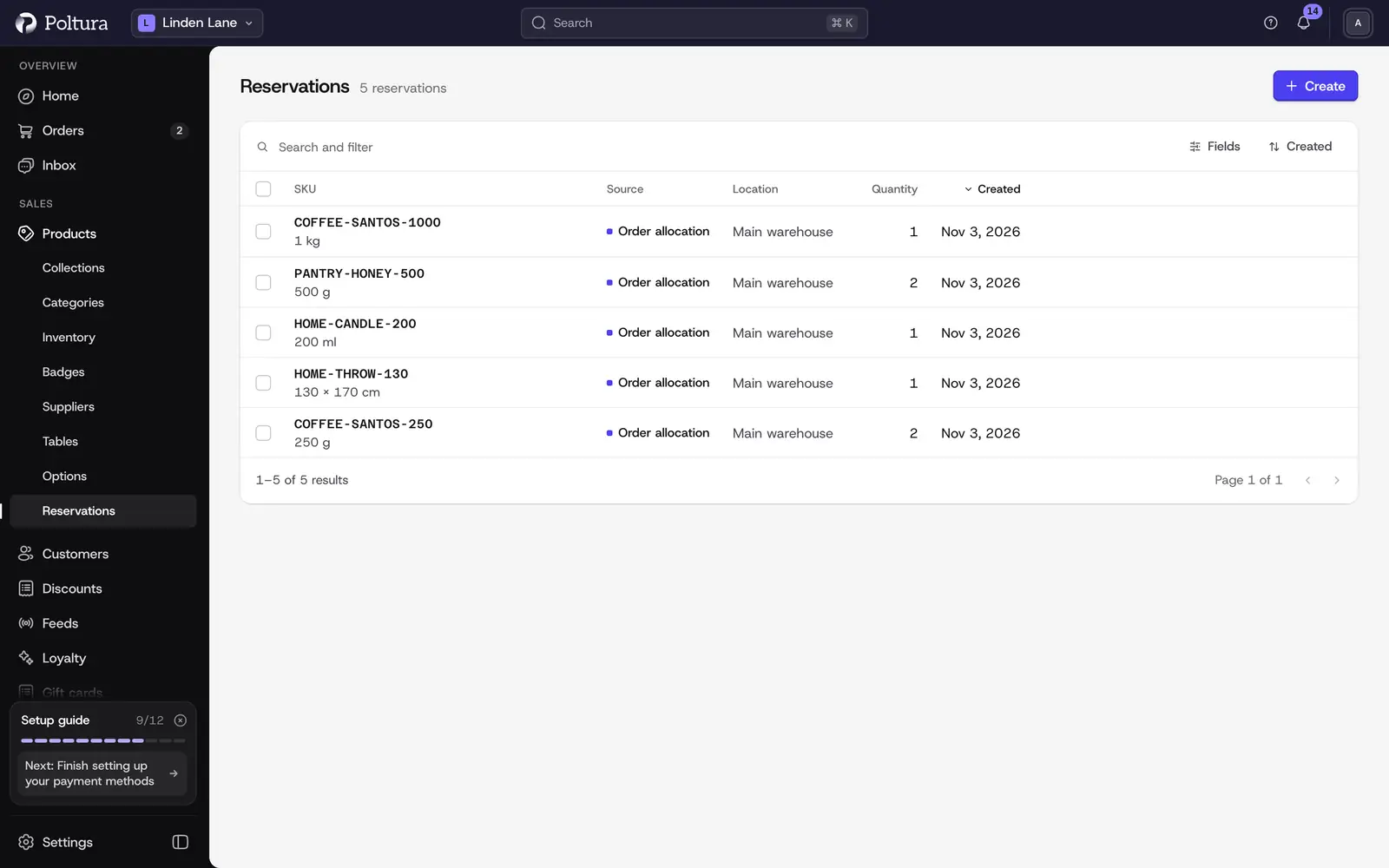
Read the list
Reservations lists every reservation of the store with SKU, Description, Created and Quantity. A Source column tells the two kinds apart:
- Order allocation: made by an order when it was placed.
- Manual: made by a member of your team.
You can search the list, sort it by quantity, date or location, and filter it by date.
Reserve stock by hand
Open Products and choose Reservations.
Select Create.
Under Item to reserve, choose the inventory item and select Continue.
Choose the Location. Only locations that stock the item are offered.
Type the Quantity. It must be at least 1 and cannot be more than the location has available.
Optionally add a Description, so your colleagues know what the reservation is for.
Save. The reservation appears in the list, and the item's Available quantity at that location drops by the reserved amount.
You can also start from an inventory item: open it and select Create in its Reservations block.
Change a reservation
Open the reservation from the list.
Select Edit.
Change the Location, the Reserve amount or the Description.
Save. The page shows the new values together with In stock at this location, Available at this location and Reserved at this location.
Delete a reservation
Open the reservation and select Delete.
Tick the box to confirm.
Select Delete reservation. The quantity becomes available for sale again.
Good to know
- Reservations lower Available, not On hand. The goods are still on your shelf.
- Fulfilling an order uses up its reservations; canceling it releases them.
- A location cannot stop stocking an item while a reservation stands on it.
- A manual reservation stays until you delete it. It has no expiry date.
If something goes wrong
- This item is not stocked anywhere, so nothing can be reserved. Add the item to a location first. See Stock per location.
- That is more than this location has available. Lower the quantity or raise the stock at that location.
- The reservations page is missing from the sidebar. Developer mode is off. Switch it on under Settings → Profile, see Admin basics.