When you keep goods in more than one place, every product version has its own quantity at each location. This page shows how to see one location, change a quantity there, and start or stop stocking an item at a location.
Before you start
- The version must have Track quantity switched on. See Variants and options.
- The locations themselves are created in developer mode, under Locations and shipping. What each location ships and at which rate is set under Delivery.
See and change the stock of one location
Open Products and choose Inventory.
Open the All locations menu and choose the location.
The list now shows one row per version with the On hand, Committed, Unavailable and Available quantities of that location only.
Type the new quantity in On hand and select Save in the Unsaved changes bar.
If a version was not stocked at that location yet, typing a quantity and saving starts stocking it there.
Choose where an item is stocked
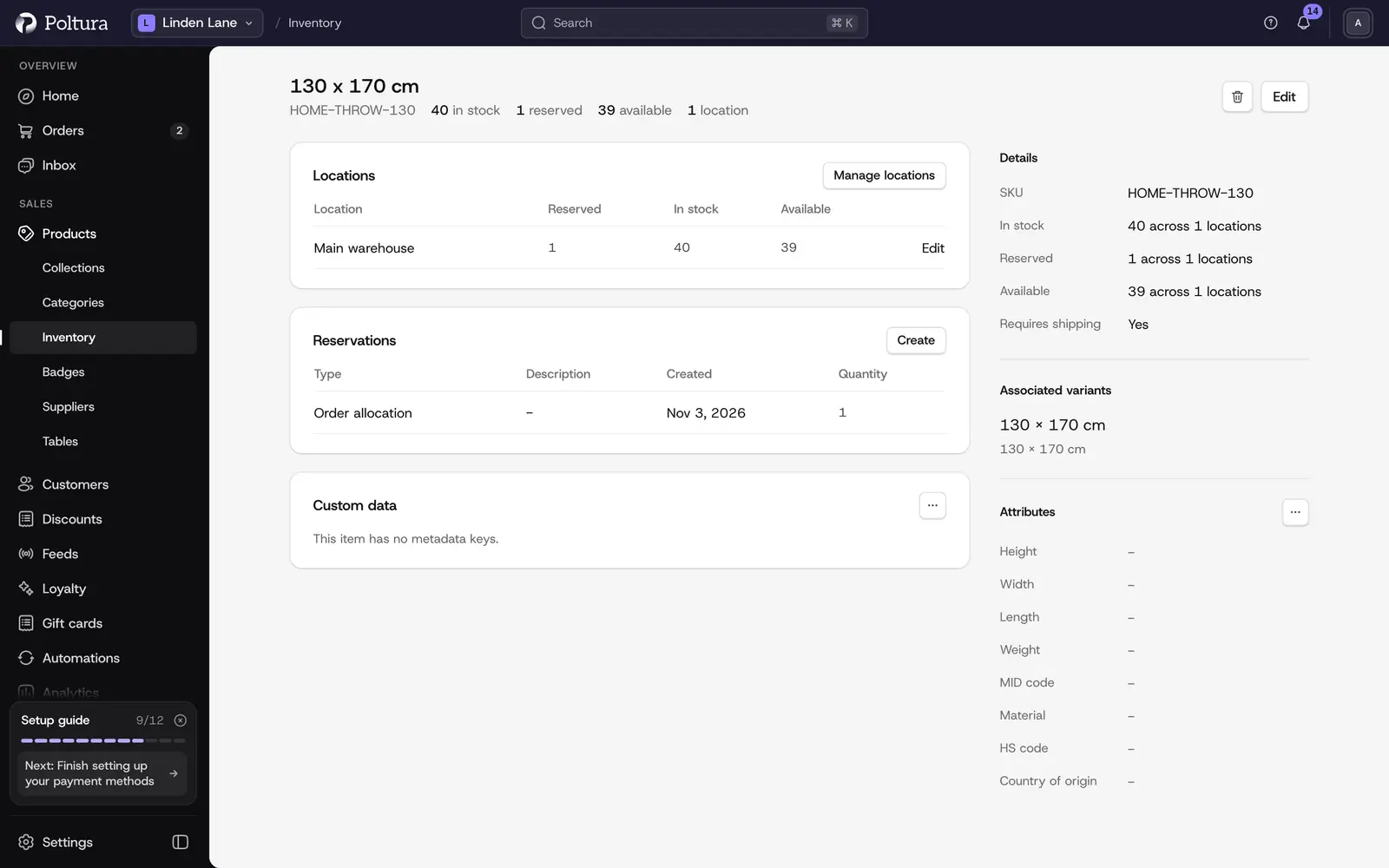
Each tracked version has an inventory item with its own page. The page lists the locations that stock the item.
On the Inventory page, select the row of the version. A side panel opens. This needs quick view turned on. Without it, a click opens the product.
Select View item.
In the Locations block, select Manage locations.
Tick the locations that should stock the item, and clear the ones that should not.
Save. The Locations block now lists the locations you ticked, each with Reserved, In stock and Available.
Change the quantity at one location from the item page
Open the inventory item with View item.
In the Locations block, select Edit on the row of the location.
On Manage location quantity, type the new In stock number and save.
The row shows the new quantity, and the totals at the top of the page change with it.
Edit an inventory item
Open the inventory item with View item.
Select Edit in the header.
In Edit item details, change the Title or the SKU.
Select Save. The header and the Details block show the new values.
Edit the attributes of an item
The Attributes block holds the measurements and customs data of the item. Courier and customs integrations read them.
Open the inventory item with View item.
Open the menu of the Attributes block and select Edit.
In Edit Attributes, fill in what you need: Height, Width, Length, Weight, MID code, HS code, Country of origin and Material.
Select Save. The block shows the new values.
Edit the custom data of an item
Custom data is a list of key and value pairs for integrations.
Open the inventory item with View item.
Open the menu of the Custom data block and select Edit.
In Edit custom data, add, change or remove rows. A row with no key is ignored.
Select Save.
Delete an inventory item
Open the inventory item with View item.
Select Delete in the header.
On Delete inventory item, tick Yes, delete this inventory item.
Select Delete. You land on the Inventory page, and the item is gone.
An item that still has reserved stock cannot be deleted. Fulfill or cancel the orders that reserve it first.
Edit every version of a product at once
The product page has a stock grid with one row per version and one column per location. Open the product, open the menu of the versions section and choose Edit stock. Type a number in a cell to stock the version at that location. See Variants and options.
Good to know
- Quantities are whole numbers.
- In stock cannot go below the quantity that is already reserved at that location.
- The summary at the top of the item page adds up all locations: In stock, Reserved, Available and the number of Locations.
- Orders reserve stock at a location when they are placed. In developer mode you can see and edit these on the Reservations page.
- With All locations selected on the Inventory page, a version is listed once per location and the row does not name the location. Choose a location to avoid mistakes.
If something goes wrong
- A location is missing from the menu. It has not been created yet. See Locations and shipping.
- A location cannot be cleared. It still holds or reserves stock. Set the quantity to zero, and fulfill or cancel the orders that reserve it.
- This item is not stocked at any location yet. Select Manage locations and tick at least one location.
- A shopper cannot buy an item you have in stock. The stock may sit at a location that does not serve their delivery zone. Check Delivery.