An option is a way a product varies, such as Size or Color. A variant is one buyable combination of option values, such as Red in size M. The admin calls variants Versions on the product page. Each version has its own SKU, prices, stock settings and images.
A product without options still has one version. It carries the price and the stock of the product.
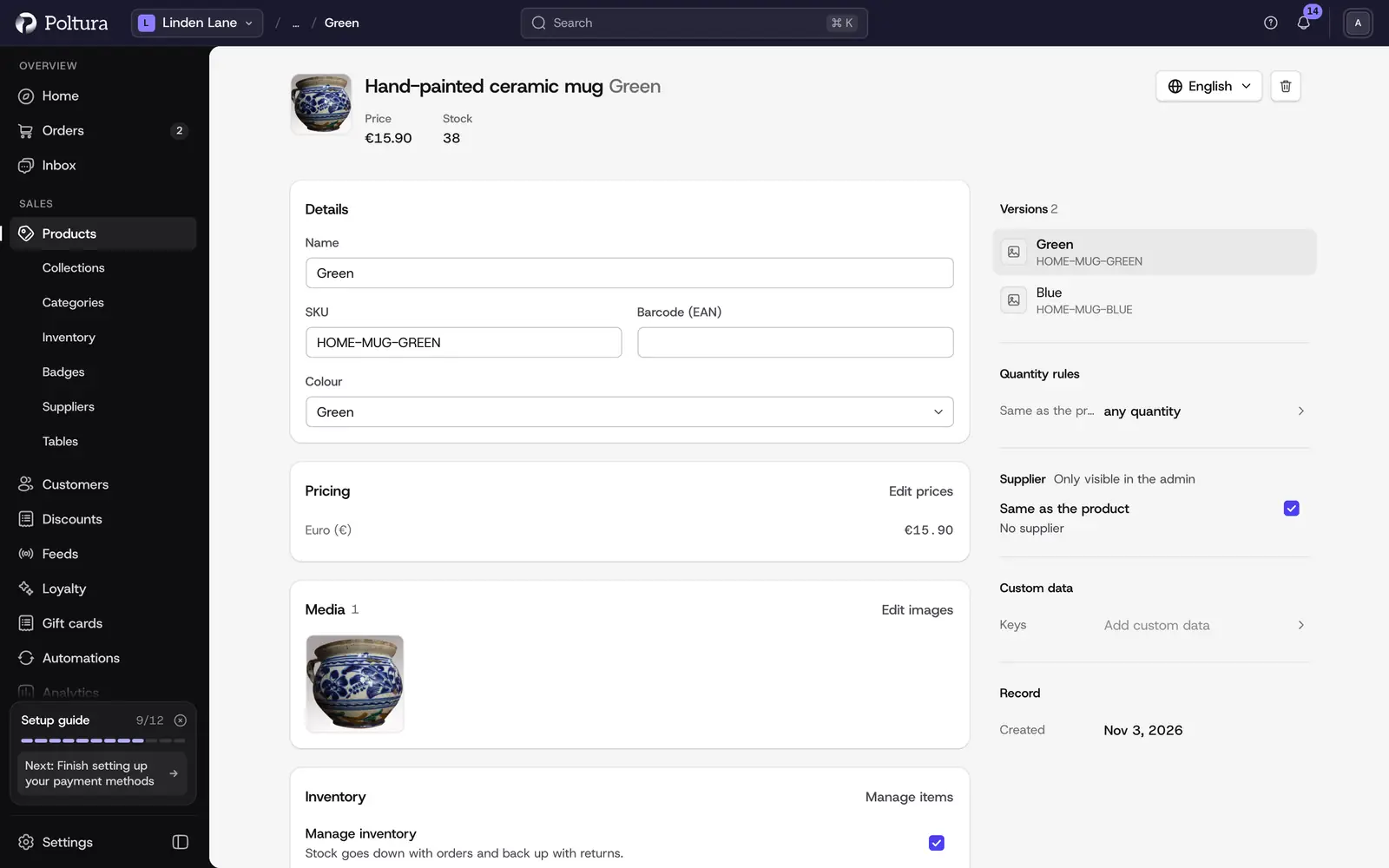
Add an option
Open the product and find Options.
Open the section menu and select Manage. If the product has no options yet, you can also select Add options in the Versions section.
In Manage product options, enter the name of the option under Add an option, for example Size.
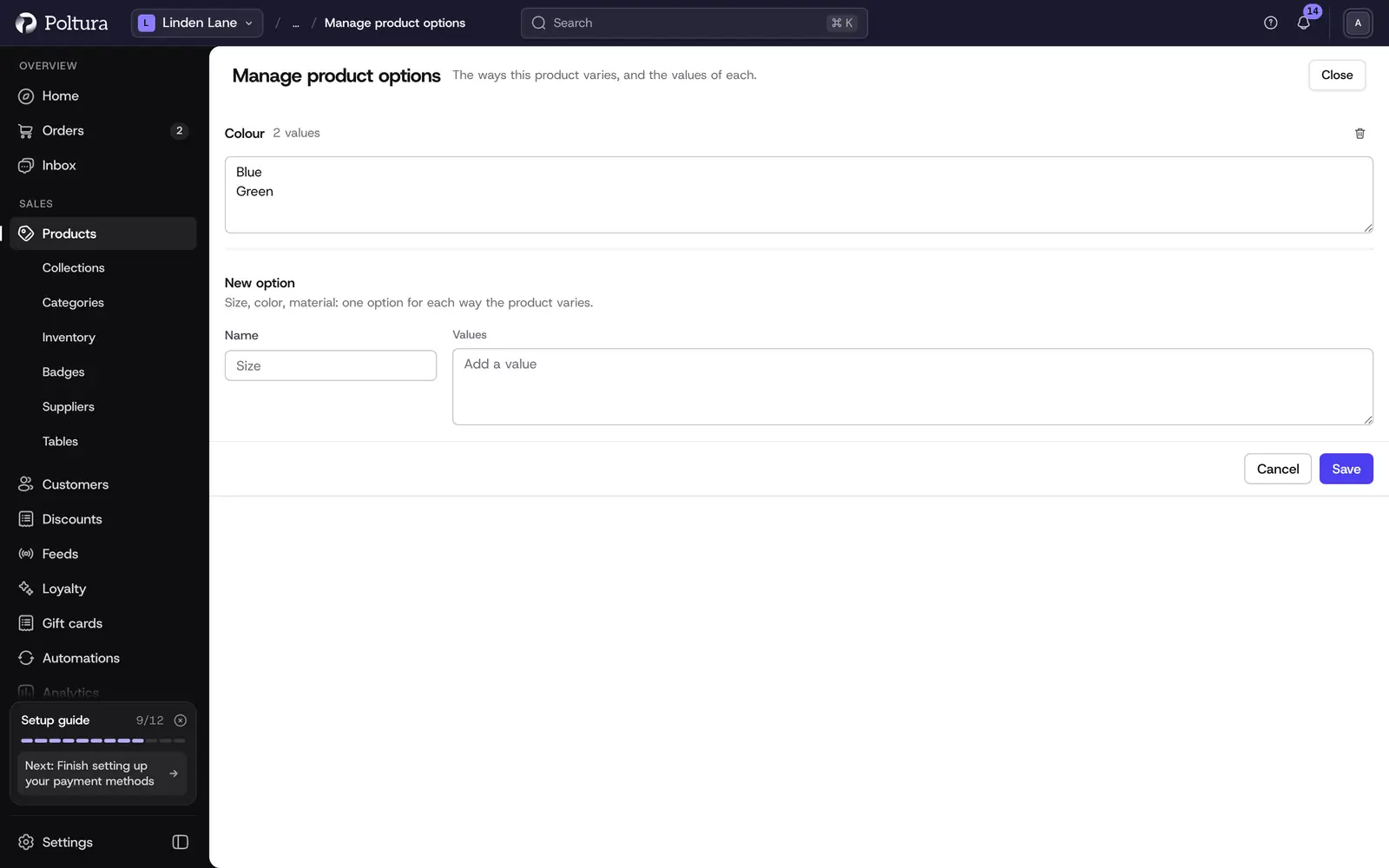
Enter its values under Values, for example S, M and L.
Select Save. The option and its values appear in the Options section.
Add the versions that use the new values, as described under Add a variant.
In the same panel you can:
- Add or remove values of an existing option in its Values field.
- Change the order of the options with the move buttons or by dragging.
- Tick Remove this option from the product to take an option off the product.
- Use Link a shared option to reuse an option that other products in your store already use. Linking brings all of its values.
Choose how shoppers pick a value
Each option can be shown differently on the product page of your store.
In the Options section, select the name of the option.
Select Edit.
Under Display on product page, choose Buttons, Dropdown, Color swatches or Image tiles.
Select Save.
For swatches and image tiles, open a value of the option and fill in the Swatch section: Color, an optional Second color for two-tone products, or an Image URL. A value without swatch data is shown as a button. Swatch images are given as a web address, there is no upload for them.
Add a variant
Open the product and find Versions.
Open the section menu and select Create.
On the Details tab, enter a Title and, if you use them, a SKU.
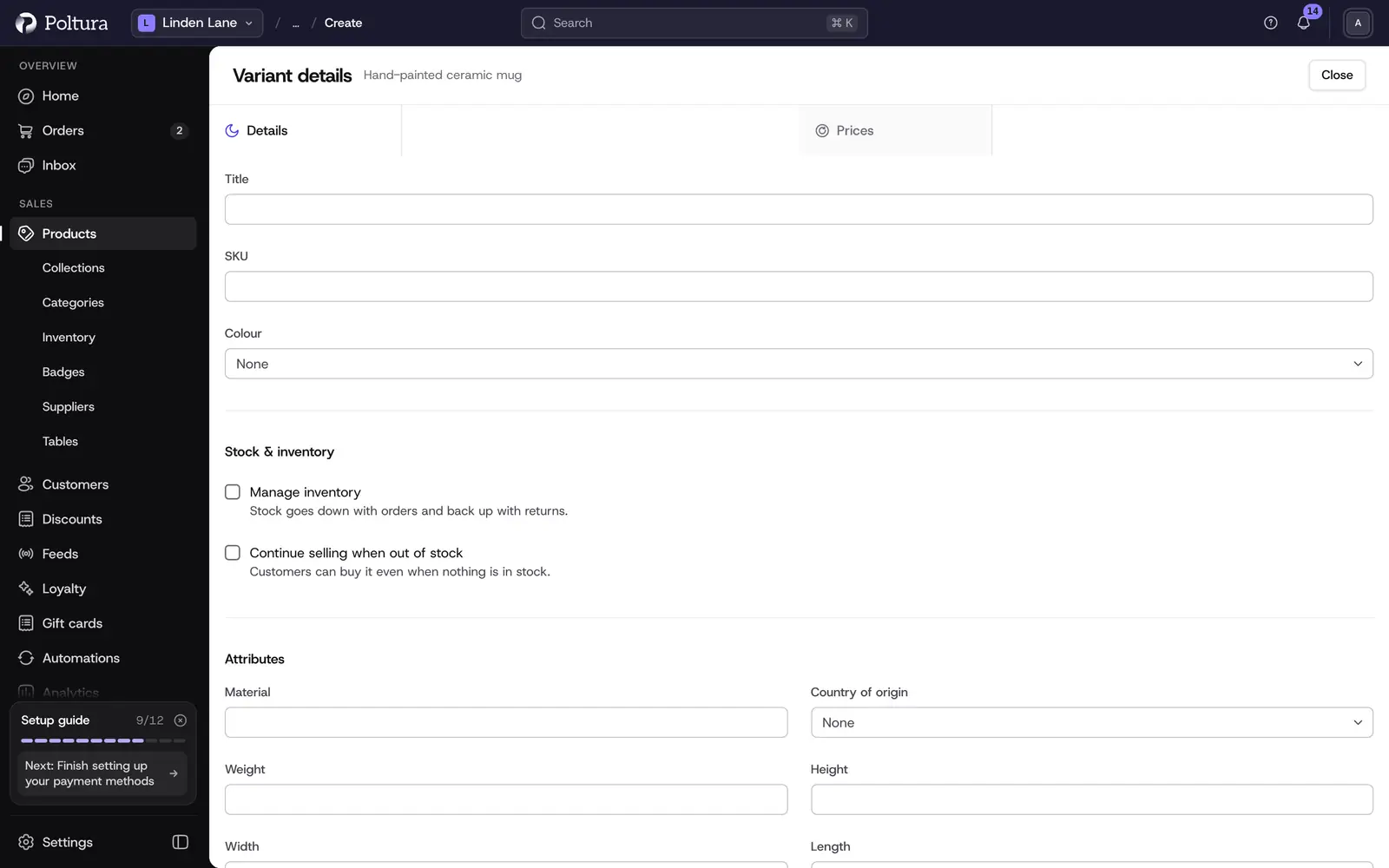
Choose a value for each option of the product.
Tick Manage inventory if stock should be counted for this version, and Continue selling when out of stock if customers may buy it with no stock available.
Fill in the shipping data that applies: Material, Weight, Height, Width, Length, MID code, HS code, Country of origin and Barcode (EAN).
Open the Prices tab and enter a price in each column.
Select Save. The new version appears in the Versions table.
Edit a variant
Open the product and select the version in the Versions table. The version's own page opens.
Select Edit in the header.
In Edit Variant, change the title, SKU, option values, inventory switches or shipping data.
Select Save.
The version page also has its own sections:
- Prices: select Edit to change the prices of this version. See Prices.
- Media: select Edit images to choose which product images this version shows. See Images and media.
- Inventory: shows what is in stock and reserved. Manage inventory items links the version to the stock items it draws down when it sells.
- Delete variant: tick the confirmation and select Delete variant. This cannot be undone.
Good to know
- A product can have up to 5 options with up to 50 values each, and up to 200 versions.
- The Versions table lists title, SKU, option values and stock. Stock shown in red means the version has none.
- Edit stock in the Versions menu opens a grid with every version and location. Stock is explained in Stock per location.
- Switching Manage inventory on for an existing version does not create a stock item. Until one is linked with Manage inventory items, the stock grid stays read-only for that version. See Inventory.
- Version titles and option values can be translated when your store has several languages. See Translations.
If something goes wrong
- A version cannot be bought although the product is published. It usually has no price in the shopper's currency or no stock. The readiness checks name the reason.
- An option value is missing from the list when you create a version. Add the value to the option first under Manage, then create the version.