With the loyalty program, customers earn credits for ordering, signing up and writing reviews, and spend them on rewards such as a discount or free shipping. Credits are a whole number of points, separate from money.
Loyalty has four pages: Overview, Members, Rewards and Settings.
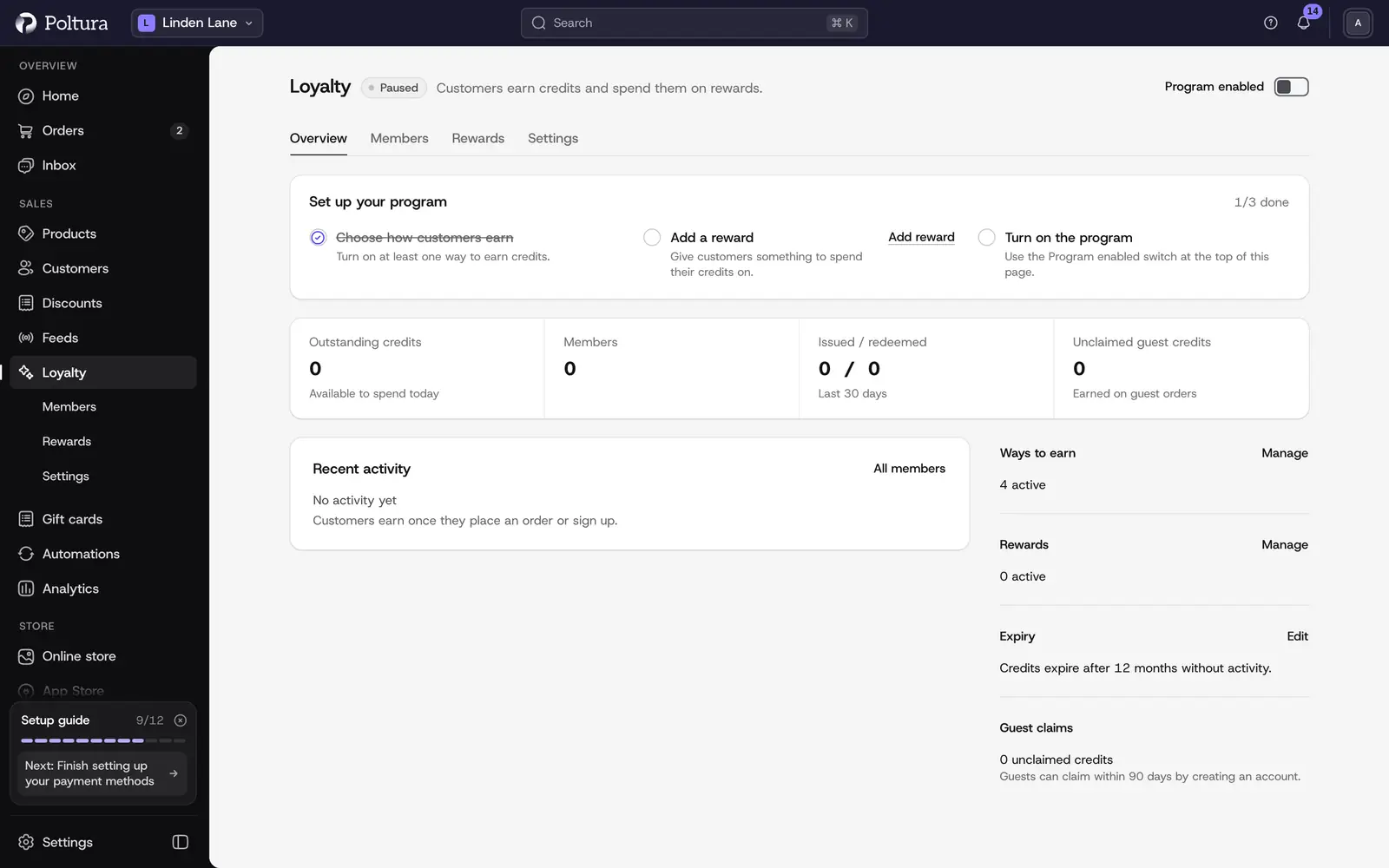
Start the program
The Overview page shows a Set up your program checklist until the three steps are done.
Open Loyalty.
Choose how customers earn: select Ways to earn and turn on at least one way. See Settings.
Add a reward: select Add reward so customers have something to spend credits on. See Rewards.
Turn on the program: use the Program enabled switch at the top of the page.
The status changes to Active and the checklist disappears. Customers start to earn from their next order or sign-up.
Once the program runs, the overview shows Outstanding credits, Members, Issued / redeemed for the last 30 days and Unclaimed guest credits, followed by Recent activity.
Pause the program
Switch Program enabled off and confirm with Pause program. Customers keep their balance but stop earning, and rewards cannot be redeemed while the program is paused. You can turn it back on at any time.
Members
Members lists everyone with a credit balance or history: Customer, Email, Type (Account or Guest), Balance, Pending, Lifetime and Last activity. Search by name or email.
Select a member to see their Credit balances (Balance, Pending, Lifetime earned, Next expiry), the Ledger of every change and their Reward codes. View customer opens the customer's page.
Adjust a member's credits
Open Loyalty, choose Members and select the member.
Select Adjust credits.
Choose the Adjustment type: Add or Deduct.
Type the number of Credits. The form shows the current and the new balance.
Choose a Reason: Goodwill, Correction, Promotion, Migration or Other. With Other, an internal note is required.
Confirm with the Add or Deduct button. The change appears in the ledger as Added by admin or Deducted by admin.
Customers never see the internal note. You cannot deduct more than the member's balance.
Rewards
Rewards lists what customers can spend credits on, with Type, Cost, how often each was Redeemed and an Enabled switch.
Open Loyalty, choose Rewards and select Add reward.
Choose the Reward type:
- Amount off: a fixed discount on the order. Fill in Amount and Currency.
- Percentage off: a percentage off the order. Fill in Percentage.
- Free shipping: the code removes shipping costs from one order.
- Free product: one unit of a product for free. Choose the Product.
Set the Cost in credits. Pick a suggested value or use Custom cost.
Under Code valid for, type how many days the code works after redemption, up to 365.
Type the Customer-facing name and, if you like, a Description.
Leave Offer this reward on and select Add reward. The reward appears in the list and on the storefront.
When a customer redeems a reward, the credits are deducted and they get a single-use discount code tied to their account. They enter it at checkout like any other code.
To change a reward, open its menu and choose Edit. To hide it for a while, switch Enabled off. Delete removes it for good; codes that customers already redeemed keep working until they expire.
Settings
Settings decides how customers earn credits and how long they keep them. Select Save when you are done; Discard drops unsaved changes.
Ways to earn
- Place an order: credits per amount spent, set per currency. Use Add currency for each currency you sell in. Credits are counted on the item subtotal after discounts, without shipping, tax and gift cards.
- Create an account: credits once, for signing up.
- First order: credits once, for the first order.
- Write a product review: credits for each approved review, with a monthly Limit. See Reviews.
Program settings
- Pending period: the number of days before order credits become spendable, up to 90. Set it to cover your return window.
- Expiry: Never, or After inactivity with Months without activity, up to 60. After that the whole balance lapses.
- Guest claim window: the number of days a guest has to create an account and claim their credits, from 7 to 365.
Program settings apply to credits earned from now on.
Good to know
- Order credits stay pending until the pending period ends. Canceling an order voids its pending credits, and credits that already became available are reversed, so a balance can go below zero.
- A received return reverses credits in proportion to the returned value. See Handle a return.
- Sign-up credits stay pending until the customer's first order has matured.
- Guest orders earn too. The credits wait on the guest's email address until they create an account with that address and verify it.
- On the storefront, customers find their balance, rewards and codes on the rewards page of their account, and the cart shows how many credits an order earns.
- Reward codes do not appear in the Discounts list.
- There are no loyalty tiers and no referral program.
If something goes wrong
- The loyalty program is paused. Turn it on to do this. Switch Program enabled on at the top of the Overview page.
- The customer doesn't have enough credits for this deduction. Lower the amount to the member's balance or less.
- A customer earned nothing for an order. Check that Place an order is on and has a rate for the order's currency, and that the order is paid. The credits show as Pending first.
- Customers can collect credits but can't spend them. There is no enabled reward. Add one or switch one on.