A gift card is a code with a balance that the customer pays with at checkout. You can sell gift cards as a product, issue a card yourself as a gesture or a correction, and see what is left on every card.
There are two kinds:
- Amount cards hold a money balance. They pay for products, shipping and tax, several can be combined, and they work together with discounts.
- Product cards are worth one unit of a specific product.
Read the list
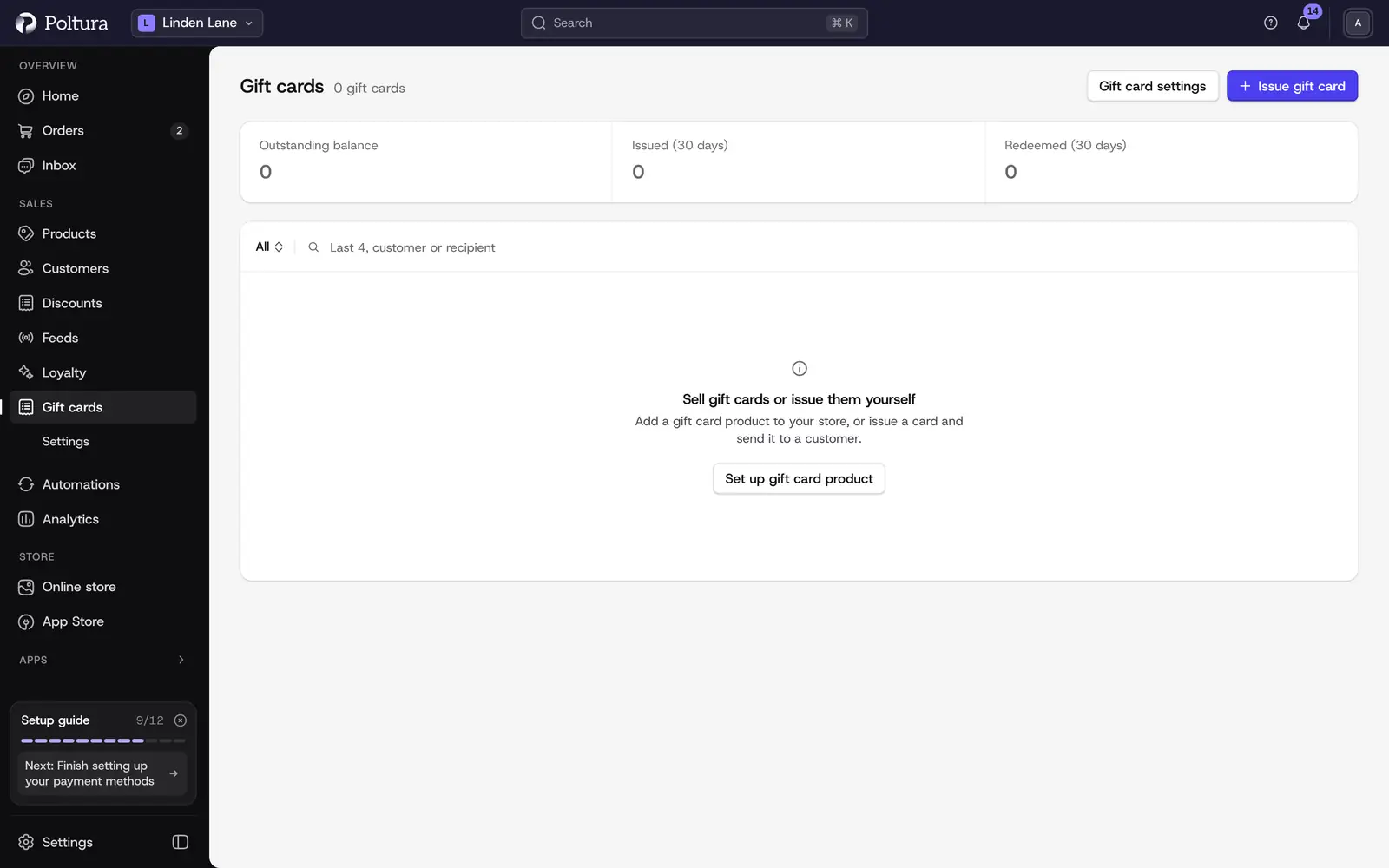
Gift cards lists the cards sold in your store and the cards you issued yourself. The totals at the top show Outstanding balance, Issued (30 days) and Redeemed (30 days).
The status menu filters by state: All, Active, Partially used, Used up, Expired and Disabled. Search by the last 4 characters of the code, the customer or the recipient. Each row shows Code, Status, Balance, Kind, Customer, Recipient, Source, Expires and Created.
You only ever see the last four characters of a code. The full code is shown once, when a card is issued.
Issue a gift card
Open Gift cards and select Issue gift card.
Choose the Kind:
- Amount: choose the Currency and type the Value, or pick one of the suggested values.
- Product: choose the product under Redeemable for. The card is worth one of this product.
Choose the Code: Generate automatically creates a random 16-character code, Custom code lets you type one of 12 to 32 letters and digits. The characters 0, O, 1 and I are not allowed.
Choose the Expiry: the store default, Never or Custom date.
Under Delivery, fill in Recipient email, Recipient name, From and a Message, then choose when to Send: Now, Schedule with a date, or Don't send.
Optionally assign the card to a customer with Assign to customer, and add an Internal note that only staff can see.
Select Issue gift card.
On Gift card issued, select Copy code and keep the code safe. It won't be shown again after you leave the page.
Manage a card
Open a card from the list to see its Gift card balance (Current, Initial, Used), its Transactions, the recipient and the delivery state.
- Resend email sends the gift card email again. You can enter another address under Send to another email.
- Adjust balance adds to or deducts from the balance. Choose Add or Deduct, type the Amount, choose a Reason and confirm. Every change is logged in the transactions.
- Change expiry, under More actions, sets Never expires or a date. On an expired card the same form opens with Extend expiry.
- Disable, under More actions, stops the card for good. Type a reason of at least 3 characters and select Disable gift card.
Settings
Open Gift cards and choose Settings. Select Save when you are done.
Sell gift cards in your store
Turn on Sell gift cards. This shows the gift card product and accepts cards at checkout.
Under Amounts in your currency, type the amounts you want to sell, separated by commas. Use a dot for decimals. Use Add currency for each further currency.
Select Save.
Select Create gift card product. Later, after you change the amounts, select Sync when the product shows Needs sync.
The product now shows the number of amounts on sale and In sync. Shoppers can buy it on the storefront.
On the product page shoppers choose an amount and enter the recipient, the sender, a message and, if you allow it, a delivery date. The card is emailed to the recipient after payment, or on the chosen day.
Rules
- Validity: Never expire, or Expire after a number of months, up to 120.
- Allow scheduled delivery: buyers can pick when the recipient gets the email.
- Message length: the longest message a buyer may write, between 50 and 1,000 characters.
Changes apply to newly issued cards.
Tax
VAT treatment decides how gift card sales are taxed:
- Multi-purpose voucher: no VAT when sold. VAT is charged on the goods when the card is spent. This fits cards usable on anything in the store.
- Single-purpose voucher: VAT is charged when the card is sold, because the goods and the VAT rate are known in advance.
Review the choice and your invoicing with your accountant before you start selling. After changing it, sync the gift card product again.
Product vouchers
A product voucher is a gift card worth one specific product, priced like that product. Under Product vouchers, search for the product and select Add. A voucher product is created for it.
Good to know
- Shoppers enter gift cards in the same field as discount codes, in the cart and at checkout. The summary shows what is left on each card.
- Shoppers can check a card's balance themselves on the storefront's gift card balance page.
- Canceling an order credits the gift cards used on it.
- A return can be settled as store credit, which is issued as a gift card balance. See Handle a return.
- Orders paid entirely by gift card are invoiced when the order is placed. See Billingo and Számlázz.hu for how gift card payments appear on invoices.
- Gift card expiry rules differ by country. Check what applies to your store.
- The gift card email is a theme email. See Themes.
If something goes wrong
- This code is already in use. Choose another custom code, or select Generate.
- The code can no longer be shown. You left the page after issuing. Open the card and use Resend email to send the code to the recipient.
- This card has no recipient yet. Enter an email address under Send to another email to send it.
- The gift card product shows Needs sync. The amounts or the VAT treatment changed. Select Sync.
- A shopper cannot use a card. Check its state in the list. Expired, Disabled and Used up cards are refused.