An abandoned cart is a cart that a shopper filled but never turned into an order. The store can email these shoppers a reminder with a link that restores their cart, so they can finish the order where they stopped.
Reminders are switched on by default in a new store, with one reminder sent one day after the cart was left.
Who gets a reminder
A cart gets a reminder when all of these are true:
- The cart has an email address, because the shopper is signed in or typed their email address at checkout.
- The cart has at least one product in it.
- No order was placed from the cart.
- The cart has not changed for the number of days you set.
The store checks for carts that are due once an hour.
Set up the reminders
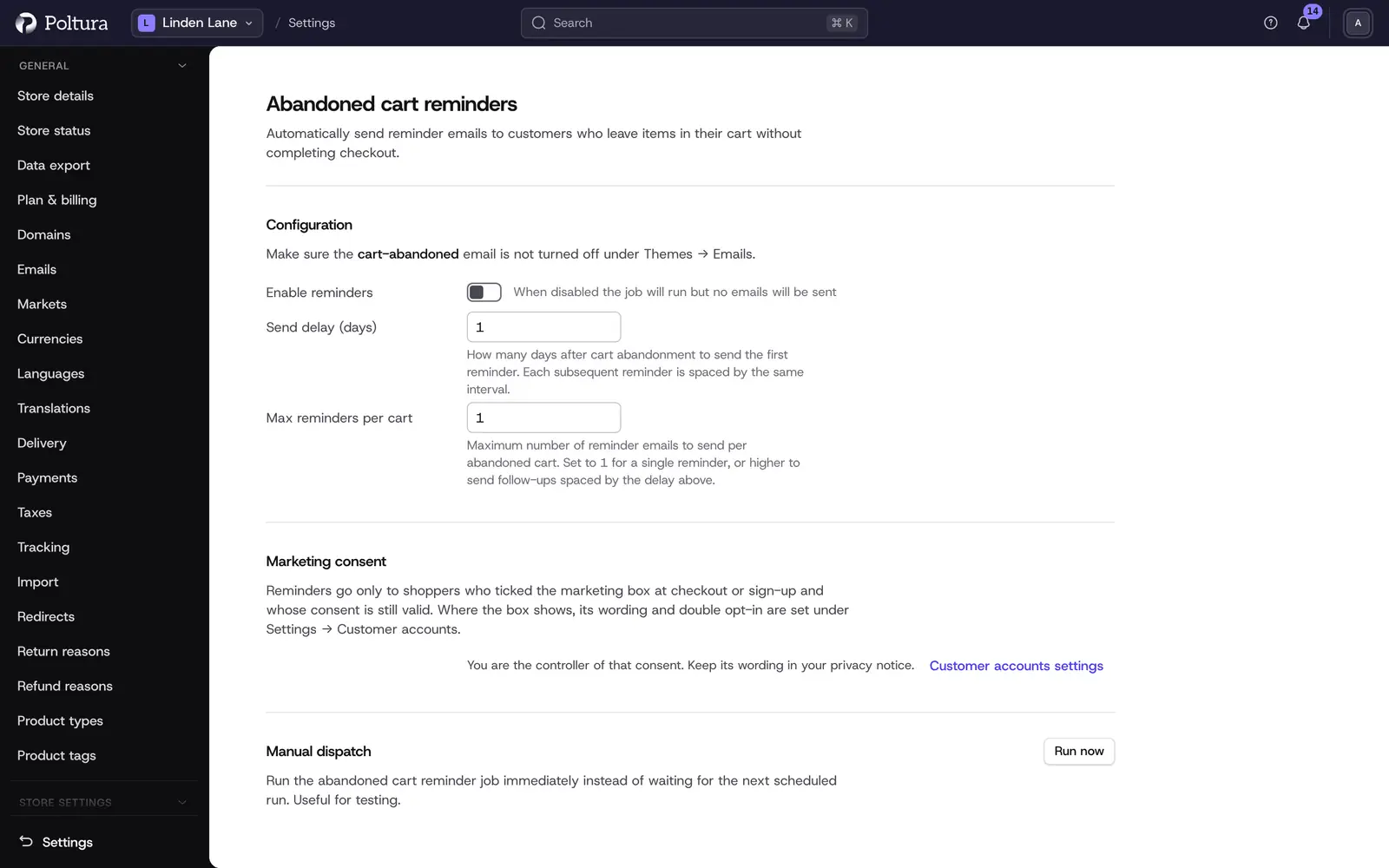
Open Settings and choose Abandoned Cart under Store settings.
Under Configuration, check that Enable reminders is on.
In Send delay (days), type how many days after the cart was left the first reminder goes out. The minimum is 1.
In Max reminders per cart, type how many reminders one cart may get. With
1the shopper gets a single reminder. With a higher number, follow-ups are sent with the same delay between them.Select Save. Settings saved confirms the change.
Edit the reminder email
The reminder is the theme's cart abandoned email. Its wording, design and translations are edited with the other theme emails. See Themes.
Make sure the cart-abandoned email is not turned off there. When it is off, no reminder goes out even though reminders are enabled here.
Test the reminders
On the storefront, put a product in the cart and go to the checkout far enough to enter an email address you can read.
Wait until the cart is older than the send delay.
In the admin, open Settings, choose Abandoned Cart in the Store settings section and select Run now under Manual dispatch.
Check the inbox of the test address. The link in the email opens the storefront with the cart restored.
Run now runs the reminder job at once instead of waiting for the next hourly run. It sends only the reminders that are due, so it does nothing for a cart that is younger than the delay.
Switch the reminders off
Turn Enable reminders off and select Save. No emails are sent while it is off. Carts are not deleted.
Good to know
- The recovery link in the email is valid for 7 days. A shopper who opens an expired or invalid link is told so on the storefront.
- There is one reminder email. It cannot contain an automatically generated discount code, and there are no recovery statistics.
- A shopper who orders after the first reminder gets no follow-ups for that cart.
- A shopper with several abandoned carts is reminded about the one they changed last, and the maximum number of reminders counts per email address.
- Only recently abandoned carts are picked up. A cart that was left long before the send delay you set is not reminded later.
- You can find every reminder that was sent in the sent emails list. See Emails.
- For sequences with several different emails, conditions and waiting times, use Email automations.
If something goes wrong
- No reminder arrives. Check that Enable reminders is on, that the
cart-abandonedtheme email is not turned off, that the cart has an email address and that it is older than the send delay. - Delay must be at least 1 day. Type
1or more in Send delay (days). - Max sends must be at least 1. Type
1or more in Max reminders per cart. - The store is not answering right now, so nothing was changed. Wait a moment and save again.
- Emails are not delivered at all. Check the sender of your store. See Emails.