A theme is how your online store looks and reads: its pages, sections, menus, wording and emails. You can keep several themes side by side, but customers only see one: the theme marked Live. Each theme has a draft, which holds your edits, and a published version, so work in progress never reaches customers by accident.
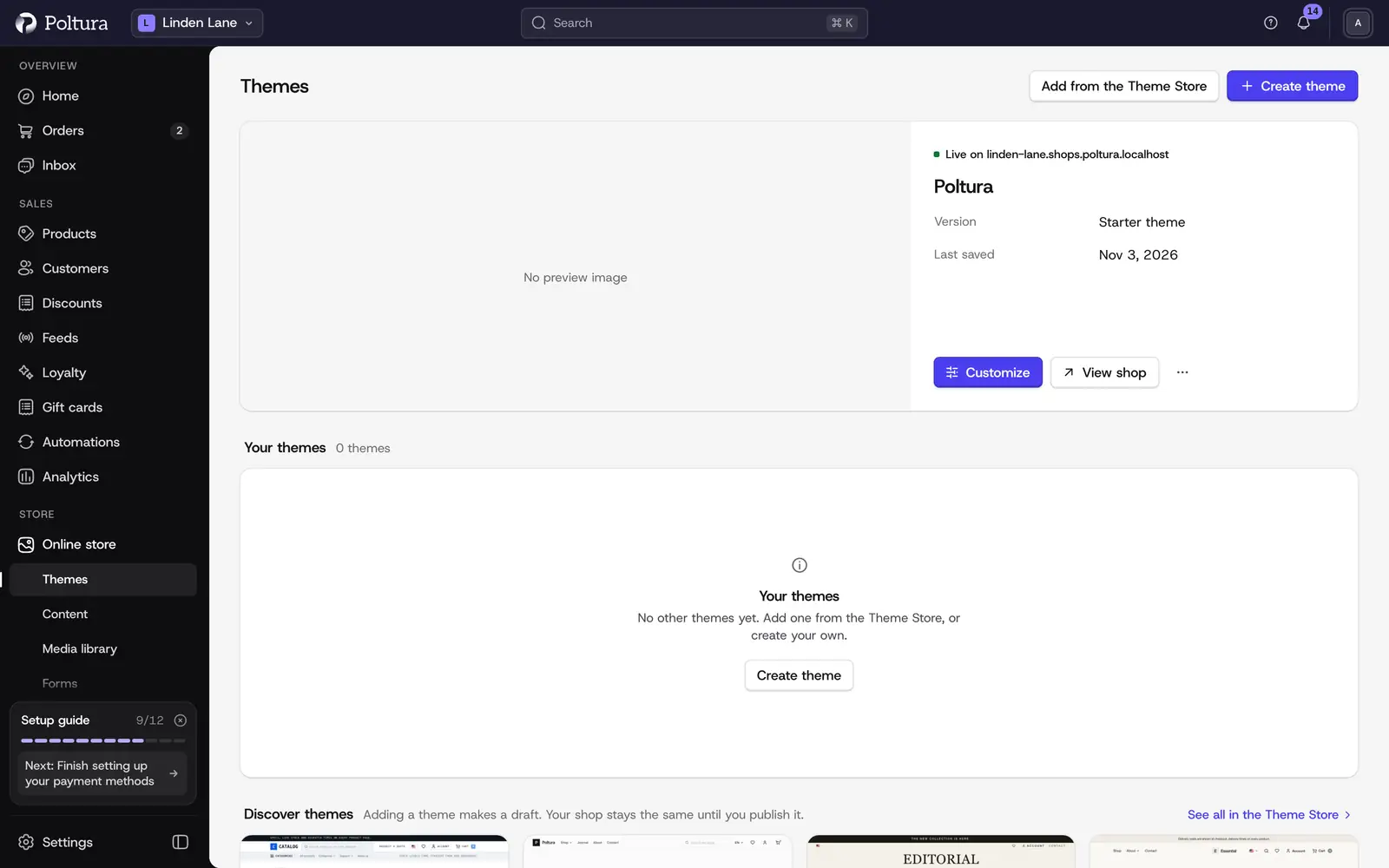
Find your way around the list
Open Online store and choose Themes. Each row shows the theme's Name, Handle, Status and when it was last Updated.
- Live is the theme your customers see. The other themes show draft or published.
- Customize opens the theme in the customizer.
- The actions menu at the end of the row holds Emails, Edit in code editor, Use published version, Publish and Delete.
- A theme you are only trying out shows Preview expires with a date. See Theme store.
Add a theme
There are two ways to get another theme:
- Add from the Theme Store opens the catalog of ready-made themes. This is the usual choice. See Theme store.
- Create theme makes a new theme from the starter theme. Give it a Name, and if you like a Handle and a Description, then choose Create. Choose this when you or a developer will build the theme in the code editor.
Neither one changes the theme your customers see.
Open a theme
Click a theme's name to open its page. The tabs under the header lead to the parts of the theme:
- Overview: the page you are on.
- Menus: menus.
- Copy: the storefront wording.
- Pages: theme pages.
- Emails: the emails your store sends, see Emails.
Colors, fonts, the logo and the other theme settings are edited in the customizer.
The overview itself tells you where the theme stands:
- Theme shows Unpublished changes or All changes published, and a Preview link that opens the draft on your real store.
- Activity shows the number of Saved versions, Last edited, Last published and the Build state (Up to date, Building or Failed).
- Contents counts the pages, menu items, customized emails and languages of the theme.
- About shows the handle, the status and, for a theme from the Theme Store, which version it was installed from.
Publish a theme
Publishing puts a draft in front of your customers. How you do it depends on which theme you are working on.
Publish changes to the live theme
Open Online store and choose Themes.
Choose Customize on the row of the theme marked Live.
Make your changes. They are saved to the draft as you work.
Choose Publish in the top bar of the customizer.
The button reads Published and a notice tells you the theme is live now.
Make another theme the live one
Open Online store and choose Themes.
Open the actions menu on the row of the theme you want to go live with.
Choose Publish.
Confirm with Publish.
The row shows Preparing to go live… while the new version is built. Customers keep seeing the current live theme until it is ready. Then the theme shows Live.
Was the theme published before? To switch back to it without its newer draft edits, choose Use published version instead. The draft edits stay saved separately.
Restore an earlier version
Every edit and every publish saves a point you can come back to. The History block on the theme page lists them with a Version number, what changed and when. Versions that were live at some point are marked Published.
Open Online store, choose Themes and click the theme's name.
Scroll to History and find the version you want.
Choose Restore on that row.
Confirm with Restore.
The draft now holds that version. Check it in the customizer, then publish it when you are happy with it.
Restoring replaces the draft only. Your live store does not change until you publish.
Reset or delete a theme
Both actions are in the actions menu in the header of the theme page.
Good to know
- Nothing is live until you publish. Autosave in the customizer only writes to the draft.
- The live theme cannot be deleted. Make another theme live first.
- Push draft to storefront, in the actions menu of the theme page, shows your unpublished changes to customers straight away. It does not create a version you can go back to. Use Publish when you want that safety.
- All eight themes Poltura ships come with the same page templates, wording in six languages and a full set of emails, so switching themes leaves no gaps.
If something goes wrong
- The row says the theme could not be prepared. The new version failed to build. Your current live theme is unchanged. Open the theme, look at Build under Activity and publish again. If the theme has custom code, the error is usually there. Open the code editor.
- Publish is grayed out on the theme page. The theme is already live. Publish its changes from the customizer instead.
- Delete is grayed out. It is the live theme.