Klea is the assistant built into the admin. You ask in your own words. It answers from your store's data or makes the change for you. Anything that changes the store waits for your approval, depending on the mode you choose.
Before you start
- Klea is available on every plan, also while your store is private. It uses AI credits.
- The Owner, Administrator, Store manager, Catalog editor and Support roles can use it. Finance and Read-only cannot.
- Klea can never do more than you can. Every action is checked against your own permissions.
Ask a question
Select Assistant at the bottom of the sidebar, or press
⌘Jon a Mac orCtrl+Jon Windows. The Klea panel opens over the page.Type your question or request. On an empty chat you can also pick a suggestion, such as Summarize today's orders or Which products are low on stock?
Press
Enterto send. UseShift+Enterfor a new line.Watch the answer arrive. While Klea works, a line says in plain words what it is doing. Stop ends the run.
After each answer Klea suggests what you could do next. Select a suggestion to continue.
You can also reach Klea from the ask box on Home, from Ask assistant about in search, and from the assistant tab in the Customizer.
Move, dock or enlarge the panel
The buttons in the panel header let you:
- New chat: start a fresh conversation.
- Dock to the right: fix the panel to the side of the page. Undock makes it float again.
- Open full view: open the full Assistant page.
- Minimize: shrink the panel to the Ask Klea button.
You can drag the floating panel to move it and drag its edge to resize it.
Go back to an earlier conversation
Open the panel and select Open full view.
Find the conversation in the list on the left. Conversations are grouped by the day you last used them, newest first. Each gets a title by itself.
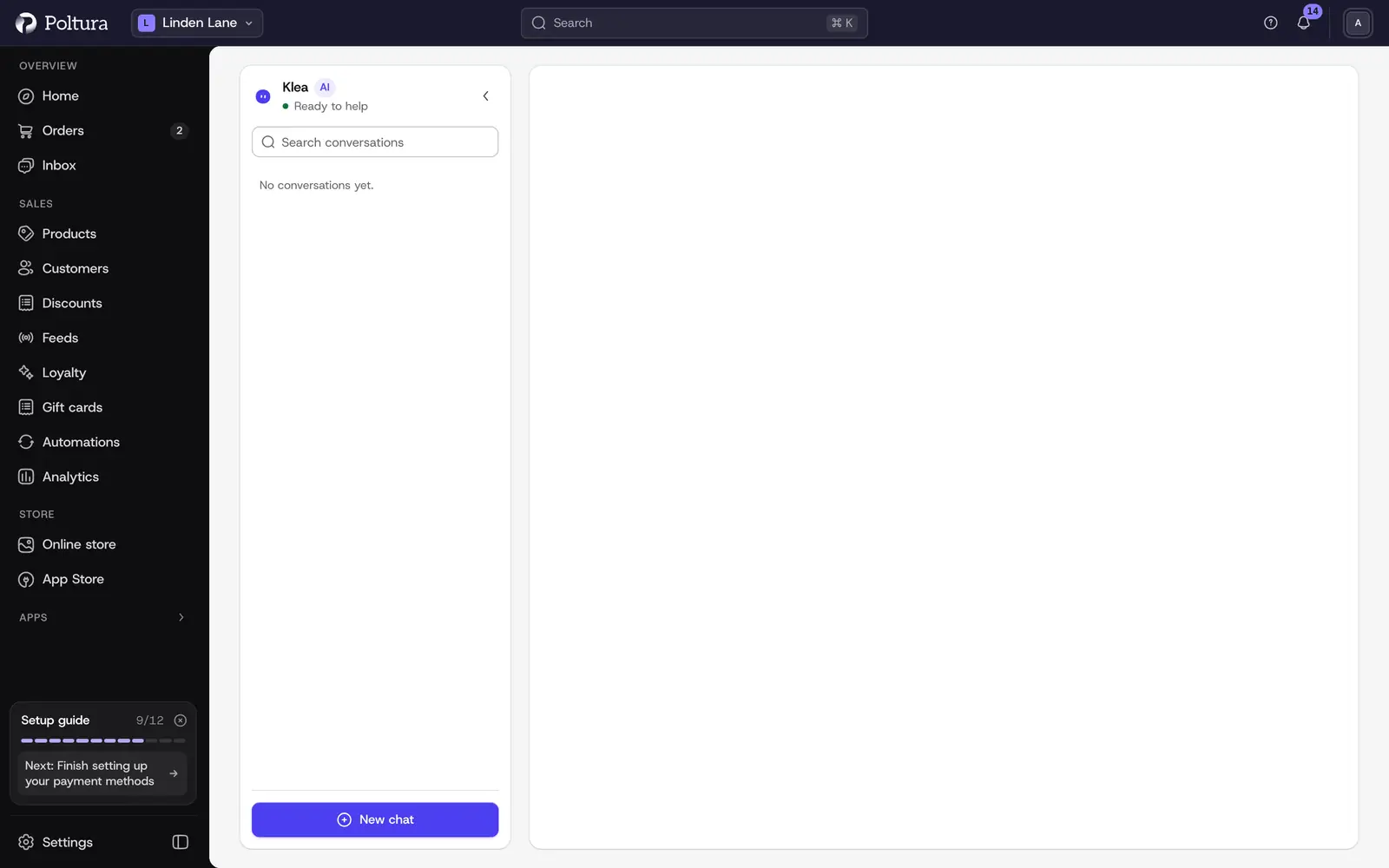
New chat at the bottom starts a fresh conversation. Use Search conversations to find one by name.
Select a conversation to continue it.
To remove one, choose Delete conversation beside it and confirm with Delete.
Attach a file
Select Attach files in the message box, or drop the files onto it. Klea reads images (PNG, JPEG, WebP), PDFs and text files (TXT, Markdown, CSV), for example a supplier price list or a screenshot.
One message can carry up to 3 images, 2 PDFs and 3 text files. Images can be up to 4 MB, PDFs up to 25 MB and 200 pages, text files up to 2 MB.
Answer Klea's questions
When a request could mean more than one thing, Klea asks instead of guessing. A card shows one to three questions with a few options each. Pick an option, choose Something else… to type your own answer, or Skip. Then select Next.
What Klea can help with
- Catalogue: products, product setup and readiness, options and variants, product content (search titles, related products, badges), product page tabs and tables, categories, collections and tags, attributes, bundles and their economics.
- Inventory and Digital goods: stock levels, key pools, files and delivery.
- Orders: look-ups, fulfillment, payments and refunds, order edits and draft orders, preorders, returns and return cases, invoicing and order numbering, payment checks.
- Customers: customer records and groups, business accounts, wholesale and quotes.
- Marketing: promotions and campaigns, price lists, gift cards and loyalty, reviews and the newsletter.
- Content, Media and Translations: pages, blog posts and guides, the media library, translations.
- Feeds: marketplace and price comparison feeds, their rules and category mapping.
- Storefront: the Customizer (layout, pages and menus, style), themes and the theme code, and your email templates, campaigns and automations.
- Store setup: store settings, markets and currencies, tax and zones, shipping, alerts and checks, imports, forms and redirects, analytics.
Klea asks you before it changes things, according to the mode you choose. Some areas are only available when the matching feature or app is on for your store.
Good to know
- Klea replies in the language you write in, whatever language your admin is set to.
- Klea is for running your store. It declines unrelated requests such as general essays, news or IT help. If it refused something that was about your store, select This was wrong to report it.
- Each conversation remembers its own messages. Nothing is carried over into a new chat.
- Design and code changes to your storefront are saved into the theme draft first. Customers see them only after you publish. See Themes.
- AI store design and theme code changes with Klea are available on Plus and Pro once your store is open, not while it is private.
- Klea can make mistakes. Check anything important.
- The message box shows Poltura AI. Choosing a different model is not available.
If something goes wrong
- "The assistant is not available". It is not switched on for this store. Ask your administrator.
- "You do not have access to the assistant." Your role does not include it. See People and roles.
- "You've used all your AI credits for this billing period." See AI credits.
- "This run hit its time limit and was stopped." Send a shorter request, or ask Klea to continue.
- "Too many requests right now." Wait a moment and try again.