The inbox AI can write reply suggestions for your team, or answer customers by itself and hand over to a person when needed. It answers from your own help articles, pages, policies and product catalog. AI replies are in beta.
Before you start
- AI replies are part of the Plus and Pro plans and use AI credits.
- Changing these settings needs the permission to change inbox settings. Asking for a draft needs the permission to draft replies with AI.
- The AI works best when it has something to read. Publish your help articles and policy pages first. See Pages, blog and content.
Choose a mode
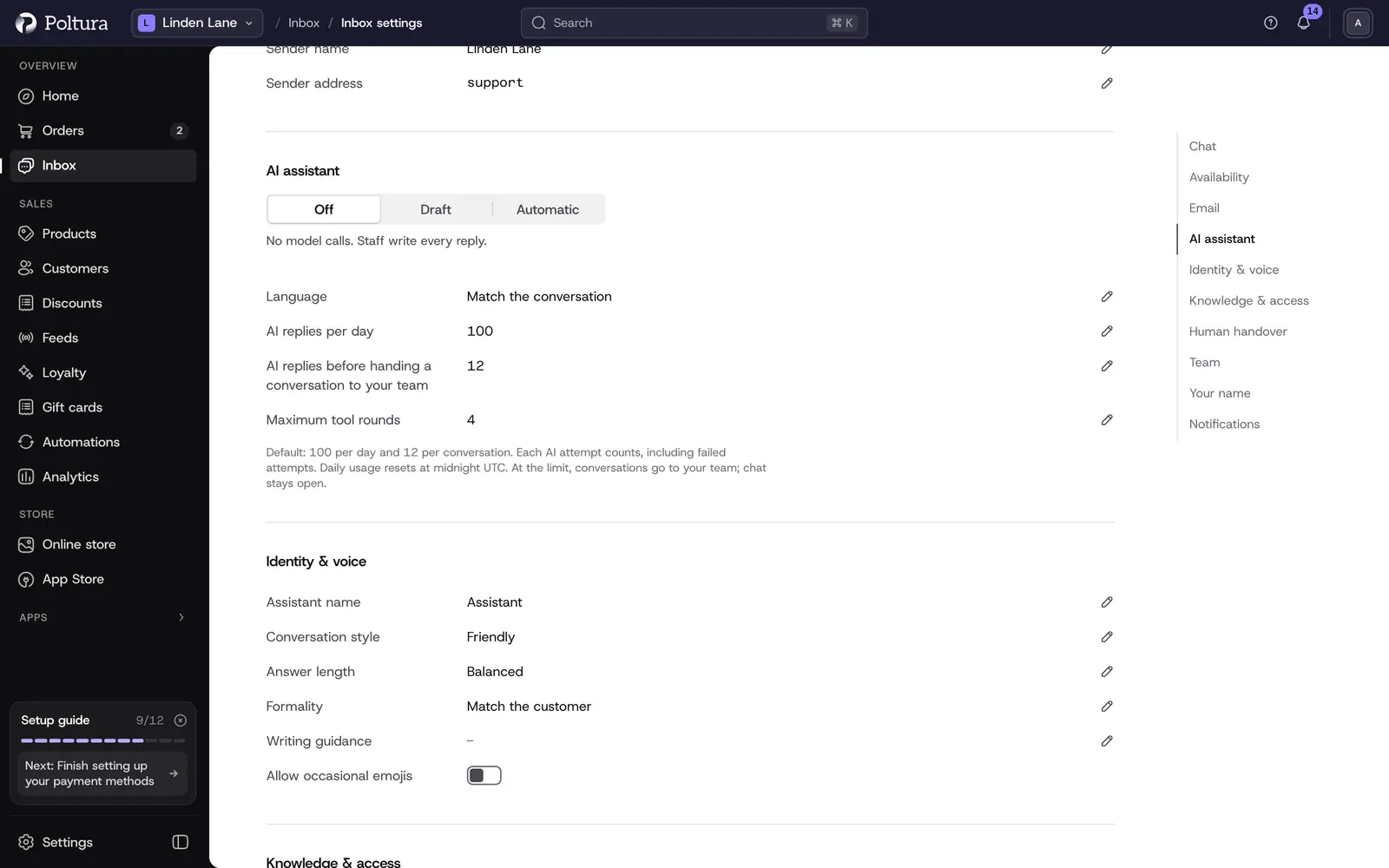
Open Inbox, select the Settings icon and open AI assistant.
Choose one of three modes:
- Off: the AI is not used. Your team writes every reply. New stores start here.
- Draft: suggested replies appear for your team to edit and send. Nothing goes to the customer until you send it.
- Automatic: the AI replies to customers by itself and hands over when help is needed or a customer asks for a person.
Select Save.
Start with Draft. When the suggestions are good enough to send unchanged, consider Automatic.
Set the name and tone
Under Identity & voice:
- Assistant name: the name the AI uses.
- Conversation style: Friendly, Professional or Direct.
- Answer length: Concise, Balanced or Detailed.
- Formality: Match the customer, Formal or Casual.
- Allow occasional emojis.
- Writing guidance: describe in your own words how your team speaks, for example "keep explanations simple and ask one question at a time". This does not change the privacy and safety rules.
Choose what the AI may use
Under Knowledge & access, tick the sources the AI may read:
- Help articles & FAQs
- Published store pages & legal policies
- Product information & prices
- Verified customer order status
The AI only uses published information. Hidden content and internal costs are never shared. Order status is available only for a verified customer in that chat: guests who ask about an order are passed to your team. The AI cannot issue refunds, cancel orders or change payments.
Decide when a person takes over
A customer can always ask for a person. The AI then stops, the conversation moves to your team, and the customer gets an acknowledgment.
Under Additional handover topics, describe the situations your team should handle, for example damaged deliveries, warranty disputes or wholesale inquiries.
Set the language and the limits
- Language: Match the conversation, Hungarian or English.
- AI replies per day: the default is 100. The count restarts at midnight UTC.
- AI replies before handing a conversation to your team: the default is 12.
- Maximum tool rounds: limits how many look-ups the AI may make while writing one reply.
Every AI attempt counts toward the limits, including failed ones. When a limit is reached, the conversation goes to your team and the chat stays open.
Work with drafts in a conversation
In Draft mode a card titled AI draft appears above the message box when a customer writes. Only your team can see it.
Read the draft.
Choose Send as is to send it unchanged, Edit then send to move it into the message box and change it first, or Discard.
To get a suggestion at any time, open the menu in the conversation header and choose Ask AI for a draft.
Hand over and take back
- Hand to AI, in the conversation's header menu, lets the AI answer that conversation.
- A conversation the AI owns shows AI is answering and appears in the AI handling view.
- Take over stops the AI and gives the conversation to you.
Good to know
- Customers are always told when a reply was written by AI.
- The AI replies in Hungarian or English only.
- It works on both chat and email conversations. It never answers bounces, out-of-office replies or mailing list messages.
- When your plan's conversation allowance or your AI credits run out, automatic replies pause. Customers can still write, and your team can still answer.
If something goes wrong
- "AI replies are turned off for this store." The mode is Off. Choose Draft or Automatic.
- "The AI could not prepare a reliable draft." Reply yourself, or ask for a draft again.
- "The daily AI budget has been reached." Raise AI replies per day or reply yourself until the next day.
- "AI is busy" or "AI cannot access store information right now". Try again shortly.
- "There is no shopper message to draft a reply to yet." The AI needs a customer message to answer.