Everything AI does in your store is paid for from one balance of AI credits. A short question costs little. A large job, such as building a whole page, costs more. Your plan includes credits every billing period, and you can buy more when you need them.
What uses AI credits
- Conversations with Klea.
- AI design work in the Customizer and on your theme.
- AI translation. See Translations.
- AI replies in the Inbox.
- AI screening in Fraud detection.
Check your balance
Open Settings and choose Plan & billing.
Find the AI credits section.
Read the four figures: Included this billing period, Used, In use right now and Available now.
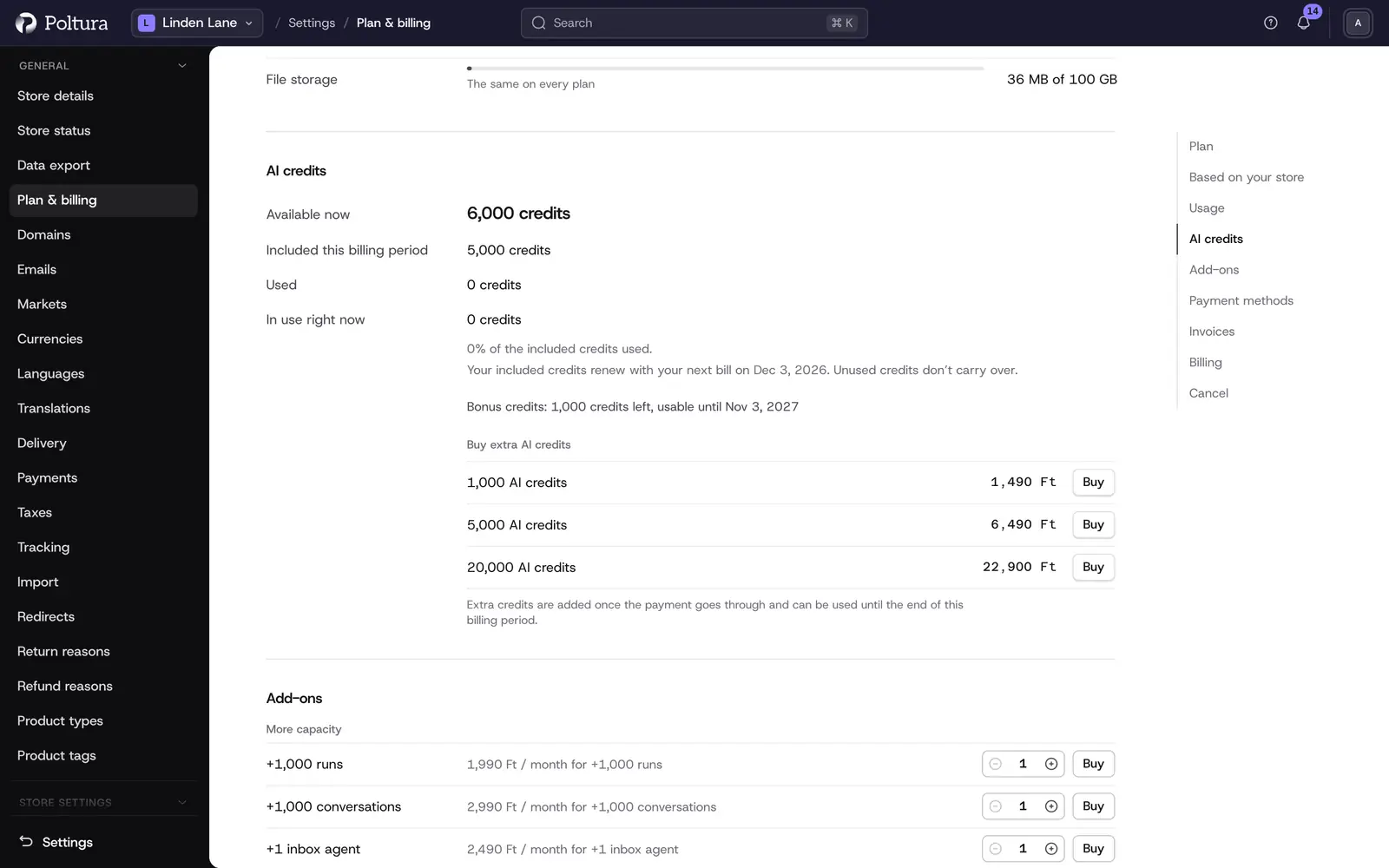
Available now is what you can still spend.
Under the figures, each kind of credit you hold is listed with what is left and, where it applies, the date until which it can be used.
- Included credits: part of your plan. They renew with every bill. Unused ones do not carry over.
- Extra credits you bought: credit packs you paid for. They stay usable until the date shown.
- Bonus credits: credits Poltura gave you as a bonus, for example in a promotion.
- Credits from Poltura: credits added to make up for a problem on our side.
Credits are spent in this order: included first, then bonus credits, then credits from Poltura, and your bought credits last.
Buy more AI credits
Open Settings and choose Plan & billing.
Go to the Add-ons section and find Buy extra AI credits.
Choose a pack.
Check the price and select Buy credits. Your bank may ask you to confirm the payment.
The credits are added a few seconds after the payment goes through, and the page shows them under Extra credits you bought.
When you run out while working, the message that tells you so has a Buy more AI credits button that takes you to the same place.
What happens when credits run low
- When 80% of your included credits are used, you get a notice in the admin and an email.
- When your included credits are used up, AI keeps working from your other credits.
- When everything is used, you see You've used all your AI credits for this billing period. New AI requests are blocked until your next billing date, unless you buy more credits or move to a bigger plan.
- There are no automatic overage charges. AI stops at your balance.
Good to know
- How many credits are included depends on your plan. The exact number is shown on the Plan & billing page. See Plan and billing.
- A store that is still private gets a one-time allowance of credits instead of a recurring one, and cannot buy packs until it is live. See Go live.
- Besides one-time packs, an add-on can raise your included credits with every bill until you cancel it. See Plan and billing.
- Buying credits needs permission to manage billing. If you do not have it, the page tells you to ask your billing admin.
- A single very long request stops at its own spending limit and asks you to send a follow-up to continue.
- The admin shows your balance, not the cost of each request, and there is no estimate before a job starts.
- AI replies in the Inbox are part of the Plus and Pro plans.
If something goes wrong
- "AI credits are paused while a payment is overdue." Pay the open invoice. Your extra credits are kept and become usable again. See Plan and billing.
- "Your plan doesn't include AI credits." Choose a plan that includes AI before buying extra credits.
- "Waiting for payment". The pack is added as soon as the payment arrives. If your bank needs a confirmation, select Finish payment.
- "AI credits can't be shown right now." Refresh the page in a moment.
- "A payment for this credit pack is still being processed." Wait until it has gone through, then try again.