Fraud detection checks every placed order. An AI score and your own rules give the order a risk score from 0 to 100. Orders with a low score pass on their own. Risky orders wait for your decision. The app suits any store that takes online payments and wants a human look at suspicious orders before goods leave.
Before you start
- The app comes installed on new stores.
- The AI check uses your store's AI credits. When credits run out or the AI is unavailable, the rules keep scoring orders and the review says why.
- To get risky orders in a chat with Approve and Refund buttons, set up the Telegram app as well. This is optional.
Set up fraud detection
Open App Store in the sidebar and choose Fraud detection.
If the app is not installed yet, select Install. See App Store.
Select Turn on. There is nothing to paste: no account or key is needed.
Open Fraud Detection in the Apps group of the sidebar. From now on every new order is screened and shows up in the numbers on this page.
Open Settings under Fraud Detection and review the thresholds, see Settings.
Read the dashboard
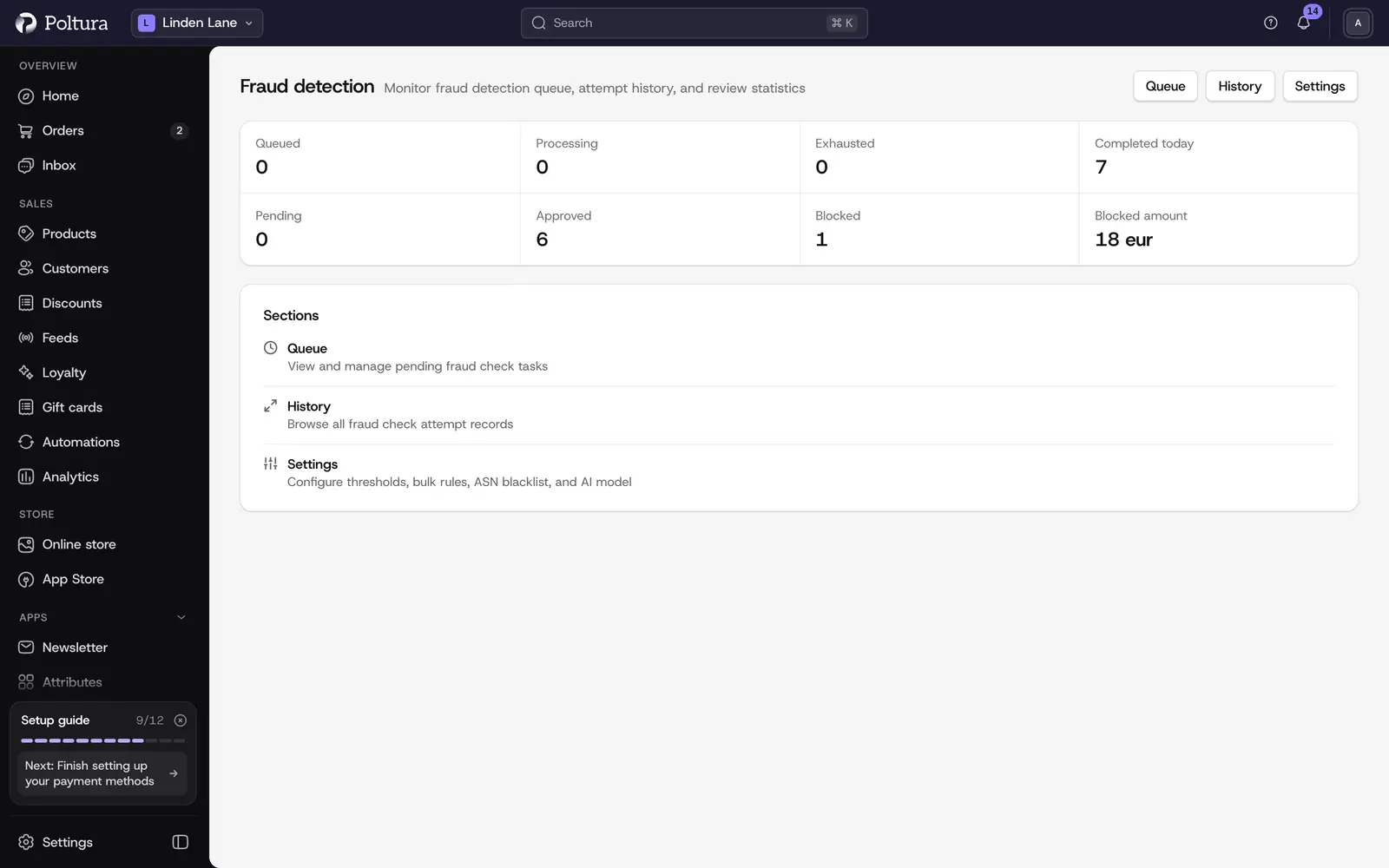
Fraud Detection opens on the dashboard. It shows eight numbers:
- Queued, Processing, Exhausted and Completed Today describe the checks themselves. Exhausted means a check failed on every attempt and needs your attention in the queue.
- Pending, Approved, Blocked and Blocked Amount describe the reviews: how many orders wait for a decision, how many were let through, how many were stopped and what they were worth.
The buttons Queue, History and Settings at the top open the other pages.
Decide on a risky order
A risky order waits as a pending review. You can decide in three places.
Open the order. The AI Fraud Review panel shows the Risk score out of 100, the Risk level (LOW RISK, MEDIUM RISK or HIGH RISK) and the Signals that led to it.
If you trust the order, select Allow Order. The panel status changes to Approved.
If you do not trust it, select Cancel and refund and confirm. The order is canceled, the payment is refunded and the panel status changes to Refunded. If the order already has a fulfillment, cancel the fulfillment first, see Payments and refunds.
A card payment is only reserved on the shopper's card for a limited time, set by the payment provider. While an order waits for your decision, its panel and the reminders show the date until which the payment can be collected. Decide before that date: afterwards, allowing the order may fail.
Fraud verdicts arrive in the notification bell with Approve and Refund buttons, and in Telegram too when you switch the fraud notifications on for it in your notification settings.
Work through the check queue
The Queue page lists the fraud check task of each order.
Open Fraud Detection and choose Queue.
Search by order number, or filter by status: Queued, Processing, Exhausted or Completed.
Read the row: Attempts, Next Retry and Last Error tell you whether the check is still trying.
Select Detail to open the task. The Attempt Timeline lists every attempt with its result.
Select Retry to run the check again. The message Task queued for retry confirms it.
From an order, View in Fraud Detection in the AI Fraud Review panel opens the queue filtered to that order.
Look up past checks
The History page lists every check attempt, newest first.
Open Fraud Detection and choose History.
Filter by order ID, or by status: Success or Failure.
Read the Score, Tier (Low, Medium, High), Duration and, for a failed attempt, the Error.
Settings
The app has no fields in the App Store. Its settings are on Fraud Detection → Settings. Select Save Changes after editing.
- Score Thresholds. Auto-approve threshold: an order at or below this score is approved on its own (30 to begin with). Auto-block threshold: an order at or above this score is high risk (70 to begin with).
- Bulk Quantity Rules. Large quantities add to the score. Under Global Defaults, Max quantity is the quantity above which the rule applies, Score addition the points added per item, and Max total delta cap the most points bulk rules can add to one order. With Add Bulk Rule you set a different Max Quantity and Score Addition for one product or one category. The most specific rule wins: product, then category, then the global default. Bulk rules never apply to wholesale tier members or company contacts, who buy in trade quantities by design.
- ASN Blacklist. Type a network number such as
AS12345and select Add. Orders from a listed network never score below 25. - Review timeout (minutes). How long a pending review waits before a low or medium risk order is approved. A high-risk order stays on hold for your decision.
- Auto-capture on fraud approval. Captures the payment when a review is approved. When it is off, you capture the payment yourself on the order page.
Good to know
- Trust signals, such as a returning customer or an old account, raise the approval threshold for that order. They do not hide risk signals.
- The location and network of the buyer's IP address are part of the score when that data is available. Checks continue without it otherwise.
If something goes wrong
- A task is "Exhausted". The check failed on every attempt. Open Detail, read Last Error, then select Retry.
- "Numeric fields must be whole numbers." A threshold or rule field holds a decimal or text.
- "Pick a product or category for the rule first." Search and select a target in Add Bulk Rule before you save the rule.
- No Telegram message arrives. Check that the fraud notifications are switched on for Telegram in your notification settings and that the Telegram app is set up with a staff chat.
- Allow Order does not go through. The payment could not be collected, for example because the card authorisation has lapsed. The order stays on hold and the panel shows the reason. Cancel the order and refund it, or contact the shopper to pay again.
- A good order is on hold. The review timeout passed while the order was high risk, so it waits for you. Select Allow Order in the order's panel.