The PayU app sends shoppers to PayU's secure page, where they pay by card, wallet or bank transfer. PayU serves Central Europe and settles in HUF, EUR, PLN, CZK, RON or BGN. So the app is for stores that sell in those currencies. It works on every plan.
Before you start
- You need a PayU merchant account with a POS (point of sale) in the currency you sell in. For testing, register a sandbox account at
https://secure.snd.payu.com/cp/registerand add a POS there. - From the PayU merchant panel you need four values of that POS: the POS ID, the OAuth client ID, the OAuth client secret and the second key (MD5).
- The sandbox and the production system are separate. Each has its own POS and its own credentials.
- One POS settles in one currency. The app is set up for one POS, so it takes payments in one currency.
Set up PayU
Open Apps → App Store, open PayU and select Install. Installing works the same for every app, see App Store.
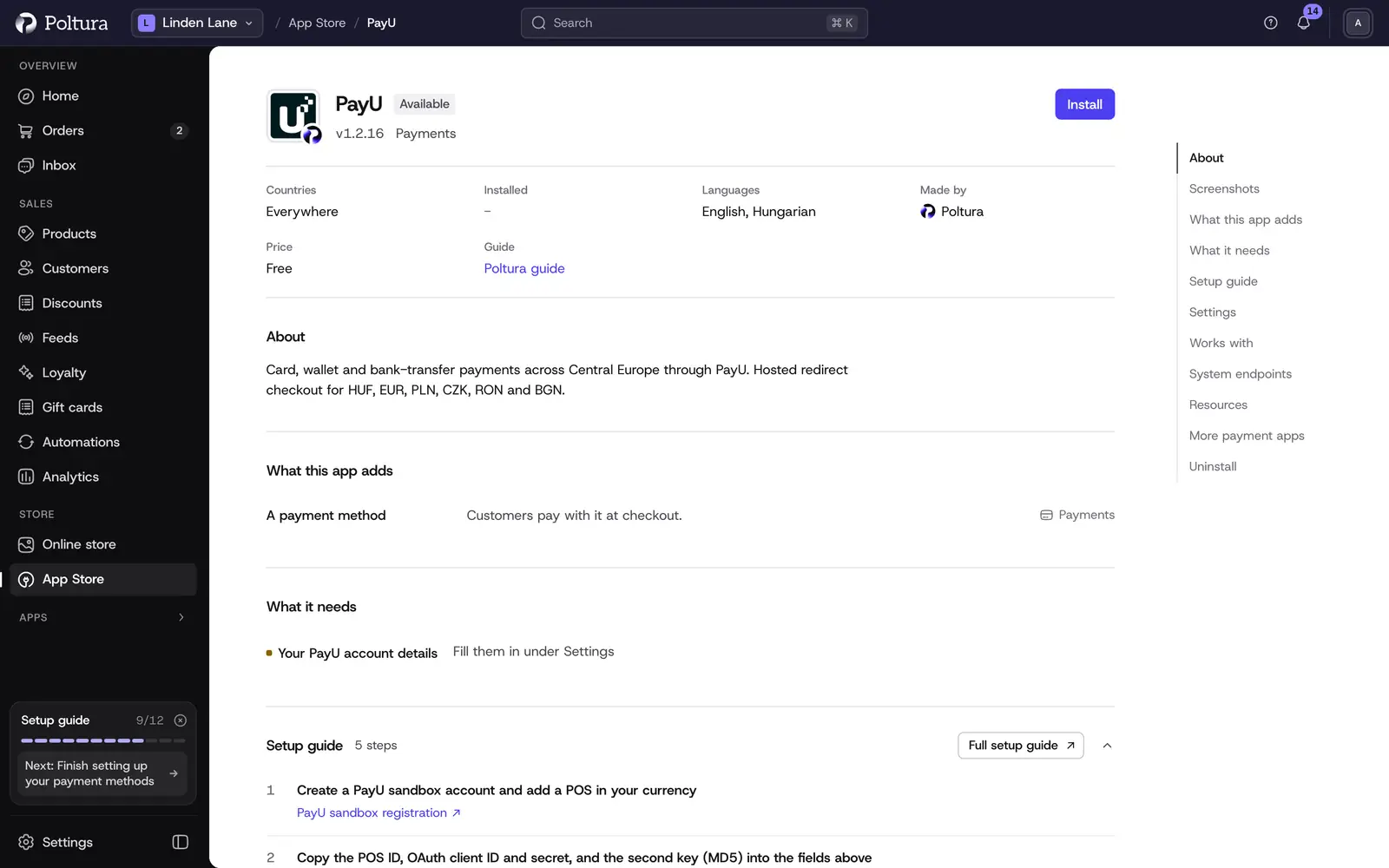
PayU in the App Store, before you install it. In the Settings section, enter the four values of your sandbox POS, choose the POS currency and leave Environment on
sandbox.Select Save in the save bar.
Select Check the credentials. The message The credentials work. confirms that PayU accepted the POS.
Select Turn on. The status of the app changes to Active.
Open Settings → Payments. PayU is listed under Payment methods with the status Ready.
Shoppers now see PayU at checkout in the currencies PayU charges, on every domain. Your POS takes its POS currency only, so check that your store sells in it under Currencies.
Place a test order and pay with the test card
4444333322221111, expiry12/29, CVV123.To go live, enter the values of your production POS, change Environment to
production, save and check the credentials again.
You do not have to enter a notification address in the PayU panel. It is sent with every order. The address is listed under System endpoints on the app page for reference only.
Settings
- POS ID (required): the identifier of your POS in the PayU merchant panel, for example
300746. - OAuth client ID (required): usually the same number as the POS ID.
- OAuth client secret (required): found in the merchant panel under your POS, in the OAuth protocol part. It is stored encrypted and is never shown again after you save it.
- Second key (MD5) (required): the key that proves a payment notification really comes from PayU. It is stored encrypted and is never shown again after you save it.
- POS currency (required): the settlement currency of this POS: HUF, EUR, PLN, CZK, RON or BGN. Carts in another currency are refused.
- Environment:
sandboxorproduction. New installs start onsandbox.
What shoppers see at checkout
The payment step lists PayU. After placing the order the shopper is taken to PayU's secure page. Which methods they find there (cards, BLIK, wallets, bank transfers) depends on how your POS is set up at PayU. When they come back, your store tells them whether the payment succeeded, failed, was canceled or is still being processed.
Day to day
- Whether a payment is charged at once or only held depends on the auto-receive setting of your POS at PayU. If payments are held, open the order and select Capture payment when you ship. See Payments and refunds.
- You can refund a captured payment in full or in part with Create Refund. See Refund an order.
- Canceling an order that was not captured cancels the payment at PayU.
If something goes wrong
- Payments succeed at PayU, but the order never completes. The Second key (MD5) is wrong, so your store rejects PayU's notifications. Enter the right key and save.
- The credential check says PayU rejected the credentials. Check the POS ID, the OAuth client ID and the client secret in the merchant panel, and that they belong to the system selected in Environment.
- PayU does not appear at checkout, or the payment is refused straight away. The cart is in another currency than the POS currency, and PayU refuses it. Shoppers paying in that currency need another payment method.
- The shopper is asked to check their address and phone number. PayU rejected or missed some order details. A complete billing address solves it.
- The shopper sees "Payment system configuration error." The credentials are no longer accepted. Check them again.