The Pepita app lists your products on the Pepita marketplace. Shoppers buy there, on Pepita itself. Pepita runs in Hungary, Romania, Slovakia, Germany, Austria, Poland, Bulgaria and Croatia. Each country is a feed of its own, with prices in that country's currency.
The app needs "Marketplaces with orders" on your plan, which Plus and Pro include. See Plan and billing. The app has no page of its own. You set it up in Feeds.
Before you start
- A seller account on Pepita, with your delivery fees set up in it. The feed sends no delivery cost: Pepita uses the fees in your Pepita account.
- Each Pepita country you want to sell in, added to one of your markets.
- A handling time for your store, so Pepita knows how many working days you need before you ship.
- Decide where you handle Pepita orders: in Poltura or in your Pepita admin.
Set up Pepita
Open the App Store, find Pepita and select Install. See App Store.
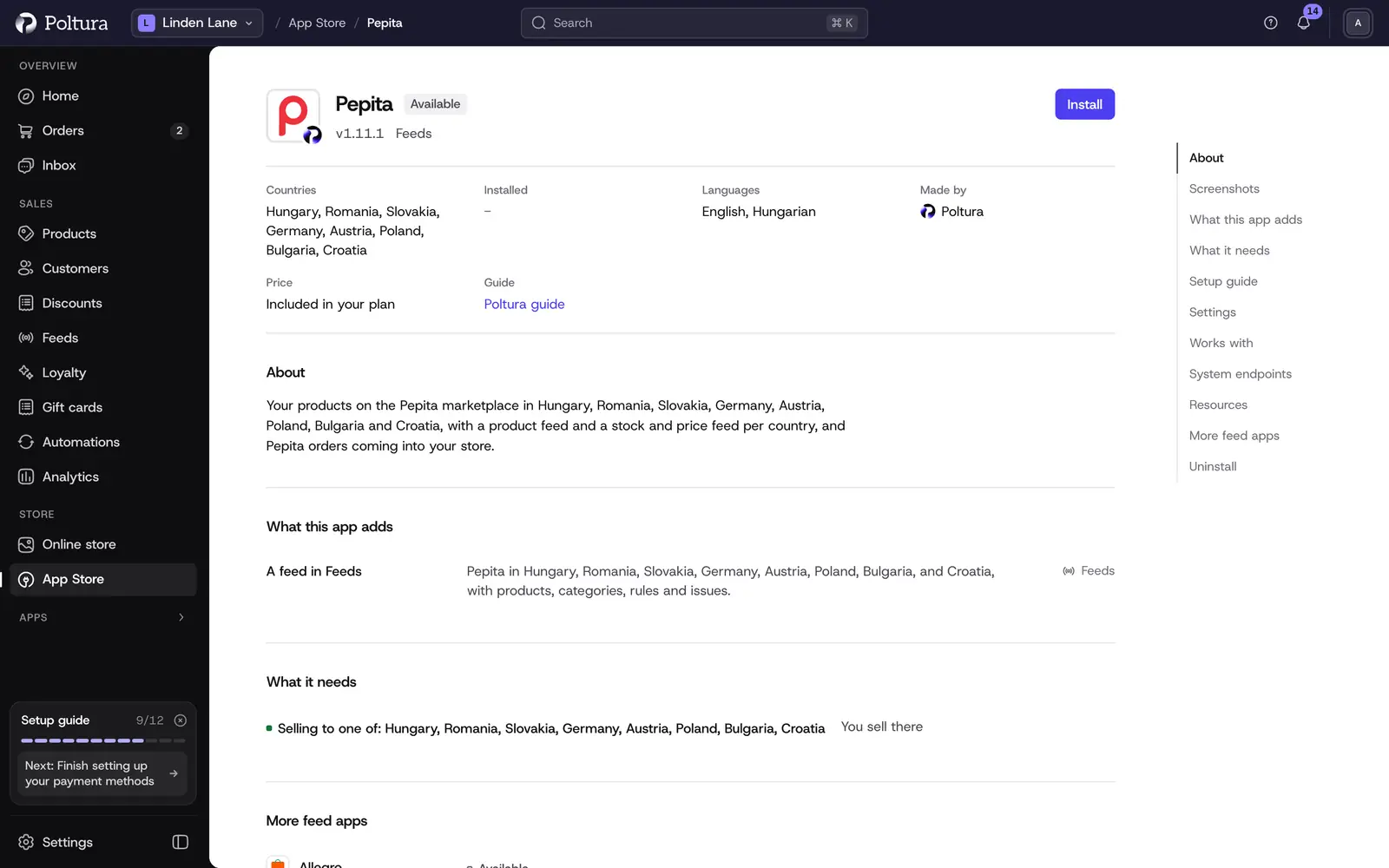
Pepita in the App Store, before you install it. Open Feeds, select Add feed and choose Pepita under Ready to set up.
On Market, choose the market of the Pepita country.
On What we send, go through the checklist: handling time, barcodes, delivery cost and orders. Then select Create the feed.
On Feed address, copy both addresses: the product feed and the Stock and price feed.
Email both addresses to seller.support@pepita.hu and name the country they are for, for example "Hungary (HUF)". Pepita does the technical setup itself.
Back in Poltura, select I have pasted it.
Repeat this for every Pepita country: each one reads its own feed. The general steps of a feed are in Add and set up a feed.
Pepita is a marketplace, so the price and stock you send may differ from your shop. You set this with Feed rules.
Settings
The feed's Settings tab has one section from the app, Orders.
- Receive Pepita orders in Poltura: Pepita sends each new order to your orders address and it becomes a normal order in Orders. Turned off, Poltura refuses the orders Pepita sends and you handle them in your Pepita admin.
- Orders address: copy it and email it to your Pepita contact or to seller.support@pepita.hu, and ask Pepita to forward your orders to it.
- Pepita delivery methods: pair your shipping methods with Pepita's: Pepita default delivery, GLS courier, GLS parcel locker, GLS XXL courier and MPL courier. A Pepita order arrives with the method you paired.
- Pepita payment methods: pair your payment methods with Cash on delivery, Bank transfer and Credit card.
Pepita takes no order statuses back. Close every order in your Pepita admin too. How a marketplace order looks in your store is described in Marketplace orders.
What shoppers see on your storefront
Nothing. The Pepita app adds no badge, script or text to your shop.
If something goes wrong
- Pepita has not downloaded the feed yet. The addresses only reach Pepita by email. Check that you sent both and named the country. The feed's Overview tab lists every download.
- Orders are not coming in. Check that Receive Pepita orders in Poltura is on, that Pepita has the Orders address, and that your plan includes "Marketplaces with orders". An order that could not be added is listed on the feed's Overview with its reason.
- Pre-order or backorder. Pepita only knows in stock or not, so the product shows as out of stock until it is back. Set the expected date on the product: Pepita gets it as the restock date.
- More than three options. Pepita tells variants apart by at most three properties, so the third and later options go to Pepita joined into one. Use at most three options to keep them apart.
- Photos or videos in the description. Pepita shows the description as text only. Add size charts and other pictures to the product photos instead.
Other problems are covered in Feed issues.