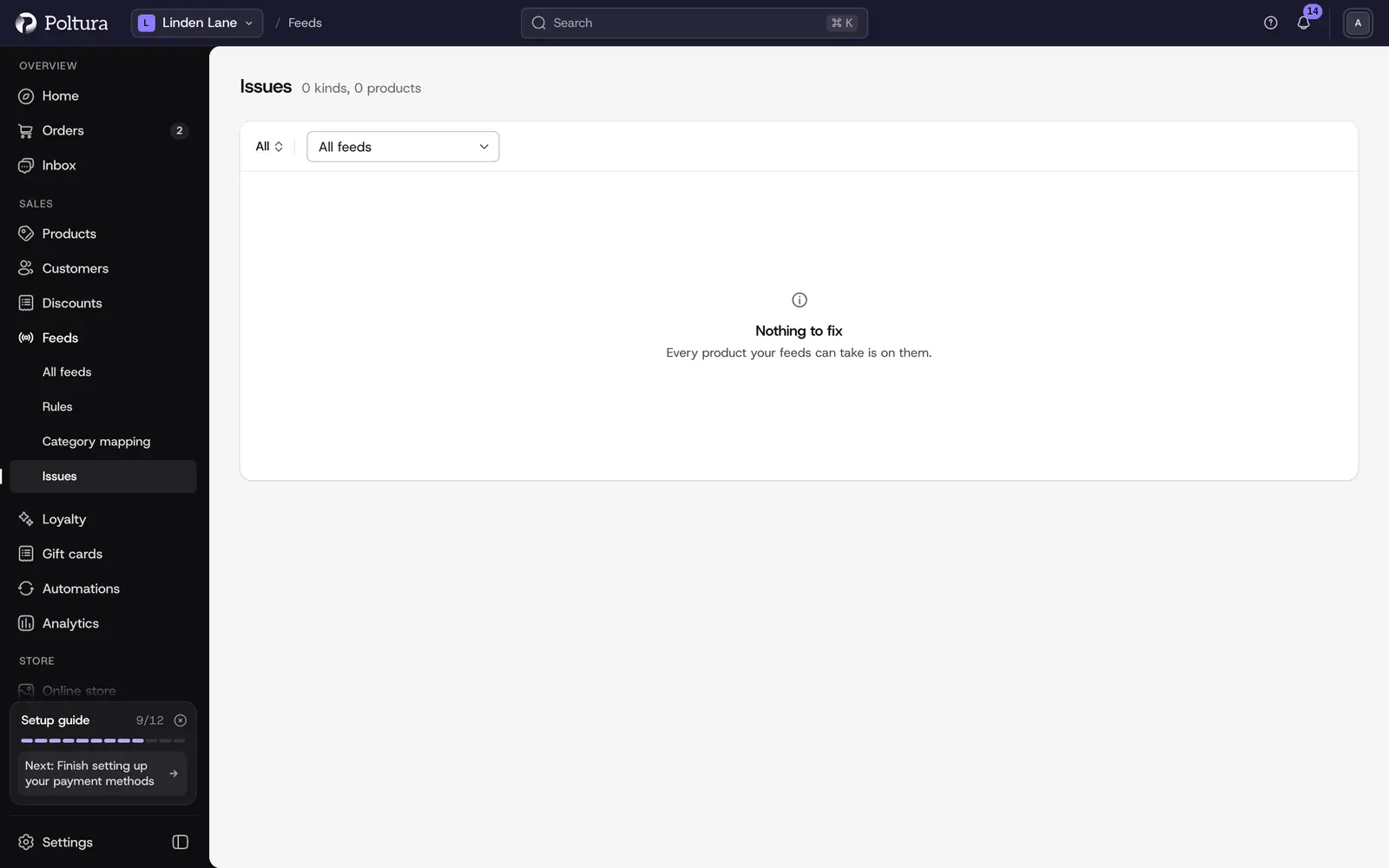
The Issues page collects every problem of every feed in one place. Problems are grouped by kind, for example a missing barcode on 38 products. So one fix often covers many products.
The three kinds of issue
The tabs on top filter the list.
- Keeps products off: the product is not live on the feed until this is fixed.
- Less reach: the product is live, but it shows in fewer places.
- Tips: nothing is lost, but the product could do better.
All shows everything. The header says how many kinds of issue there are and how many products they touch. Use the feed picker to switch from All feeds to a single feed.
Fix an issue
Open Feeds and choose Issues.
Click an issue to open it. What it means explains the problem and How to fix it says what to do. Chips on the issue name the feeds it affects.
Use the action the issue offers:
- Fix opens the exact place to change: the product, a store setting, the category mapping or the feed's translation.
- Fix all N in the product list opens the product list filtered to the affected products, so you can edit them together.
- For a missing brand, barcode or manufacturer part number, type the value right in the row of the product under Products with this issue. It is Saved as you type.
The fix takes effect with the next update of the feed. The issue then disappears from the list, or its product count drops.
Under each issue, Where to edit it names the place in the product, for example Product → Identifiers → Barcode (EAN).
When a connected site refuses a product, the issue quotes what the site said.
Find out why one product is not live
The Issues page works from the problem to the products. To start from one product instead:
Open the feed and choose the Products tab.
Filter with Needs a fix or Left out by a rule.
Click the product. Why is this product not live? shows the step that stopped it.
The same panel opens from the product page with See why on the Feeds card. See choosing which products a feed sends.
Common issues
- No barcode, or the barcode is not valid. Type the number printed under the barcode, or tick No barcode for products made without one. Without a barcode, comparison sites pair the product more slowly and some placements leave it out.
- Category not matched. The product is sent with your own category name. Match the category in Category mapping.
- Not translated to a language. The product has no text in the language of the feed's market. On the feed's page, click Translate now to translate the products (the cost in AI credits is beside it), or See the products to look at them first. If the language is not one of your store's languages yet, add it under Settings → Languages first. See Translate for a feed.
- No delivery cost or delivery time. These come from your shipping options and dispatch time. The issue links to the setting, see Delivery.
- A required marketplace field is missing. Fill in the fields of the category, see Category mapping.
Good to know
- A feed's Overview tab shows the same issues for that feed alone under To fix, and All issues leads here.
- An issue left out by a rule on purpose is not a problem to fix. Products you leave out with feed rules are counted as left out, not as needing a fix.
- A new feed can go live while some products still need a fix. They join the feed as soon as they are fixed.
- Two alerts watch every feed without you opening this page: one when a feed stops updating and one when it suddenly lists far fewer products. See Notifications and alerts.
If something goes wrong
- "Nothing to fix" although a product is missing on the site. The product was probably left out by a rule or by hand, or it is not published or not for sale in the feed's market. Open it on the feed's Products tab to see the step that stopped it.
- You fixed a product but the issue is still listed. The feed checks products with its next update. Open the feed and use More actions → Update now.
- "The products could not be loaded." Click Try again.
- "Your store takes only its listed brands, and this is not one of them." The brand you typed is not on your store's brand list. Pick one of the listed brands.
- "That does not look right. Check it and save again." The value fails the check, for example a barcode with a wrong digit. Compare it with the number on the product.