You add one feed per site and market. The setup walks you through a few short steps and tells you what is still missing in your store before the feed can go live.
Before you start
- The site's app must be installed. Each site has its own page with what to prepare in your account there: Árukereső, Árgép, Olcsóbbat, Heureka, Google, Facebook & Instagram, Pepita, eMAG, Allegro.
- Your store must sell to the country the feed is for. See Markets.
- Your plan needs a free feed place. Paused feeds do not count, so pausing one frees a place.
Add a feed
Open Feeds and click Add feed.
Under Ready to set up, find the site and click Set up. Sites whose app is not installed yet are listed under More in the App Store with Install.
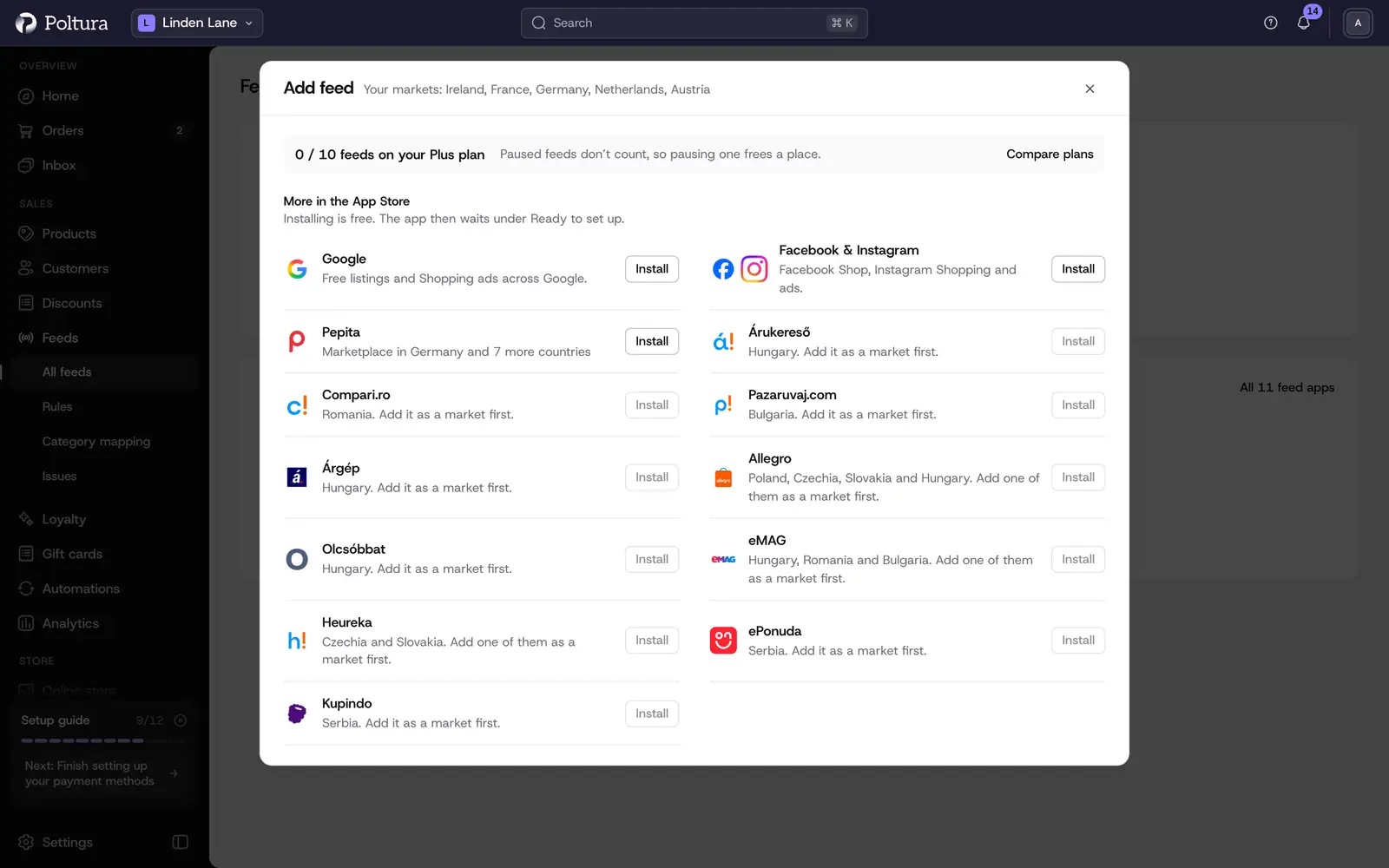
The top line shows how many feed places your plan has left. On the Market step, pick the market the feed is for and click Continue. A market that already has a feed for this site is marked.
On the Connect step, click the connect button and sign in to your account on the site. You see this step only for sites Poltura connects to.
On the Details step, fill in the fields from your account on the site. You see this step only when the site needs something before going live.
On the What we send step, check the list. Each open item links to the place where you fix it. Then click Create the feed, or Go live for a connected feed. The button waits until every item marked To do is done.
On the Feed address step, copy the address, follow Where to paste it, and click I have pasted it. You see this step only for feed addresses. Choose I will do it later if you want to come back to it.
On the Done step, turn on any extras the app offers, then click Go to the feed. You now see the feed's Overview tab.
Items on the list are To do (they block going live), Worth a look or Optional. Delivery cost and delivery time come from your delivery settings, so there is nothing to type for them in the feed.
If you leave the setup early, the feed's card on the Feeds page shows Finish setup.
Read the Overview tab
Until the feed is live, Overview shows the checklist Before it goes live. Afterwards it shows:
- the Live and Not live product counts, and how many were left out by your rules or need a fix;
- To fix, the issues of this feed, with All issues leading to Feed issues;
- the Feed address with Copy, Last updated, Next download and the list of downloads by the site;
- for a connected feed, when products were last sent and whether the account is still connected.
More actions → Update now rebuilds the feed at once.
Choose which products the feed sends
The Products tab lists every product with its status on the site. Filter with Live, Not live, Left out by a rule, Needs a fix and Chosen by you, or search by name.
Open the feed and choose the Products tab.
Click Select and tick the products.
Click Include or Leave out.
The products show Included by you or Left out by you. The change takes effect with the next update.
Your choice wins over every rule. Let the rules decide undoes it.
Click a product to open Why is this product not live?. It walks through five steps in order: Published, For sale in the market, Your rules, Checks for the site and Sent to the site, and shows the step that stopped the product. From there you can use Edit rule, Include this product anyway or Leave this product out.
The feed's other two tabs have their own pages: Feed rules and Category mapping.
Change a feed's settings
The Settings tab holds:
- Market: the market the prices, language and shipping come from.
- The site's own settings from its app. They are described on the site's app page.
- How products reach the site: Feed address or Connected, where the site offers both. Rules, categories and settings stay when you switch.
- Feed address with New address. The old address stops working, so paste the new one into your account on the site.
- On your storefront: the Partner badges, Page scripts and Privacy notice paragraphs the site adds to your shop while the feed is live. Arrange badges in the customizer opens the Customizer.
Click Save settings after a change. If someone else saved the settings while you edited them, nothing is overwritten: you choose Merge, Keep mine or Take theirs.
Pause, resume or delete a feed
Open the feed.
Click Pause and confirm with Pause. The site takes your products down at its next download, and the feed no longer counts toward your plan.
Click Resume when you want the site to get your products again.
A feed whose products are still on a connected site shows "Being removed" until the site has taken them down.
If something goes wrong
- Every site shows "Upgrade to add". Every feed place on your plan is taken. Pause a feed, or see Plan and billing.
- A site says "Add it as a market first". Your store does not sell in a country the site serves. Add the country to one of your markets.
- The button on "What we send" stays inactive. An item marked To do is still open. Follow its link, fix it, and come back.
- The site has not downloaded your feed yet. Check that the address is pasted in your account on the site without a typo. Opening the address in your own browser does not count as a download by the site.
- The feed address answers that the feed is gone. The feed is paused or was deleted, or the address was replaced. Resume the feed or copy the current address from Overview.