The eMAG app lists your products on eMAG Marketplace in Hungary, Romania and Bulgaria. Each country has its own eMAG Seller Center and is a feed of its own. eMAG is a marketplace, so the price and stock you send may differ from your shop.
The app needs "Marketplaces with orders" on your plan. Plus and Pro include it (see Plan and billing). The app has no page of its own. You set it up in Feeds. There are two ways to reach eMAG:
- Feed address: eMAG Seller Center downloads two files from your store. This works without orders.
- Connected: Poltura sends products, prices and stock to eMAG within minutes, shows eMAG's verdicts as issues and brings eMAG orders into your store.
Before you start
- A seller account in the eMAG Seller Center of the country: marketplace.emag.hu, marketplace.emag.ro or marketplace.emag.bg.
- That country in one of your markets.
- If you already sell on eMAG, your highest product ID there.
- For the connected way: a Seller Center user with API rights, and access to My account › Technical details in Seller Center.
Set up eMAG
With feed addresses
Open the App Store, find eMAG and select Install. See App Store.
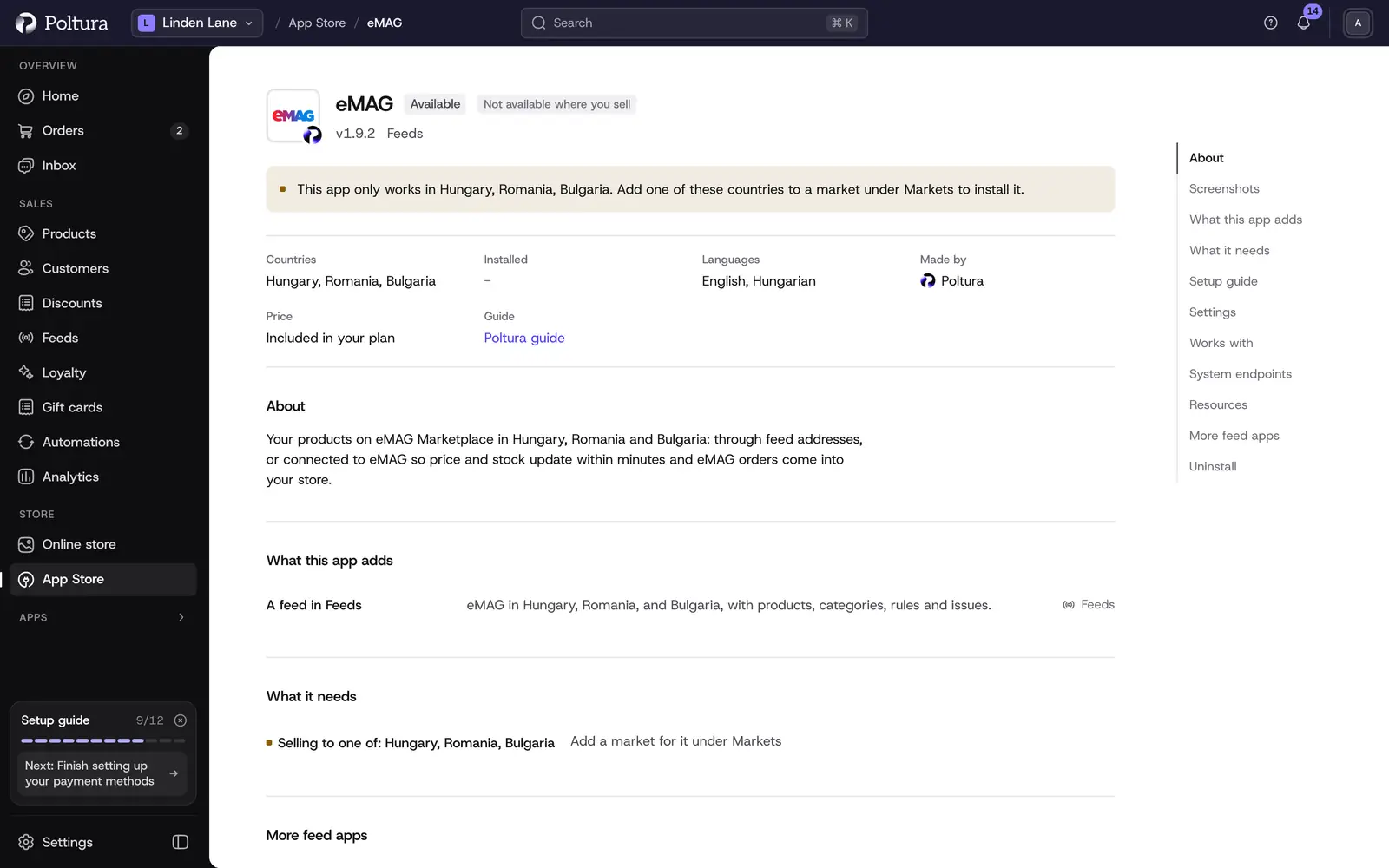
The app adds a feed in Feeds and needs you to sell to one of these countries. Open Feeds, select Add feed and choose eMAG under Ready to set up. Choose the market on Market.
On Details, enter the First eMAG product ID: a number above your highest product ID on eMAG if you already sell there, otherwise 1.
On What we send, go through the checklist, then select Create the feed and copy the feed address.
In Seller Center open Termékek › Feedek (Romania and Bulgaria: Products › Feeds) and select Új Feed (Add feed).
Choose XML as the feed type and Termék közzététel (Publish products) as the model, paste the address and select Engedélyezés (Validate).
Pair the fields as the setup screen in Poltura lists them, then match your categories in Kategóriatársítás (Categories mapping).
Set the run times at least 6 hours apart and save.
Once eMAG has validated your products, add a second feed with the model Ajánlat frissítése (Update offers) and the Price and stock updates address. It keeps price and stock current.
One eMAG feed takes at most 150 categories, 100 000 products and a 100 MB file. The checklist warns when you are over.
Connected, with orders
Add the feed as above and choose Connected as the way products reach eMAG.
Enter the API user and API password of a Seller Center user with API rights.
In Seller Center open My account › Technical details and add each address listed under Poltura’s addresses for your allowlist with Add new IP address.
Copy the Orders address into Seller Center as the callback address for new orders and order cancellations.
Select Test connection, then Go live.
The general steps of a feed are in Add and set up a feed.
Settings
You find these on the feed's Settings tab.
Offer details
- First eMAG product ID: Poltura numbers your products for eMAG from this ID up. Changing it later gives every product a new eMAG product ID, and the old ones stay in Seller Center until you deactivate them there.
- Warranty in months: goes on every product. eMAG asks for it in many categories. Enter 0 for no warranty.
- Stock for products without stock tracking: eMAG needs a quantity for every product. It is 0 unless you set it, so such products cannot be bought on eMAG. Enter only a quantity you can always supply.
eMAG connection
Shown only while the feed is connected.
- API user and API password: the login of the eMAG user with API rights.
- Take over my offers already on eMAG: Poltura reads the offers you already have on eMAG and matches them to your products by barcode, then by part number. Turned on, it updates those offers instead of listing the products again.
- Poltura’s addresses for your allowlist: eMAG refuses calls from any other address.
- Orders address: where eMAG sends new orders and cancellations.
Orders and handling
Shown only while the feed is connected.
- Handling time on eMAG, in days: leave empty to use each product's own handling time. eMAG takes only the values on its own list, so Poltura rounds up to the nearest one.
- Phone for eMAG’s courier: the courier calls this number when collecting parcels booked through eMAG. 8 to 11 digits.
- Shipping for eMAG orders: pair your shipping methods with Home delivery and Locker.
- Payment for eMAG orders: pair your payment methods with Cash on delivery, Bank transfer and Card online.
On a connected feed you can also turn on Book parcels with eMAG. Fulfilling an eMAG order then books its parcel with eMAG's courier. It is off by default, because a booking costs money.
What shoppers see on your storefront
Nothing. The eMAG app adds no badge, script or text to your shop.
If something goes wrong
- eMAG refuses Poltura’s calls. The user has no API rights, or one of Poltura's addresses is missing from your allowlist. The checklist also warns when Poltura's addresses change.
- eMAG does not accept the user or password. Check the API user and API password on the feed's Settings tab.
- Sent as a draft: no eMAG category. On a connected feed a product goes to eMAG with the category matched in Category mapping. Without one it is only a draft that eMAG does not review.
- Stock not tracked, sent as 0. Track the stock of the product, or set Stock for products without stock tracking.
- Products are not published from a feed address. In Seller Center only the categories of your eMAG contract can be chosen, and products in categories you leave unmatched are not published.
- eMAG switched the feed off. Runs came sooner than 6 hours after the previous one. Set them further apart in Seller Center.
- Orders are not coming in. Check the callback address in Seller Center and your plan. See Marketplace orders.
Other problems are covered in Feed issues.