Sites sort products into their own category lists. When you match your categories to a site's list, your products land where shoppers look for them. On some marketplaces a product cannot be listed without it. You match each category once per site, and every product in it follows.
Before you start
- Your products must be in categories. Products are matched through their categories.
- You need at least one feed for a site that has a category list. Some sites take your own category names as they are, and then there is nothing to match. The page says so.
- A marketplace that shows its categories per seller account needs a finished feed first.
Match a category
Open Feeds and choose Category mapping. From a feed, the Categories tab opens the same page for that feed's site.
If you have feeds for several sites, pick the site's list under Category list.
If the list is not loaded yet, click Load the list.
On the row of your category, click Choose a category, search the site's list and pick one.
For a category with subcategories, choose Use for N subcategories or Only for this category.
The row now shows the site's category, and the meter on top moves.
Change picks another category. Remove match removes it, and products in that category go out with your own category name until you match it again.
Use Show to switch between All categories and Not matched. Where a site has its list in several languages, Category names in changes the language you read it in.
Accept suggestions
Poltura suggests a site category for unmatched categories. A suggestion shows as Suggested on the row, and nothing is applied until you accept it.
Click Suggest with AI to get suggestions for the categories that have none yet.
On a row, click Accept to take the suggestion, or Choose another to pick a category yourself.
To take the confident suggestions in one go, click Accept N suggestions.
The accepted rows show the site's category.
Read the coverage meter
The meter shows the share of products in a matched category, for example "82% matched" and "410 of 500 products". Products in a matched category go out with the site's own category. The others go out with your category names, which the site may sort by hand.
Give one product another category
When one product does not fit its category's match, change it for that product only.
Open the product and find the Feed categories card. It shows where the product lands on each site: from its category, set for this product, or Not matched yet.
Click Change for this product and pick the site's category.
The card shows Set for this product.
Use the category's match undoes it. See also Edit a product.
Fill in the fields a marketplace asks for
Some marketplaces ask for details per category, such as size or material.
Match the category first.
Click Fields on its row. The panel Fields for the category opens, with each field marked Required or Optional.
For each field, choose under Comes from where the value comes from: The same value for every product, one of your product details, one of your variant options, or Not set.
Click Save fields.
A product that misses a required field shows it as an issue on that feed. Product details are your attributes, variant options are described in Variants and options.
Good to know
- Subcategories that follow a parent show Same as the parent's name. Match a subcategory yourself to give it its own category.
- The match belongs to the site's list, so feeds for the same site in different markets share it.
- A row marked Left out by a rule anyway holds products a feed rule leaves out, so matching it changes nothing for now.
If something goes wrong
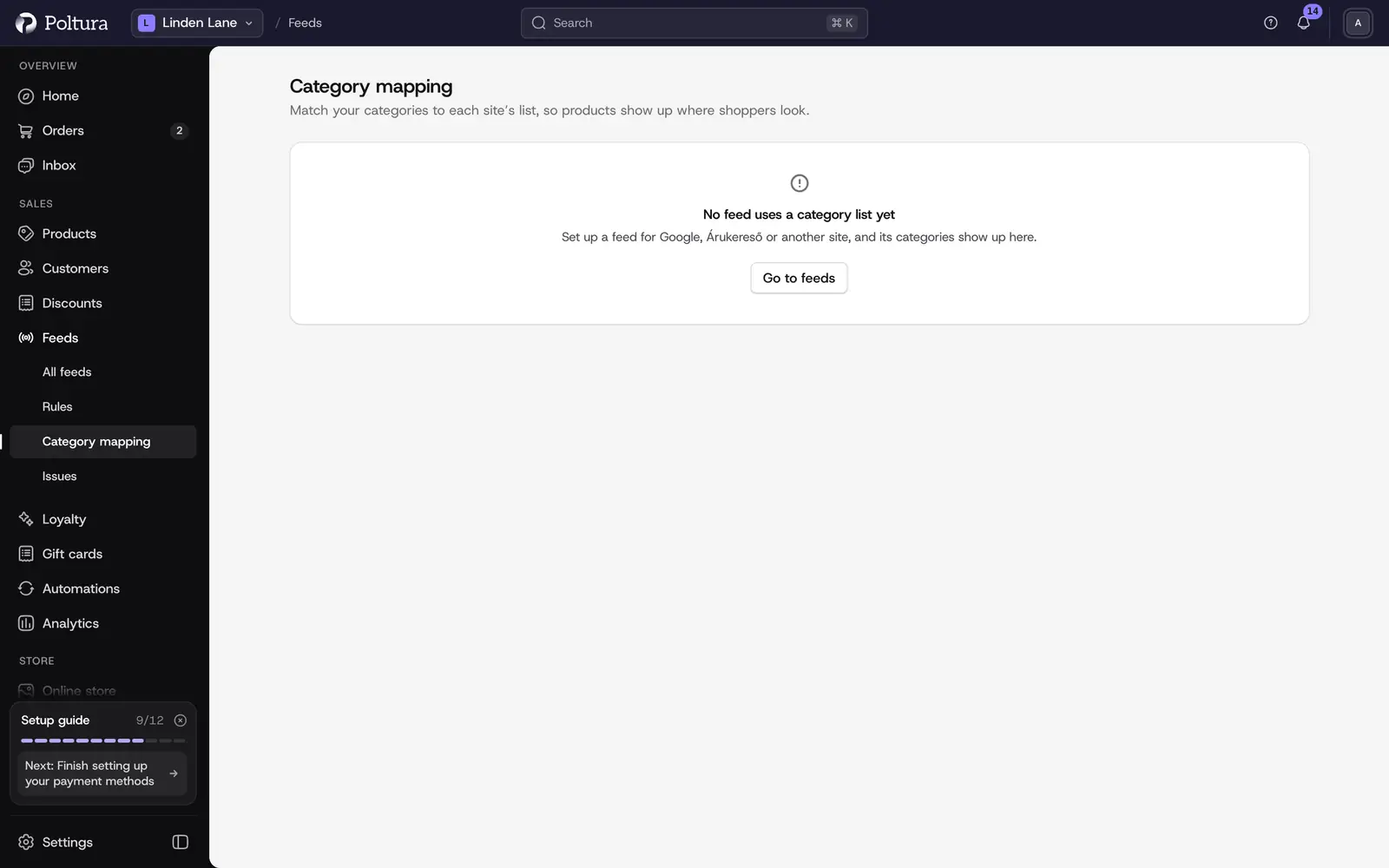
- "No feed uses a category list yet". None of your feeds is for a site with its own list. Set up a feed first, see Add and set up a feed.
- "The category list could not be loaded". The site did not answer. Try again in a few minutes.
- A row says "No longer on the site's list. Choose again." The site removed that category. Pick a new one.
- The site now lists a different number of categories. Click Use the new list. Until then you keep matching to the old one.
- "AI suggestions are not available right now". Match by hand with Choose a category, or try again later.
- You cannot load a list or change a match. Your role may only read feeds. Ask someone who may change feeds, see People and roles.